Installation
Video
Guide
Terminux 0.1.0 Installation Guide
Contents
- Platform support
- Prerequisites
- Find your Qt root
- Quick path
- Using this guide with the video
- S01-intro — What this lesson covers
- S02-prereqs — Prepare the runtime and locate your Qt root
- S03-identify — Verify the archive identity
- S04-extract — Extract the archive
- S05-install — Install Terminux for your user
- S06-check — Check the installed version and the Qt pairing
- S07-launch — Start Terminux and choose the interface language
- S08-verify — Verify the Terminux terminal
- Troubleshooting quick reference
- Appendix A — Optional: a shorter launch command (PATH)
- Appendix B — Shell integration and tool wrappers
- Appendix C — tcsh / csh users
- Appendix D — EDA tools, flows and DQE
- Appendix E — AI / LLM providers
- Appendix F — Uninstall (reference only, not run in this lesson)
- Appendix G — Platform and operation limits
Who this guide is for. Engineers (for example IC design or CAD engineers) installing the Terminux 0.1.0 portable package on their own Linux account for the first time.
What you will have at the end. Terminux installed in your home directory without sudo, its pairing with Qt checked, the Terminux window open in English, and its built-in terminal running an ordinary shell command.
What this guide does not prove. It does not verify EDA tools, tool wrappers, DQE data, AI/LLM providers or any signoff flow. A working echo in S08 shows only that the built-in terminal works.
Two different terminals. The system terminal is your desktop's normal terminal application running Bash. The Terminux terminal is the terminal area inside the Terminux window. Every step says which one to use.
Platform support
| Platform | Status for this version |
|---|---|
| Ubuntu 24.04 x86_64, Bash, X11 (Xorg) desktop session | Tested in the capture: Ubuntu 24.04.5, glibc 2.39, Xorg/XFCE desktop |
| RHEL / Rocky / AlmaLinux 9, CentOS Stream 9 (x86_64) | Listed by the installer documentation; not tested for this version |
| Other Linux distributions, native Wayland sessions, remote displays | Not verified |
| macOS, Windows, CPUs other than x86_64 | Not supported by this package; the installer stops on non-x86_64 systems |
Minimum CPU, memory and installation time have not been measured. The capture used a 4 vCPU / 8 GiB virtual machine; that is not a stated minimum.
Prerequisites
The basic installation needs only the items in this table. Ask your administrator or CAD/IT team for anything marked Administrator.
| Requirement | Details | Usually provided by |
|---|---|---|
| Ubuntu 24.04 x86_64 | glibc 2.34 or newer and a system libstdc++ that provides GLIBCXX_3.4.29. The installer checks both and stops if either is missing. |
System |
| A normal user account | A writable home directory and enough free space. Install and launch with the same account. sudo is not needed and not recommended. |
You |
| Bash in the system terminal | The steps use Bash syntax such as echo $? and read. |
System |
| Standard tools | tar, gzip, sha256sum, ls, grep, readlink (present on a standard Ubuntu desktop). |
System |
| External Qt 6.7.3 | Not included in the package. A Qt 6 Desktop gcc 64-bit installation with its libraries, QML modules and the xcb and offscreen platform plugins. The installer source accepts Qt 6.x from 6.7.0, but only 6.7.3 was tested. |
Administrator |
| X11/xcb, OpenGL/EGL and GSSAPI system libraries | See the example packages below. | Administrator |
| A graphical login session | A real desktop session for the same user on the machine that runs Terminux. | You / Administrator |
| Fonts | Fonts able to display the text you need. The capture used Noto fonts, including CJK fonts. | Administrator |
| Free disk space | The installer calculates what it needs and stops with the required and available byte counts if space is short. | You |
Already bundled — do not install separately: Python 3.12 (3.12.14 in the tested package) and the base Python dependencies, installed offline from the package. You do not need pip, uv, a compiler or CMake.
Not needed for the basic installation: EDA tools, tool wrappers, tcsh setup, AI/LLM providers or API keys, or a project ID. See the appendices.
Example Ubuntu 24.04 packages for X11/xcb, OpenGL/EGL and GSSAPI. These come from the installer documentation and the recorded setup. They are examples, not a proven minimal list; if anything is missing, the installer and the Qt checker name the exact library file (SONAME).
| Purpose | Ubuntu 24.04 package examples |
|---|---|
| xcb cursor | libxcb-cursor0 |
| xcb utility, ICCCM, image, keysyms, render-util | libxcb-util1, libxcb-icccm4, libxcb-image0, libxcb-keysyms1, libxcb-render-util0 |
| XKB, X11, xcb | libxkbcommon0, libxkbcommon-x11-0, libx11-6, libx11-xcb1, libxcb1 |
| OpenGL / EGL | libegl1, libgl1, libglx0, libopengl0 |
| GSSAPI | libgssapi-krb5-2 |
Find your Qt root
Terminux needs the path of your Qt root: the folder that directly contains lib/, qml/ and plugins/ (and lib/cmake/Qt6/).
- In a Qt SDK desktop installation this is usually the compiler folder below the version folder, for example a path ending in
/6.7.3/gcc_64(this shape follows the installer documentation). - It is not the
bin/folder inside it, and not a parent folder that only contains version or compiler folders. - Your administrator may have installed Qt anywhere. Ask for the exact path if you are unsure.
- On the recording machine the Qt root was
/opt/qt673. That path is specific to that machine; it is not a default and may not exist on yours.
S02 shows how to store and check your Qt root before you install.
Quick path
For readers who already know the background, the whole lesson in seven steps:
- S02 — Store your Qt root in
QT_ROOTand check its structure and version. - S03 — Verify the archive checksum. STOP if you have no trusted reference.
- S04 — Extract the archive and enter
terminux-0.1.0. - S05 — Run the installer with
--qt-dir "$QT_ROOT" --yes;echo $?must print0. - S06 —
readlinkprints0.1.0; the Qt checker passes;echo $?prints0. - S07 — Start
~/.local/bin/terminux. If the interface is in Chinese: Language → English, close the window, start it again. - S08 — In the Terminux terminal,
echo hello-terminuxprintshello-terminuxon its own line.
Using this guide with the video
The video and guide follow S01–S08. Verify the archive as described in S03 before installation.
S01-intro — What this lesson covers
Video: R1.1 S01-intro 0:00.0–0:12.2
Purpose
Understand the outcome and the limits before you begin: a user-level installation from the prebuilt package, a Qt check, the first launch, and one ordinary command in the Terminux terminal.
Before you start
Read Platform support and Prerequisites above. If your system does not match the tested platform, the steps may still work but are not verified.
Terminal
None in this section. S02–S06 and the S07 launch use the system terminal; the S07 language selection and S08 use the Terminux terminal.
Working directory
Not applicable.
Steps
Read S02–S08 once before running anything, and keep one system terminal window open for S02–S06.
The lesson is complete when S08 shows hello-terminux on its own output line. Building from source, EDA flows and AI providers are separate topics (see the appendices).
Expected result
The outcome is a working GUI terminal; this lesson does not verify EDA or AI workflows.
Success check
Verify the installation, Qt pairing, GUI and independent command output in S05–S08.
Troubleshooting
If you need a source build, an EDA flow or an AI provider, finish this basic installation first, then use the appendices and the corresponding product documentation. Do not change the S02–S08 steps for those needs.
S02-prereqs — Prepare the runtime and locate your Qt root
Video: R1.1 S02-prereqs 0:12.2–0:28.1
Purpose
Terminux needs an external Qt and some system graphics libraries that are not in the package. Confirm your Qt root now so that the installer does not stop halfway.
Before you start
The Prerequisites are in place, or your administrator has confirmed them.
You know where Qt 6.7.3 is installed, or can find out (see Find your Qt root).
Terminal
System terminal (Bash), opened inside your graphical desktop session.
Working directory
Any directory.
Steps
- Store your Qt root in the shell variable
QT_ROOT. When prompted, type the absolute path (starting with/) and press Enter. A leading~is not expanded at this prompt.
read -r -p 'Qt root directory: ' QT_ROOT
- Check that the folder has the structure Terminux needs and that it is a Qt 6.7 or newer installation:
ls -d "$QT_ROOT/lib" "$QT_ROOT/qml" "$QT_ROOT/plugins" "$QT_ROOT/lib/cmake/Qt6"
grep -h 'set(PACKAGE_VERSION "[0-9]' "$QT_ROOT"/lib/cmake/Qt6/Qt6ConfigVersion*.cmake
- Keep this terminal window open. S05 uses
$QT_ROOT; if you open a new terminal later, repeat step 1 there.
What success looks like. ls -d prints the four paths back without any error. grep prints one line such as set(PACKAGE_VERSION "6.7.3"), where the number is your Qt version. These outputs come from your own machine; the helper commands were checked against a local Qt 6.7.3 SDK while writing this guide but are not part of the recording.
No Terminux step needs sudo. Installing Qt or system packages is a separate administrative task that happens before this lesson; this guide does not give Qt download links or Qt installation steps.
Parameters
read -r -p '…' QT_ROOT shows a prompt and stores your answer in the variable QT_ROOT of this shell only; -r keeps backslashes as typed.
ls -d lists the named folders themselves rather than their contents. Any No such file or directory means the path is not a usable Qt root.
grep -h 'set(PACKAGE_VERSION "[0-9]' … reads the version from the same Qt CMake files that the Terminux Qt checker reads.
The tested version is Qt 6.7.3. The installer source accepts Qt 6.x from 6.7.0, but no other version was tested for this version.
Expected result
Your Qt root contains lib, qml, plugins and lib/cmake/Qt6 and reports a Qt 6 version of at least 6.7.0 (tested: 6.7.3). The recorded environment was Ubuntu 24.04 x86_64 with Qt 6.7.3 at /opt/qt673; that path is capture-specific.
Success check
Use S05/S06 for dependency checks and S07 for actual display; offscreen checks do not establish display readiness.
Troubleshooting
ls: cannot access …/lib/cmake/Qt6 (or …/qml): you probably chose a parent folder (one that contains 6.7.3/ or gcc_64/) or a bin/ folder. Move to the folder that contains lib/, qml/ and plugins/ and repeat steps 1–2.
The path starts with ~: repeat step 1 and type the full path; echo $HOME shows what ~ stands for.
grep prints nothing, or a version older than 6.7.0 (for example 6.2.4): this is not a suitable Qt; ask your administrator for a Qt 6.7.3 installation.
Missing system libraries are reported later by the installer or the Qt checker with the exact library name. Ask your administrator to install the package that provides it. Do not set LD_LIBRARY_PATH, QT_PLUGIN_PATH or QML2_IMPORT_PATH; Terminux finds Qt through its own installed configuration.
S03-identify — Verify the archive identity
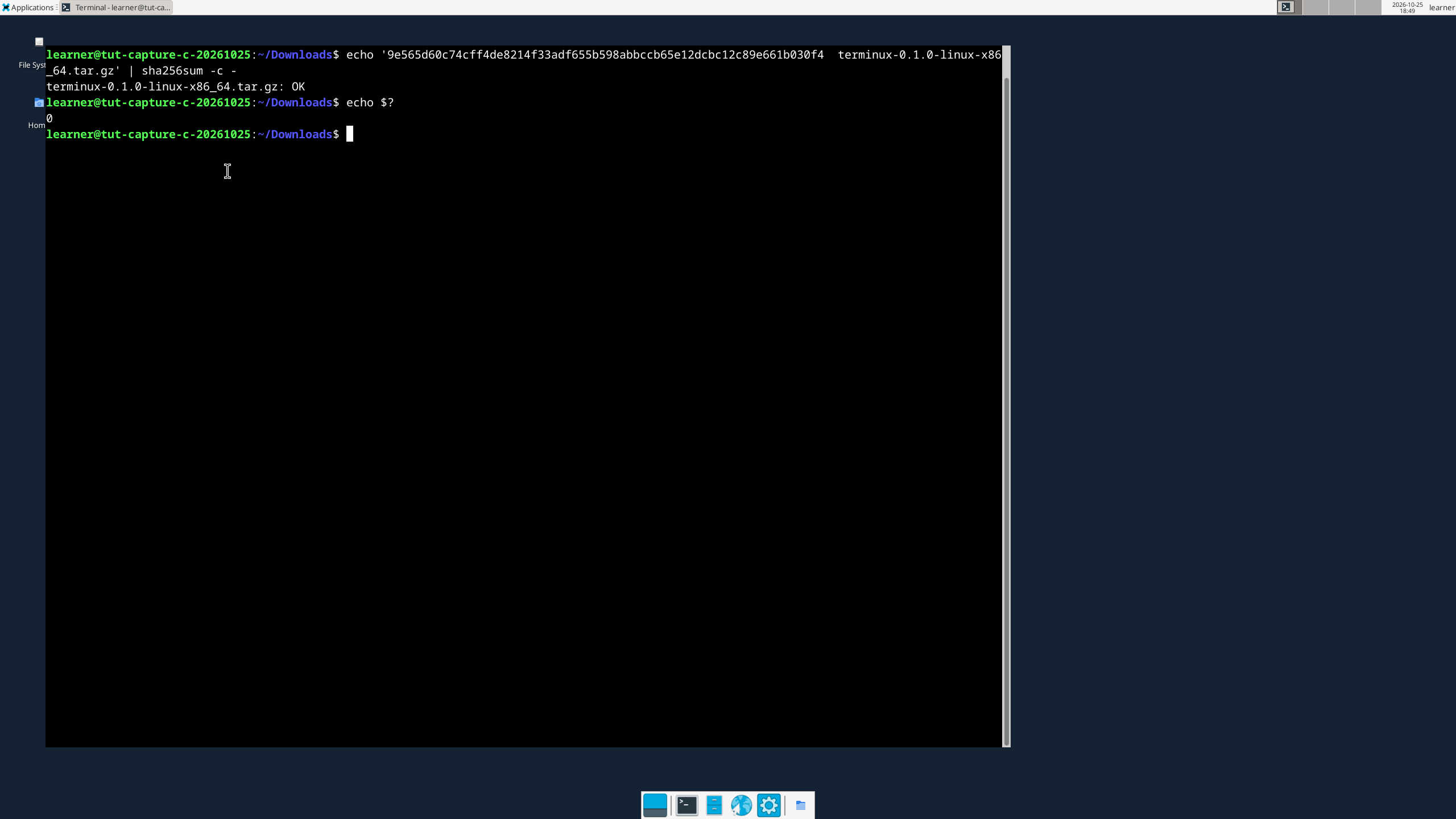
Obtain the archive SHA256 from an independent, authenticated trusted source. A checksum delivered alongside the archive establishes only self-consistency. Without an independently trusted reference, STOP here: do not extract or install.
sha256sum terminux-0.1.0-linux-x86_64.tar.gzContinue to S04 only if the complete digest exactly matches the independent trusted reference. On any mismatch, read error or uncertain provenance, STOP. Do not extract or install.
S04-extract — Extract the archive
Video: R1.1 S04-extract 0:52.9–1:03.6
Purpose
The installer is inside the archive. Extract it and move into its top-level folder.
Before you start
S03 passed: OK and exit status 0.
Enough free space in this folder.
Terminal
System terminal (Bash) — the same window as S03.
Working directory
The same folder as in S03.
Steps
tar -xzf terminux-0.1.0-linux-x86_64.tar.gz && cd terminux-0.1.0
ls
After the first command the prompt ends in terminux-0.1.0. In the capture, ls listed: LICENSE, README-INSTALL.md, SHA256SUMS, THIRD_PARTY_NOTICES.md, VERSION, gui, install.sh, portable_installer.py, python, third_party, uninstall.sh, wheelhouse.
Parameters
tar -xzf: -x extract, -z decompress gzip, -f the archive file name.
&& runs cd terminux-0.1.0 only if the extraction succeeded.
ls lists the folder so that you can see install.sh.
Expected result
The working directory becomes terminux-0.1.0 and ls includes install.sh.
Success check
Verify the directory and the real listing; do not use an installer from another package.
Troubleshooting
gzip: stdin: not in gzip format or Unexpected EOF in archive: the download is incomplete or is not the right file. Go back to S03.
No space left on device: free some space or use another folder, then extract again.
No install.sh in the listing: check with pwd that you are in terminux-0.1.0. Never run an installer from another package or version.
S05-install — Install Terminux for your user
Video: R1.1 S05-install 1:03.6–1:34.5 (S05-install 1:03.6–1:17.9; S05-result 1:17.9–1:34.5)
Purpose
Install the prebuilt GUI, the bundled Python runtime and the Terminux engine into your home directory, and link Terminux to your Qt. Nothing is compiled and sudo is not used.
Before you start
S02 was done in this same terminal, so $QT_ROOT is set.
S04 is done and you are in terminux-0.1.0.
No Terminux service is running for your account. A new account has none; otherwise see Troubleshooting.
Terminal
System terminal (Bash) — the same window as S02–S04.
Working directory
terminux-0.1.0 (the extracted folder).
Steps
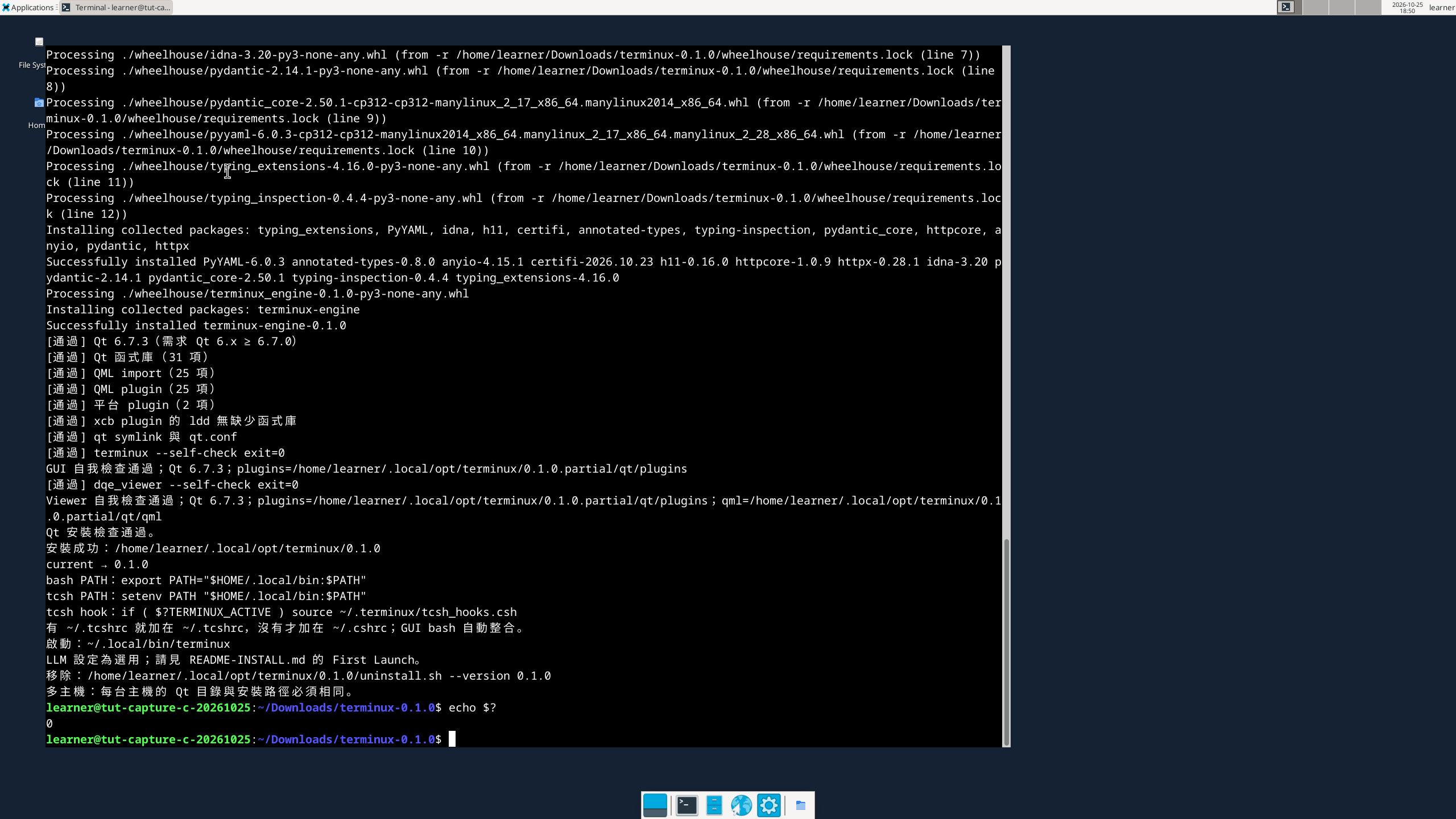
./install.sh --qt-dir "${QT_ROOT:?QT_ROOT is empty - repeat the S02 Qt root step}" --yes
echo $?
Recorded value. The capture machine ran ./install.sh --qt-dir /opt/qt673 --yes, because its Qt root was /opt/qt673. Use your own Qt root through $QT_ROOT as shown above; copy the recorded path only if your administrator confirms that Qt is there.
What the installer does (this version source; the result was observed in the capture):
- Preflight: OS, x86_64, glibc,
GLIBCXX_3.4.29and free space. It also stops if a Terminux service is still running for your account. - Verifies every file in the package against the package's own
SHA256SUMS. - Creates
~/.local/opt/terminux/0.1.0.partial, unpacks the bundled Python and installs the Python packages offline fromwheelhouse/. - Creates the
qtlink to your Qt root and runs the Qt checker on this staged copy. - Only if everything passed: renames the folder to
~/.local/opt/terminux/0.1.0and pointscurrentto0.1.0. If a step fails, it removes the.partialfolder and leavescurrentunchanged. - Creates two small launcher scripts in
~/.local/bin/:terminuxandterminux-qt-check.
It does not edit ~/.bashrc, ~/.profile or any other shell startup file. The run took about 12 seconds in the capture; your time may differ.
The installer's messages are in Traditional Chinese in this release. Key recorded lines:
| Recorded line | Meaning |
|---|---|
預先檢查通過:Ubuntu 24.04.5 LTS x86_64 glibc=2.39 GLIBCXX_3.4.29 可用;可用空間 … bytes。 |
Preflight passed |
安裝包 SHA256SUMS 通過。 |
Package contents verified |
Successfully installed … (from pip, in English) |
Python packages installed — not the final result |
[通過] … (nine lines) |
Qt checks passed; 通過 means pass and 失敗 means fail |
Qt 安裝檢查通過。 |
Qt check passed |
安裝成功:/home/…/.local/opt/terminux/0.1.0 |
Installation succeeded |
current → 0.1.0 |
The active version is 0.1.0 |
After the success line the installer also prints optional hints: PATH lines for Bash and tcsh, a tcsh hook line, the launch command ~/.local/bin/terminux, a note that LLM setup is optional, the uninstall command, and a note that all hosts sharing the installation need the same Qt and install paths. See the appendices.
Installed layout
| Path | What it is |
|---|---|
~/.local/opt/terminux/0.1.0/ |
The version folder: GUI, Python environment, engine |
~/.local/opt/terminux/current |
Link to 0.1.0; switched only after a successful install |
~/.local/opt/terminux/0.1.0/qt |
Link to your Qt root — keep Qt where it is |
~/.local/bin/terminux |
Launcher script that starts Terminux |
~/.local/bin/terminux-qt-check |
Launcher script for the Qt checker used in S06 |
~/.terminux/ |
Your runtime data, settings and logs; created at the first launch |
Parameters
--qt-dir is your external Qt root from S02. The form "${QT_ROOT:?…}" stops with a message instead of running the installer if QT_ROOT is empty, for example in a new terminal.
--yes answers the installer's confirmation question. It does not skip the platform, ABI, Qt or running-service checks.
The default install base is ~/.local/opt/terminux. The source also offers --prefix (another base folder), --no-bin-link (no launchers in ~/.local/bin), --reinstall and --force; they are not used or tested in this lesson. --force only bypasses the unsupported-OS check and is never a fix for ABI or Qt problems.
Expected result
The real installer reports installation success and current → 0.1.0; its exit status is 0.
Success check
Check the visible success line and immediate exit status, then complete S06. A successful pip line alone is insufficient.
Troubleshooting
bash: QT_ROOT: QT_ROOT is empty - repeat the S02 Qt root step: the installer did not run. Repeat S02 step 1 in this terminal, then run S05 again.
Terminux:不支援的平台:… (unsupported platform), Terminux:只支援 x86_64。, Terminux:glibc … 低於必要的 2.34。 or Terminux:系統 libstdc++ 未提供 GLIBCXX_3.4.29;請洽系統管理員。: the system is outside the supported range. Ask your administrator; do not add --force.
Terminux:空間不足:需要 … bytes,可用 … bytes。 (not enough space): free space on that file system, then run S05 again.
Terminux:daemon 仍在執行(pid=…)… (a Terminux service is still running) or Terminux:owner 位於其他主機 … (it runs on another host): stop that service the way it was started — Ctrl+C in its original terminal, or its service manager — on the host where it runs. Do not use pkill and do not delete lock files.
[失敗] … lines followed by 已清除 partial:…;current 未變動。 (partial folder removed, current unchanged): Qt or a library is missing. Read the [失敗] line and see S06 Troubleshooting.
Terminux:同版本已安裝:…;如需重裝,請加 --reinstall。 (0.1.0 is already installed): you can continue with S06. Use --reinstall only as a deliberate decision.
Terminux:partial 已存在,請先人工確認:… (a previous attempt left a partial folder): do not delete it blindly; make sure no other installation is running and contact your support channel.
警告:保留非本安裝建立的檔案 …/.local/bin/terminux。 (an existing file was kept): a file not created by this installer already exists, so ~/.local/bin/terminux may not be the Terminux launcher. Check what that file is before S07.
echo $? prints anything other than 0: the installation did not complete. Keep the full output for support.
S06-check — Check the installed version and the Qt pairing
Video: R1.1 S06-check 1:34.5–1:52.5
Purpose
Confirm which version is active and that the installed copy can load everything it needs from your Qt, before you open the GUI.
Before you start
S05 ended with 安裝成功 and exit status 0.
Your Qt root from S02 is still in place and readable.
Terminal
System terminal (Bash).
Working directory
Any directory. The commands use full paths, so they do not depend on PATH or on the current folder.
Steps
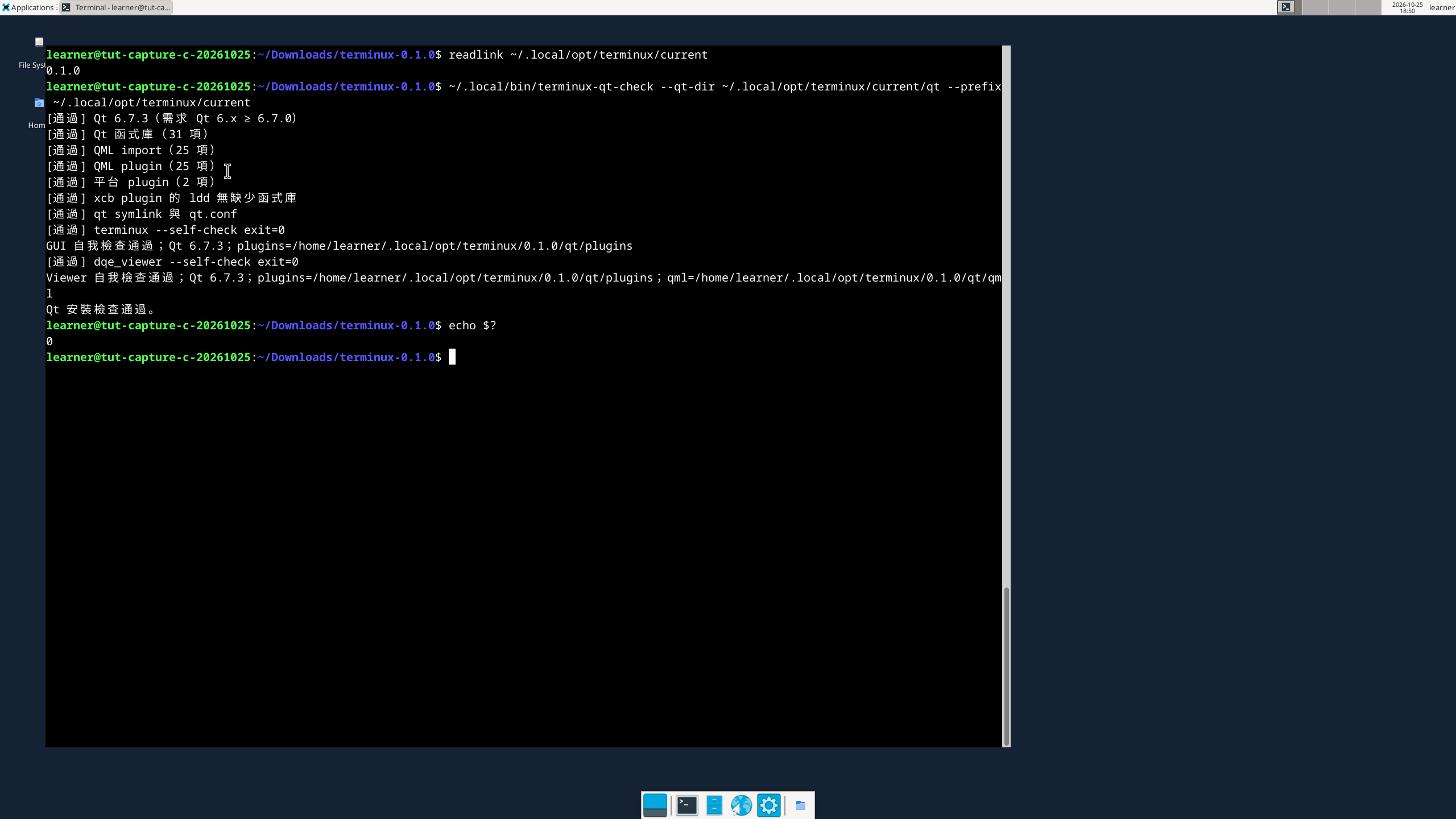
readlink ~/.local/opt/terminux/current
~/.local/bin/terminux-qt-check --qt-dir ~/.local/opt/terminux/current/qt --prefix ~/.local/opt/terminux/current
echo $?
readlink prints 0.1.0. The checker's recorded lines, all in Traditional Chinese:
| Recorded line | Meaning |
|---|---|
[通過] Qt 6.7.3(需求 Qt 6.x ≥ 6.7.0) |
Qt version accepted |
[通過] Qt 函式庫(31 項) |
31 Qt libraries found |
[通過] QML import(25 項) and [通過] QML plugin(25 項) |
QML modules found |
[通過] 平台 plugin(2 項) |
The xcb and offscreen platform plugins found |
[通過] xcb plugin 的 ldd 無缺少函式庫 |
The X11 (xcb) plugin has no missing system libraries |
[通過] qt symlink 與 qt.conf |
The installed qt link and Qt configuration agree |
[通過] terminux --self-check exit=0 |
The GUI program starts and loads Qt off-screen |
[通過] dqe_viewer --self-check exit=0 |
The bundled viewer program starts and loads Qt off-screen |
Qt 安裝檢查通過。 |
Overall: the Qt check passed |
The two self-checks run off-screen: they do not open a window and do not prove that your display works — S07 does that. They are not a DQE data workflow test either.
Parameters
readlink ~/.local/opt/terminux/current shows where current points. It confirms the link, not the full program version or compatibility.
Checker --qt-dir ~/.local/opt/terminux/current/qt is the installed link to your Qt, not $QT_ROOT directly, so the link itself is checked too.
Checker --prefix ~/.local/opt/terminux/current is the installed version folder. This differs from the installer's default base ~/.local/opt/terminux.
echo $? right after the checker: 0 means every check passed.
Expected result
readlink reports 0.1.0. Qt 6.7.3, libraries, imports, plugins, configuration and both self-checks pass; the checker exits 0.
Success check
Observe all checker success lines and the immediate exit status. This is not a production DQE or real-display test.
Troubleshooting
readlink prints nothing or No such file or directory: S05 did not complete; go back to S05.
[失敗] Qt 目錄不存在或 symlink 目標無效:… (Qt folder missing or link target invalid): the Qt root was moved, renamed or is not mounted. Restore Qt at the original path; Terminux expects it there.
[失敗] 缺少系統函式庫 libxxx.so.N;EL9:…;Ubuntu 24.04:… (missing system library): the line names the package. Ask your administrator to install it, then run S06 again.
[失敗] 缺少 QML import:…, 缺少 QML plugin:… or 缺少 Qt 函式庫 lines: the Qt installation is incomplete. The administrator must add the missing components of the same Qt version.
[失敗] qt.conf 配置:… or a failed self-check line: do not work around it with environment variables; keep the full output, including the lines below it, for support.
S07-launch — Start Terminux and choose the interface language
Video: R1.1 S07-launch 1:52.5–2:35.0 (S07-start 1:52.5–1:59.9; S07-language-switch 1:59.9–2:27.0; S07-relaunch 2:27.0–2:35.0)
Purpose
Open the real Terminux window from the installed launcher. On a new account the interface may start in Traditional Chinese; this step shows how the capture switched it to English.
Before you start
S06 passed.
You are logged in to a graphical desktop session on this machine as the same user (not a plain SSH session without a display).
Bash in the Terminux terminal is set up automatically; you do not edit ~/.bashrc. No AI provider, EDA tool or project ID is needed.
Terminal
Start Terminux from the system terminal. Choose the language inside the Terminux terminal — the area of the Terminux window that shows the shell prompt.
Working directory
Any directory.
Steps
- Start Terminux:
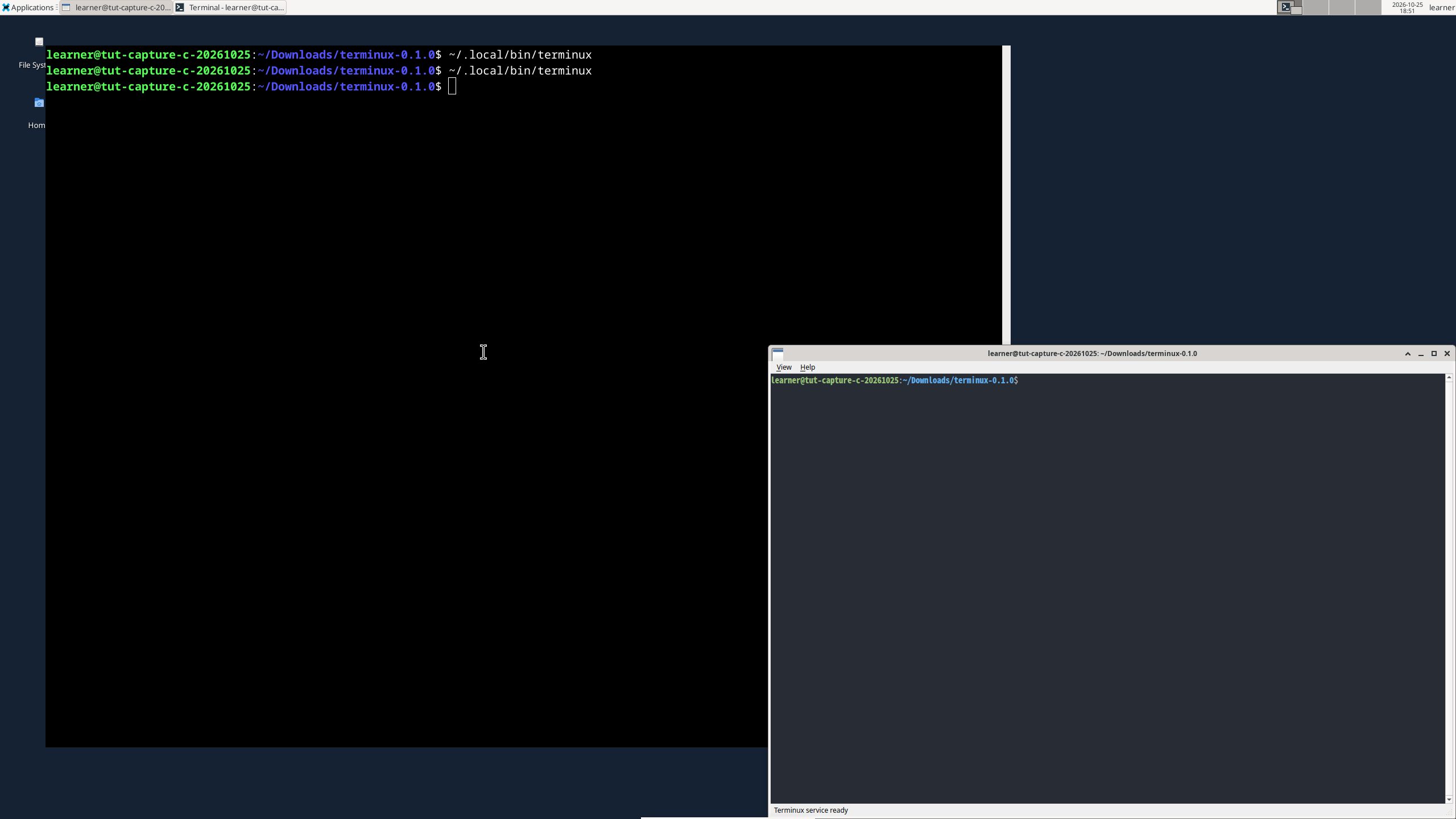
~/.local/bin/terminux
The launcher returns to your system prompt almost immediately; that is normal. It starts the Terminux background service if needed and then opens the window. At the first launch the window may take a moment, because the launcher waits up to about 30 seconds for the service to become ready.
-
Check the current language: right-click inside the Terminux terminal (where the prompt is) and open the Language submenu. The window menus
ViewandHelpcan appear in English even while the language is set to Traditional Chinese, so they do not show the current setting; look at which Language entry is checked. If English is already checked, skip to S08. If the Traditional Chinese entry is checked, choose English. In the capture these two menu labels were shown in English. -
Nothing visible changes in the open window, and no restart dialog appears; the choice is already saved. Close the Terminux window normally (its close button, or Alt+F4 as in the recording).
-
In the system terminal, start Terminux again with the same command:
~/.local/bin/terminux
After the relaunch the capture showed English window menus View and Help, the status text Terminux service ready at the bottom of the window, and a shell prompt in the Terminux terminal.
Terminux service ready is a brief status message: it can disappear while the window and prompt stay open, and missing it is not a failure. Judge the relaunch by the open window with a shell prompt, the English entry checked in the Language submenu, and the S08 output. Stop and keep the message for support only if an actual error message appears (see Troubleshooting).
Closing the window does not necessarily stop the Terminux background service; that is expected, and the next launch reuses it. The language choice is stored in your Terminux settings; do not edit settings files by hand to change it.
Parameters
~/.local/bin/terminux is the launcher script created in S05. It calls the installed launcher under ~/.local/opt/terminux/current. The full path works even if ~/.local/bin is not on your PATH (see Appendix A).
No options are needed.
Expected result
The actual relaunch shows English interface text and an interactive prompt, with English checked in the Language submenu. The brief status message Terminux service ready may appear and then disappear.
Success check
The launcher may return to the system prompt before the GUI closes. Verify the actual GUI, the checked English entry in the Language submenu, and the S08 output; do not rely on seeing the brief Terminux service ready message. Closing the GUI does not prove the daemon stopped.
Troubleshooting
bash: …/.local/bin/terminux: No such file or directory: S05 did not finish, or the launcher was not created (see the 警告:保留非本安裝建立的檔案 case in S05).
No window and a message such as TERM_LAUNCH_FAILED … or TERM_LAUNCH_GUI_NOT_FOUND: run S06 again. If it passes, check that you are working in a graphical session on this machine. Keep the full message for support.
TERM_LAUNCH_DAEMON_NOT_READY…: the service did not report ready within 30 seconds, so shell integration may not be in place yet. Close the window if it opened and launch once more; if the message repeats, keep it for support.
TERM_LAUNCH_WRAPPER_SETUP failed or disabled: the automatic shell integration was not deployed. The message names the log file to check. S08 may still work, but the integration is not confirmed (Appendix B).
TERM_DAEMON_OWNER_UNAVAILABLE host=… pid=…: another Terminux service for your account — possibly on another host that shares your home directory — owns the runtime. Do not delete lock files and do not run the reset that the message mentions until your support channel confirms that the other service is really gone.
Still in Chinese after the relaunch: check that you chose English in the right-click menu of the Terminux terminal, closed the window, and started it again from the system terminal. Do not set environment variables or edit settings files to force the language.
S08-verify — Verify the Terminux terminal
Video: R1.1 S08-verify 2:35.0–3:03.3 (S08-verify 2:35.0–2:51.5; S08-recap 2:51.5–3:03.3)
Purpose
Show that the Terminux terminal accepts keyboard input, runs a command and displays its output, using an ordinary command that needs no EDA tool or AI provider.
Before you start
The Terminux window from S07 is open and shows a shell prompt.
Terminal
Terminux terminal (inside the Terminux window), not the system terminal.
Working directory
Whatever folder the Terminux prompt shows; it does not matter.
Steps
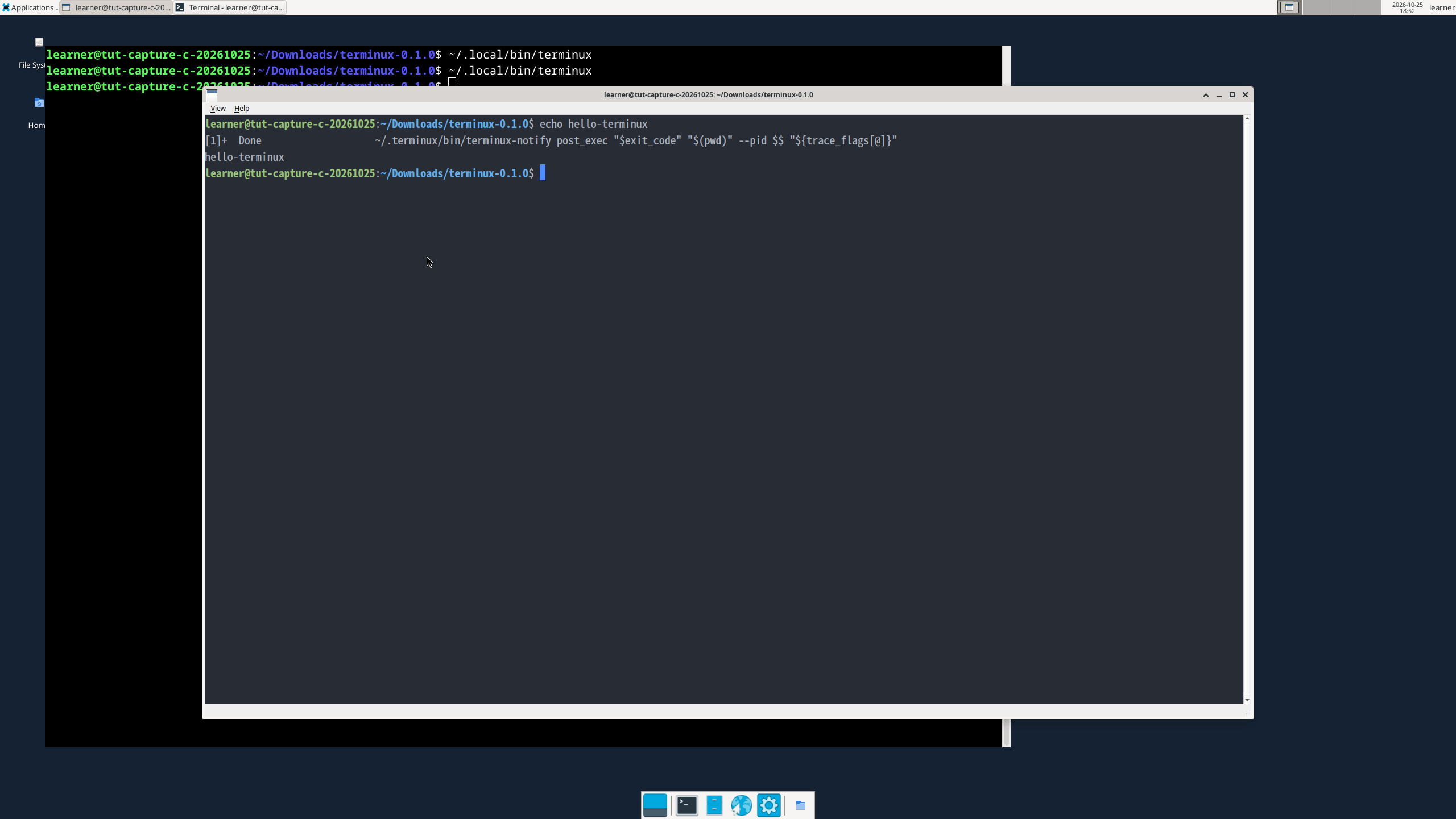
Click inside the Terminux terminal so that it has keyboard focus, type the command and press Enter:
echo hello-terminux
How to read the result. The line you typed also contains hello-terminux; that is not the proof. Success is a separate output line that contains only hello-terminux, below your command, followed by a new prompt.
In the capture, a line beginning with [1]+ Done and ending with terminux-notify post_exec … appeared between the command and the output. It is a background-job notice from the automatic shell integration. It is neither an error nor the proof of success; leave it alone.
You are done. To start Terminux later, run ~/.local/bin/terminux in your system terminal, or just terminux if you added ~/.local/bin to PATH (Appendix A).
This result shows that the Terminux terminal works. It does not show that EDA tools, wrappers, DQE workflows or AI providers are ready.
Parameters
echo prints its argument; hello-terminux is just a recognizable word. There are no Terminux-specific options.
Expected result
A separate hello-terminux stdout line appears below the command, possibly after a genuine Done line, followed by a prompt.
Success check
The typed command itself is not proof. Independent stdout verifies this terminal interaction, not AI/EDA readiness.
Troubleshooting
Nothing appears while typing: click inside the terminal area to give it focus and check that a prompt is shown.
Only your typed line, with no separate hello-terminux line: press Enter once on an empty line and look again. If it is still missing, keep a screenshot for support. Do not delete ~/.terminux, reset settings or disable the shell integration to make the screen look clean.
A Done line appears before hello-terminux: expected; the check has passed.
Troubleshooting quick reference
| Symptom | Where to look |
|---|---|
ls: cannot access …/lib/cmake/Qt6 or wrong Qt version |
S02 |
FAILED, did NOT match, or no OK |
S03 — STOP; do not extract or install |
gzip: stdin: not in gzip format, no install.sh |
S04 |
bash: QT_ROOT: QT_ROOT is empty … |
S05 — repeat S02 in this terminal |
Terminux:不支援的平台…, glibc … 低於必要的 2.34, GLIBCXX_3.4.29 |
S05 — the system is outside the supported range |
Terminux:daemon 仍在執行… or owner 位於其他主機… |
S05 — a Terminux service is still running |
[失敗] … lines |
S06 — the line names the missing item |
No window, TERM_LAUNCH_… messages |
S07 |
| Interface still in Chinese after relaunch | S07 |
Typed line but no separate hello-terminux line |
S08 |
General rules for every step: keep the complete error output, do not delete files under ~/.terminux or ~/.local/opt/terminux, do not use pkill, rm -rf or --force as a fix, and do not set LD_LIBRARY_PATH, QT_PLUGIN_PATH or QML2_IMPORT_PATH. Contact your support channel with the output instead.
Appendix A — Optional: a shorter launch command (PATH)
Not required. The full path ~/.local/bin/terminux always works. If you want to type just terminux, add ~/.local/bin to PATH, for example by adding this line to ~/.bashrc and opening a new terminal: export PATH="$HOME/.local/bin:$PATH". Check with type terminux; it should report ~/.local/bin/terminux (expanded to your home directory). This convenience was not tested in the this version capture, which used only full paths.
Appendix B — Shell integration and tool wrappers
These features are not prerequisites for S01–S08.
- Bash in the Terminux terminal is integrated automatically. At first launch the Terminux service deploys its shell hooks; the Terminux terminal starts Bash with its own startup file, which loads your
~/.bashrcfirst and then the hooks. You do not edit~/.bashrc. (; in the capture the shell startup files were unchanged and the S08 command worked. A full hook regression was not run for this version.) - External terminals (your normal system terminal) are not integrated automatically. Users who want that opt in by sourcing
~/.terminux/bash_hooks.shfrom their own shell startup file. (; not tested for this version.) - Tool wrappers live in
~/.terminux/bin/and are deployed by the service's automatic setup. They forward calls to the real tools so that Terminux can observe them; they are not tools themselves and do not install any EDA software. This is different from~/.local/bin/terminux, which only starts Terminux. SettingTERMINUX_AUTO_SETUP_WRAPPERS=0disables the automatic setup. (; not verified end-to-end for this version.) - If the launcher prints
TERM_LAUNCH_WRAPPER_SETUP failedordisabled, the hooks may not be deployed; the message names the log file to check. A working window or a workingechodoes not prove that the integration is in place.
Appendix C — tcsh / csh users
The steps in this guide use Bash. For tcsh, the installer prints these hints (; not tested for this version — other versions may differ):
- PATH:
setenv PATH "$HOME/.local/bin:$PATH" - Hook: add
if ( $?TERMINUX_ACTIVE ) source ~/.terminux/tcsh_hooks.cshto~/.tcshrc; only if you have no~/.tcshrc, add it to~/.cshrc.TERMINUX_ACTIVEis set only inside the Terminux terminal, so other shells are not affected. - In tcsh,
$?has a different meaning ($?NAMEtests whether a variable is set); useecho $statusfor exit status. Thereadand${QT_ROOT:?…}forms used in S02 and S05 are Bash-only, so run S02–S06 in Bash. - Traditional csh does not provide the tcsh hook features.
Appendix D — EDA tools, flows and DQE
Not prerequisites for the basic installation, and not verified end-to-end for this version.
- Installing Terminux installs no EDA tools. Real flows need your own installed and licensed tools, their environment, working flow scripts and input data.
- A wrapper being present does not prove that the real tool exists or works.
- The
dqe_viewer --self-checkline in S06 only shows that the bundled viewer program starts and loads Qt off-screen. It is not a DQE data workflow test. - A message that the optional STA playbook is unavailable is a known limitation of this release and does not affect S01–S08.
Appendix E — AI / LLM providers
Optional. Without a configured provider, Terminux sends no LLM requests, and S01–S08 do not need one. This package contains only the base dependencies; Gemini, Anthropic, local-LLM and RAG extras are not included and need separate preparation. Provider setup is described in the product README (section on LLM providers and credentials) and was not tested for this version. In S02 of the video, "approved provider" refers to where your Qt comes from, not to an AI provider.
Appendix F — Uninstall (reference only, not run in this lesson)
The installer prints the uninstall command for this version: ~/.local/opt/terminux/0.1.0/uninstall.sh --version 0.1.0. According to the source, it keeps your data, settings and logs in ~/.terminux unless you explicitly add --purge-data (which asks you to type the full data path to confirm). It does not edit your shell startup files; remove any hook lines you added yourself. Uninstalling was not exercised in the this version capture.
Appendix G — Platform and operation limits
- Only Ubuntu 24.04 x86_64 with Qt 6.7.3 on an Xorg desktop was tested. Other Qt versions, EL9, Wayland, remote displays and GPU acceleration were not verified.
- If several hosts share your home directory, every host needs Qt at the same path and Terminux at the same install path (installer message); this was not tested.
- Minimum CPU, memory and installation time were not measured.