Introduction
Audience: new team members, PMs, and anyone who wants to know what isvn can do. This document explains what isvn is, how it works and what it provides. For step-by-step instructions, see the isvn User Manual (task-based).
1. What isvn is
isvn is a design data management tool built on Subversion (SVN). It is designed for the situation in IC design flows where every stage has many versions. It has a command-line tool, isvn, and a graphical interface, isvn-gui; both use the same set of functions.
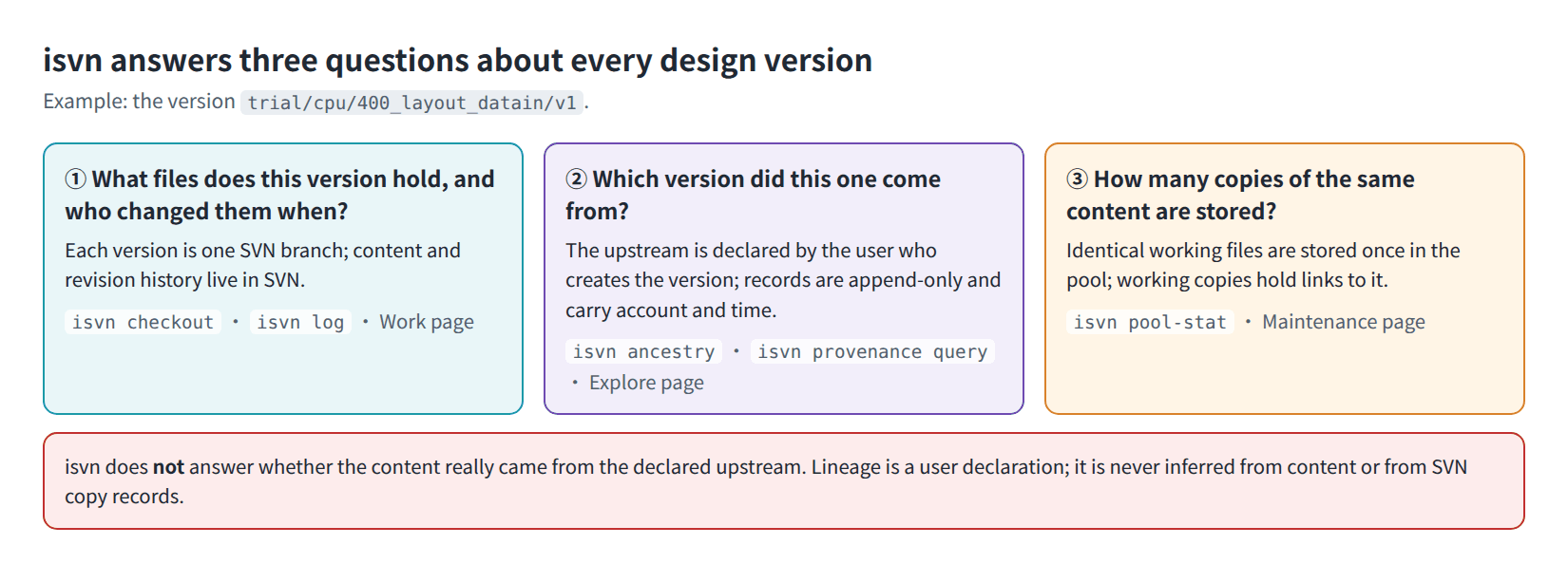
Figure P-01. The three questions isvn answers about every design version, and the one it does not.
In one sentence: SVN stores the content; on top of it, isvn adds version naming and retrieval, user-declared lineage, and a shared deduplicating cache.
2. The problems it solves
| What design teams often run into | What isvn does |
|---|---|
| The same stage of the same block has several versions, and it is hard to say which one is in use right now | Every version has a fixed four-part ID, for example trial/cpu/200_fe_datain/v2; the Work page always shows which version is active |
| Downstream receives an input and cannot say which version it came from | The upstream is declared when a version is created; afterwards anyone can look up the complete upstream chain, and who declared it and when |
| Many versions contain large numbers of identical files, and copying them into each version takes a lot of space | Files with identical content are stored only once in the pool and used as links in working copies |
| When changing or removing many files, you worry about committing something that should not be committed | GUI and supported batch operations preview changes before confirmation; batch check-in commits only the ticked items, one revision at a time |
| External tools need to know where a file or a version came from | Read-only JSON query commands are provided for tools such as Terminux to call |
3. Core concepts
3.1 Versions
Every version has a four-part ID: <phase>/<block>/<stage>/<version>. This ID is at the same time the name of the SVN branch, the name of the working copy folder, and the identity used in query results.
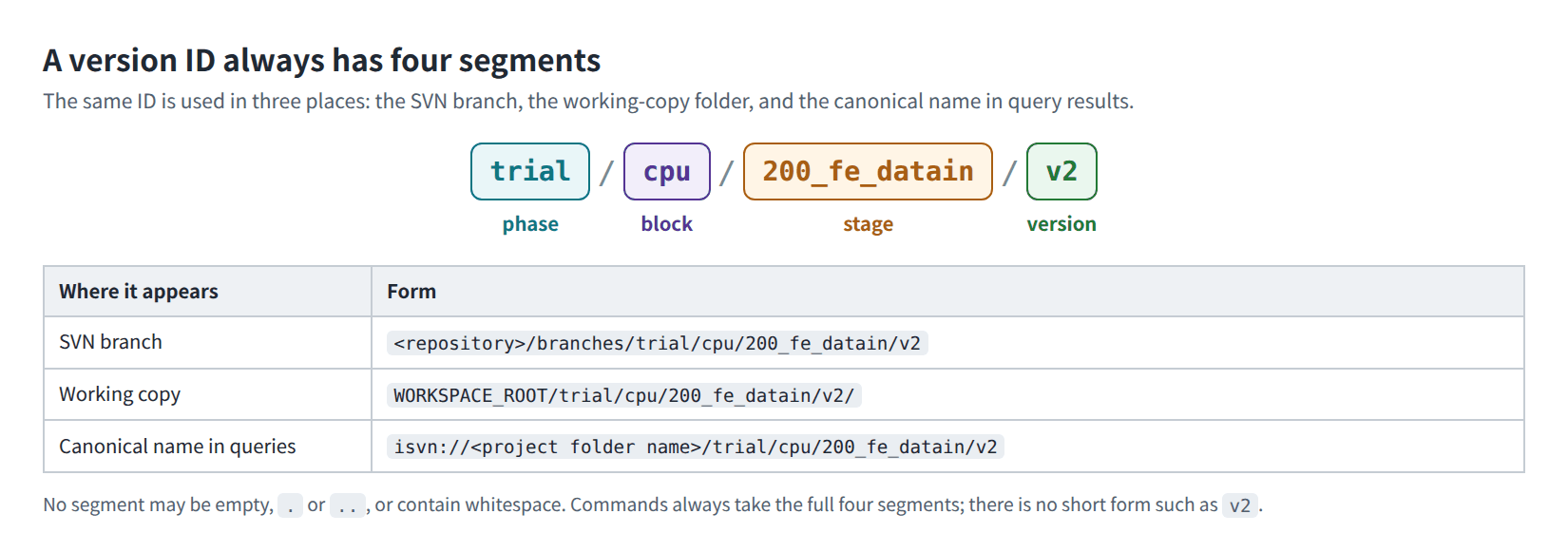
Figure U-02. The four-segment version ID and the three places where it appears.
3.2 Workspaces and files
Each member has their own workspace. Each version you retrieve is its own working copy. Files in a working copy come from one of two sources:
- LINKED: a link to read-only content in the pool; it takes no extra space. Before you modify it, use Make Editable.
- LOCAL: a regular file in the working copy, that is, a copy you are modifying or a new file that has not been checked in yet.
After check-in, the file goes back to LINKED.
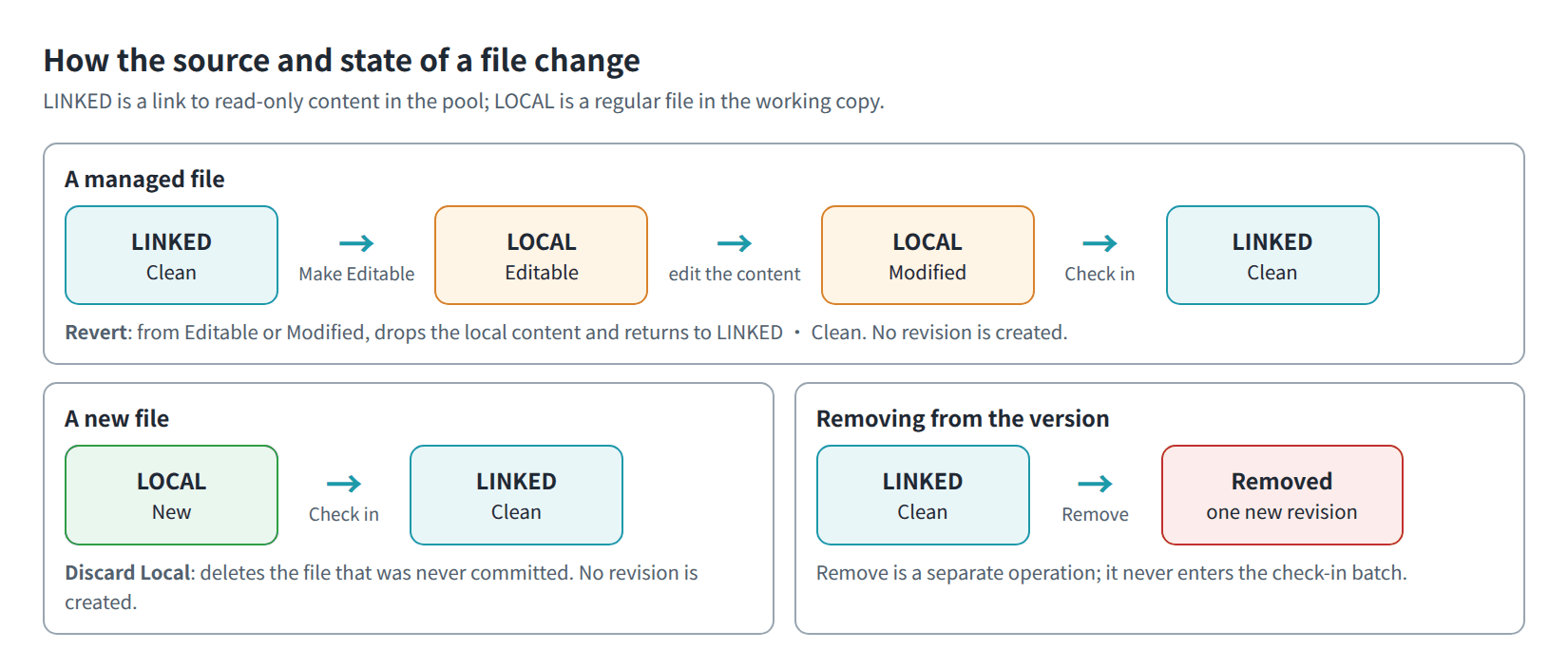
Figure U-03. How the source (LINKED / LOCAL) and state of a file change with each action.
3.3 Lineage
When a version is created, the person creating it declares its upstream. Each version has at most one direct upstream; records are only added, never changed, and deleting a version only adds a removal record.
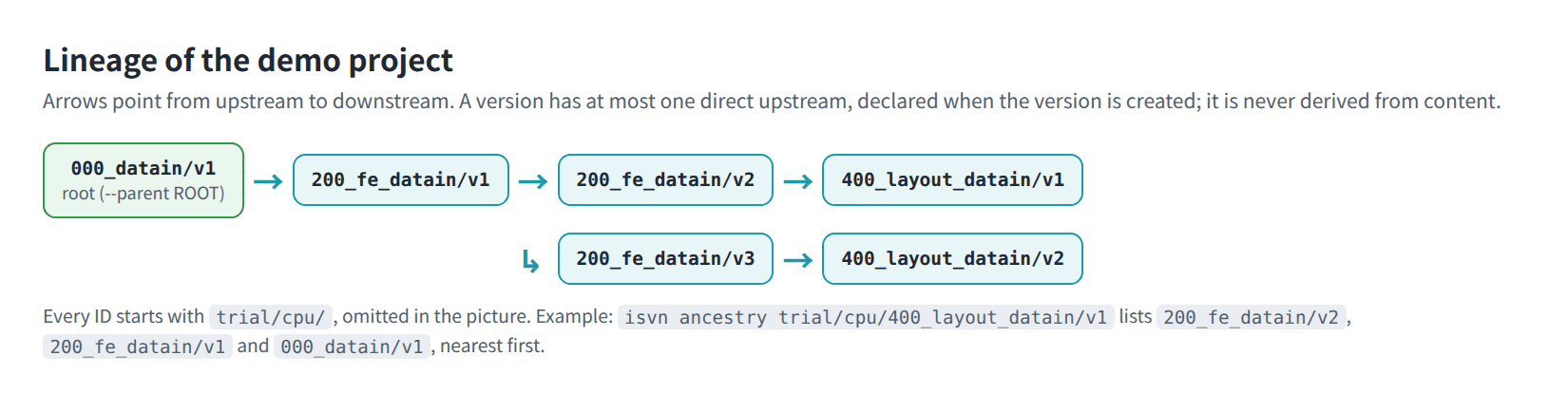
Figure U-05. Lineage of the six versions of the demo project.
isvn does not infer lineage from SVN copy records or file content, and it does not verify that file content really comes from the upstream. Lineage answers the question "what did the user declare", so query results are labelled Declared provenance and Not content-verified.
3.4 Deduplicating cache (pool)
The pool stores files by content: files with identical content are stored only once. LINKED files in working copies point to it. When space runs low, the PM's reclaim job can delete the content that has gone unused the longest; when it is needed later, isvn retrieves it from SVN and links it again, so no content is lost.
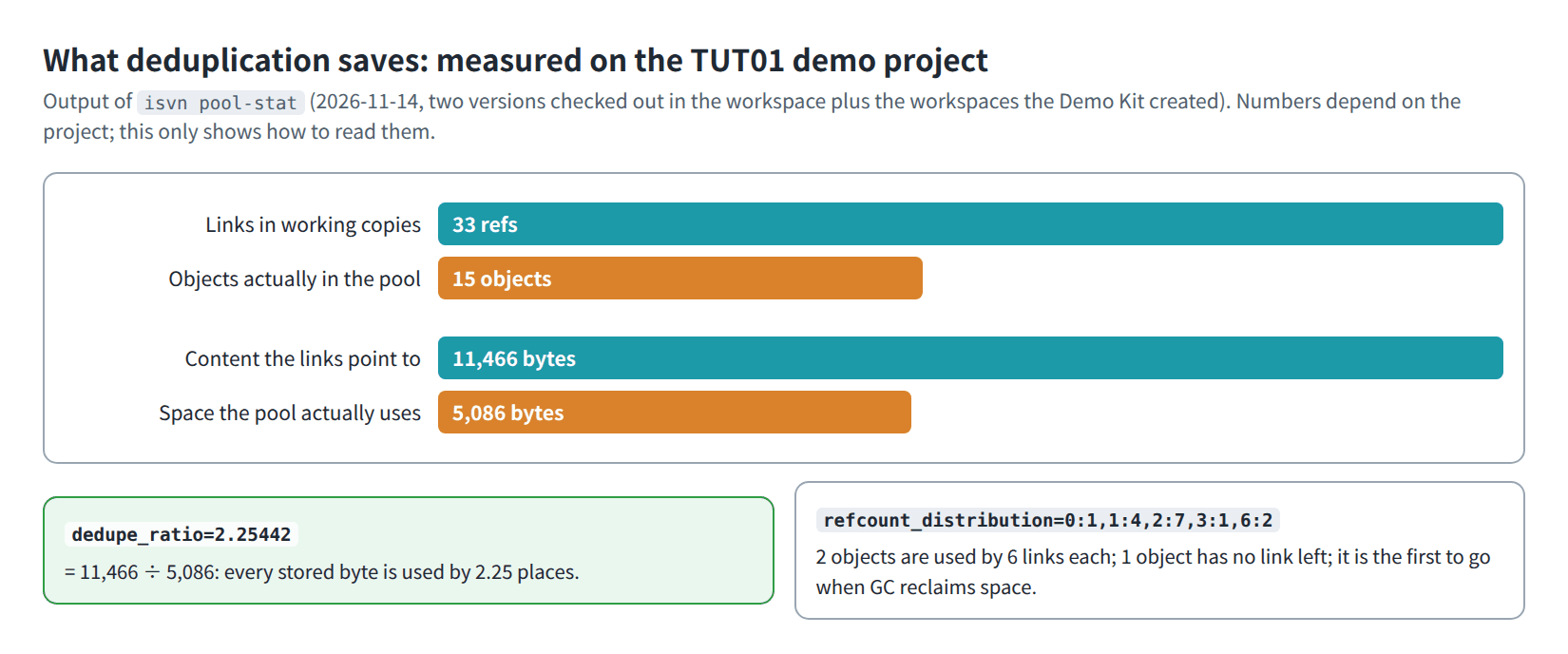
Figure P-02. What deduplication saves: isvn pool-stat measured on the TUT01 demo project.
4. What a working day looks like
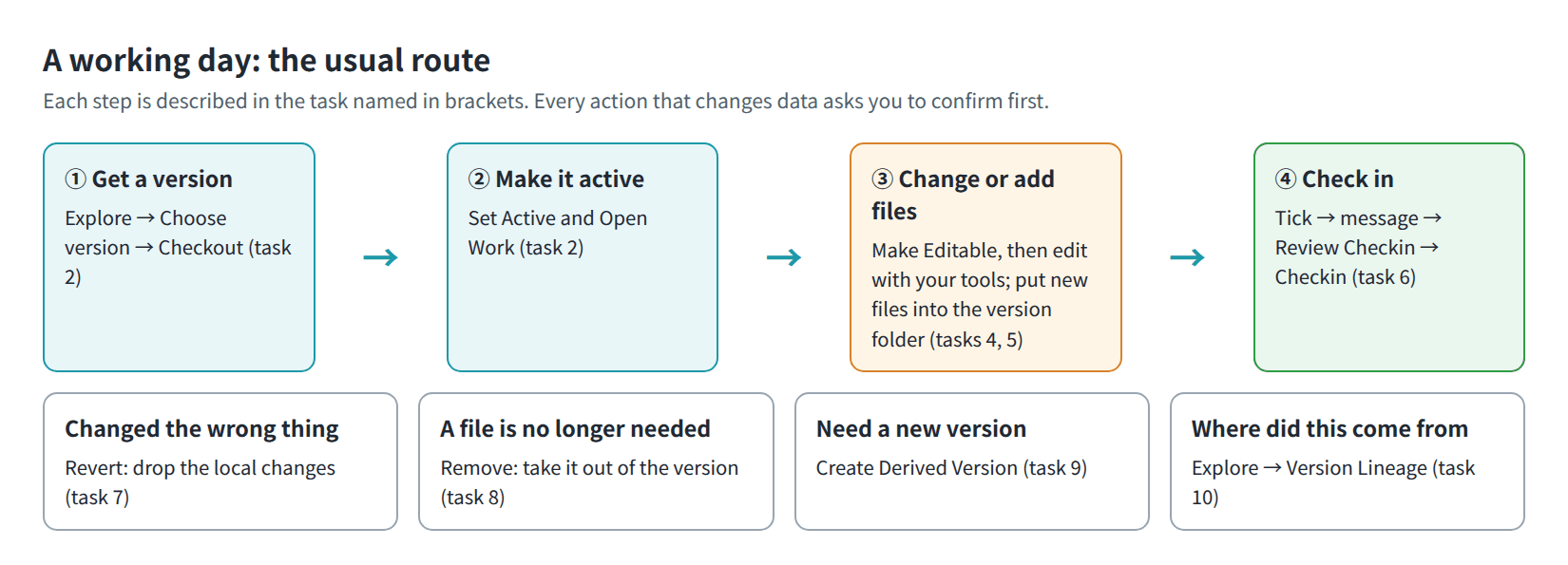
Figure M-01. A working day: the usual route and the task that covers each step.
- On the Explore page, select a version, check it out into your workspace and make it the active version.
- On the Work page, make the files you need to change editable and modify them with your usual tools; put new files directly into the version folder.
- Tick the files to commit, write a message, review, and check in.
- When you need to start a new version, create a derived version with the current version as its upstream.
GUI and batch operations that support preview follow this order:
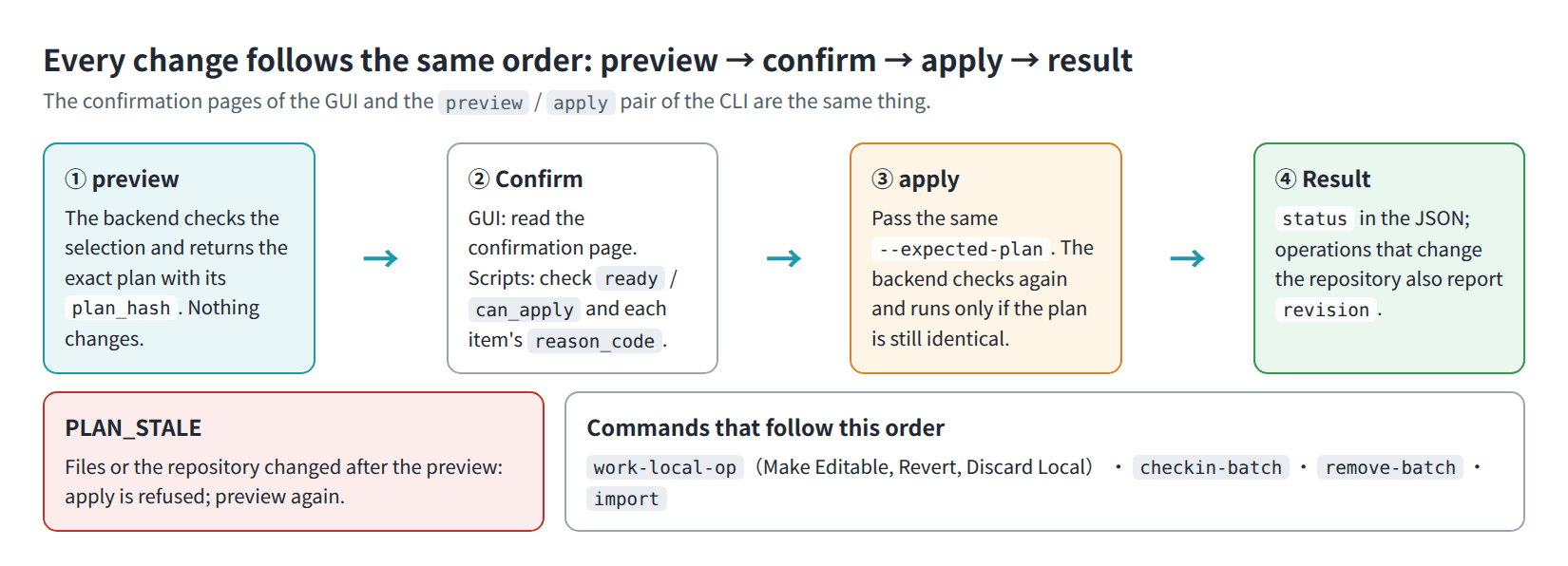
Figure U-28. Preview → confirm → apply → result: the order shared by the batch commands and the GUI.
The single-path commands (isvn edit, isvn checkin, isvn revert, and isvn remove) execute directly without a separate preview; see User Guide §19.2.
5. The interface at a glance
The GUI has four pages.
Home: the active version, the number of local checkouts, and Continue Work.
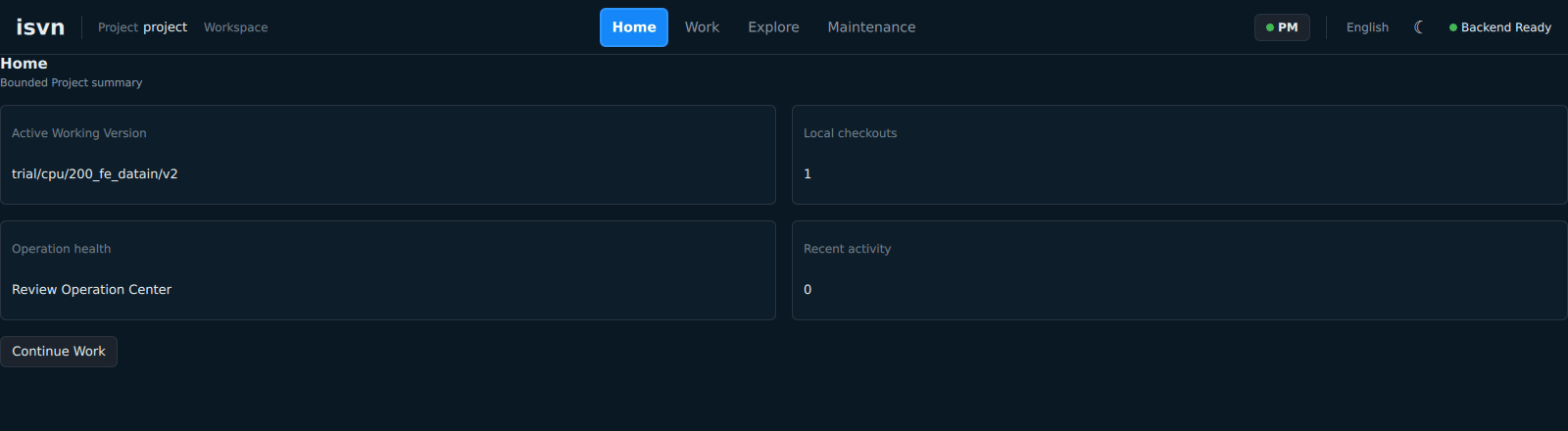
Figure U-09. Home page: the active version, the number of local checkouts and Continue Work.
Work: the center of daily work. Local Working Versions are on the left, File Status is in the middle, and the Workflow and the Checkin Batch are on the right.
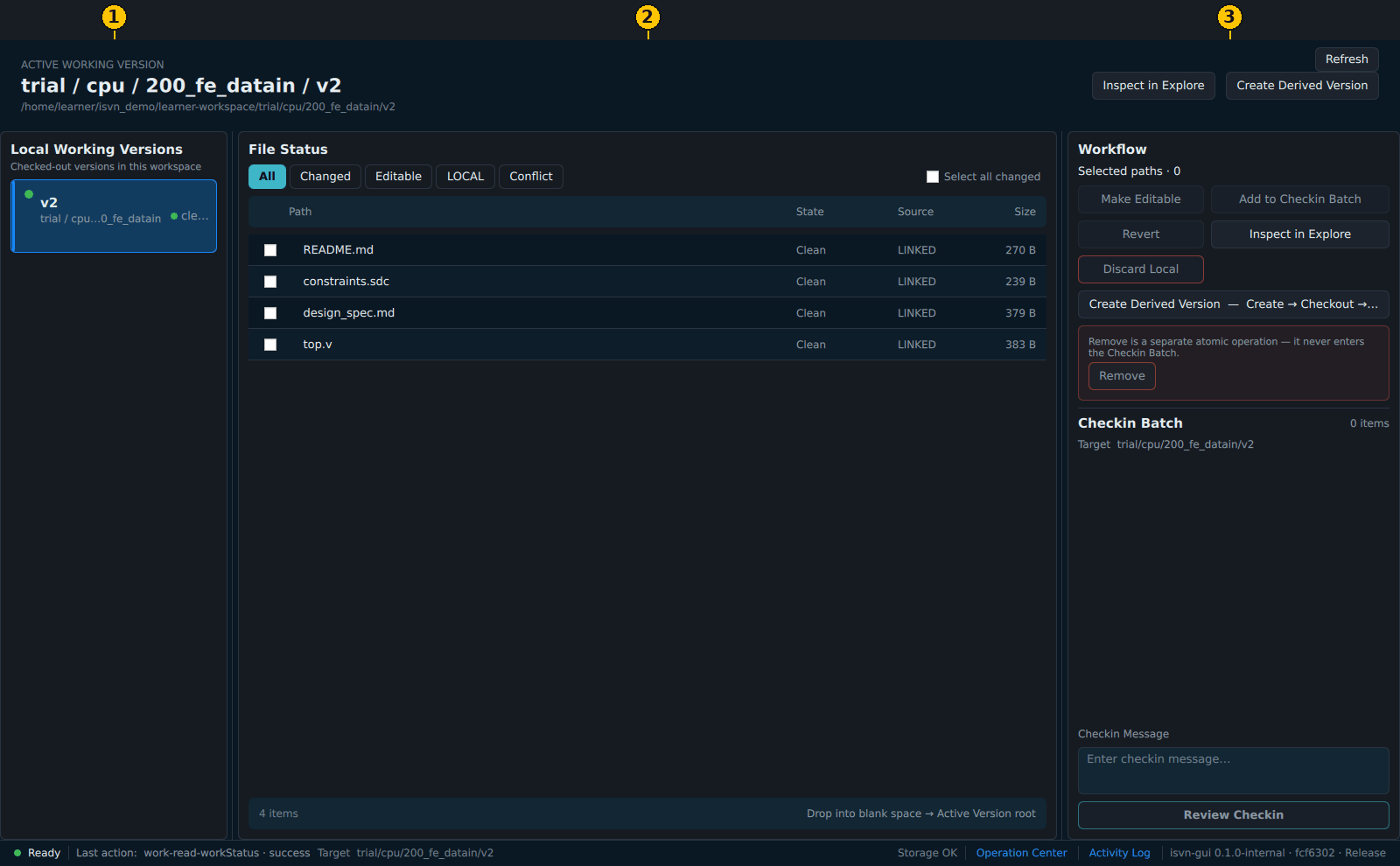
Figure U-10. The three areas of the Work page: ① Local Working Versions ② File Status ③ Workflow.
Explore: view the versions in the repository, the lineage of versions and files, and the commit history. Selecting a version here does not change the target of the Work page.
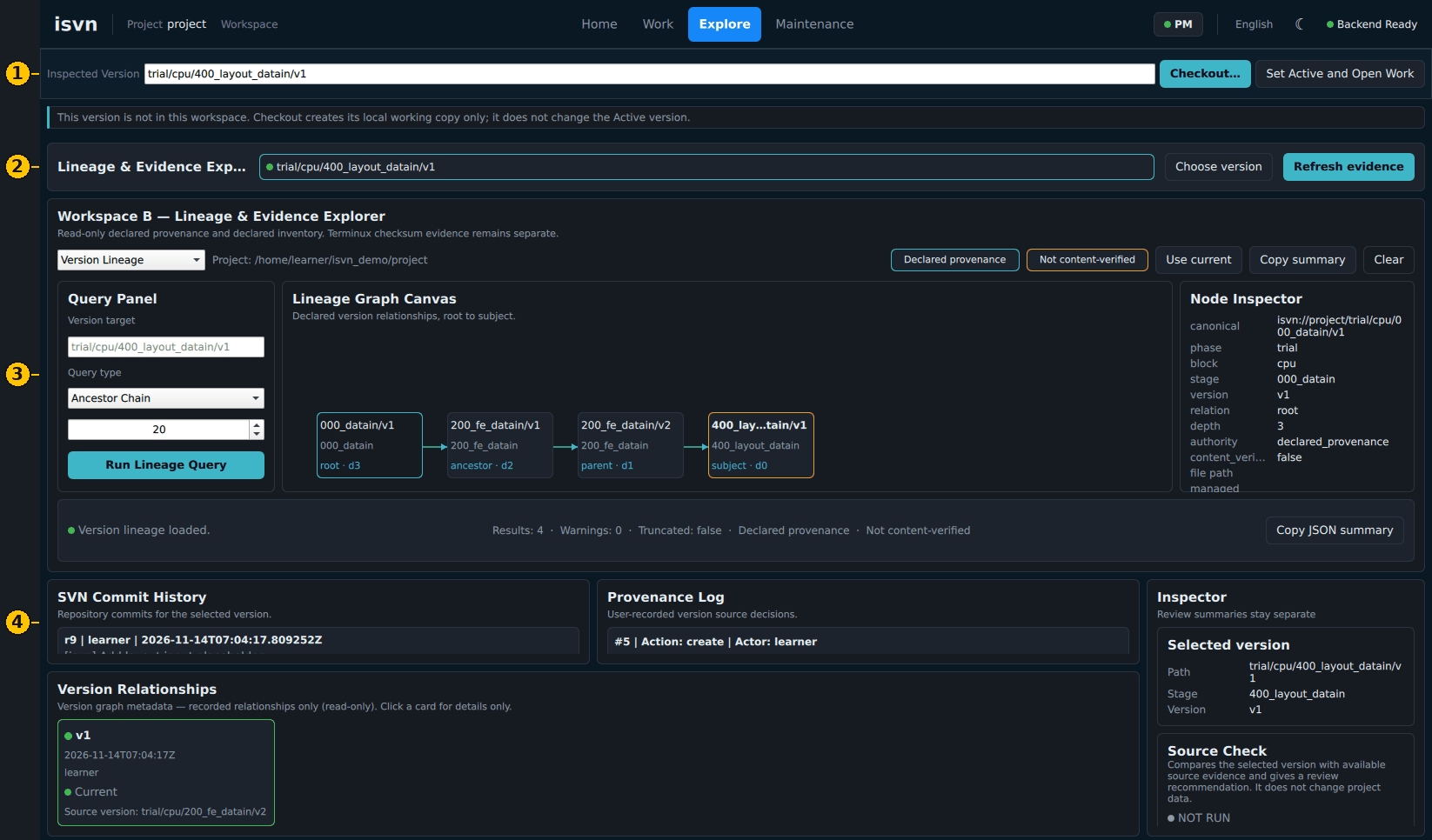
Figure U-23. The Explore page: ① Inspected Version ② Choose version ③ Lineage & Evidence Explorer ④ commit history, provenance log and version relationships.
Maintenance: the PM sees the full Maintenance Control Center (Cache Pool, Capacity, Integrity Check, GC); members can only run read-only checks.
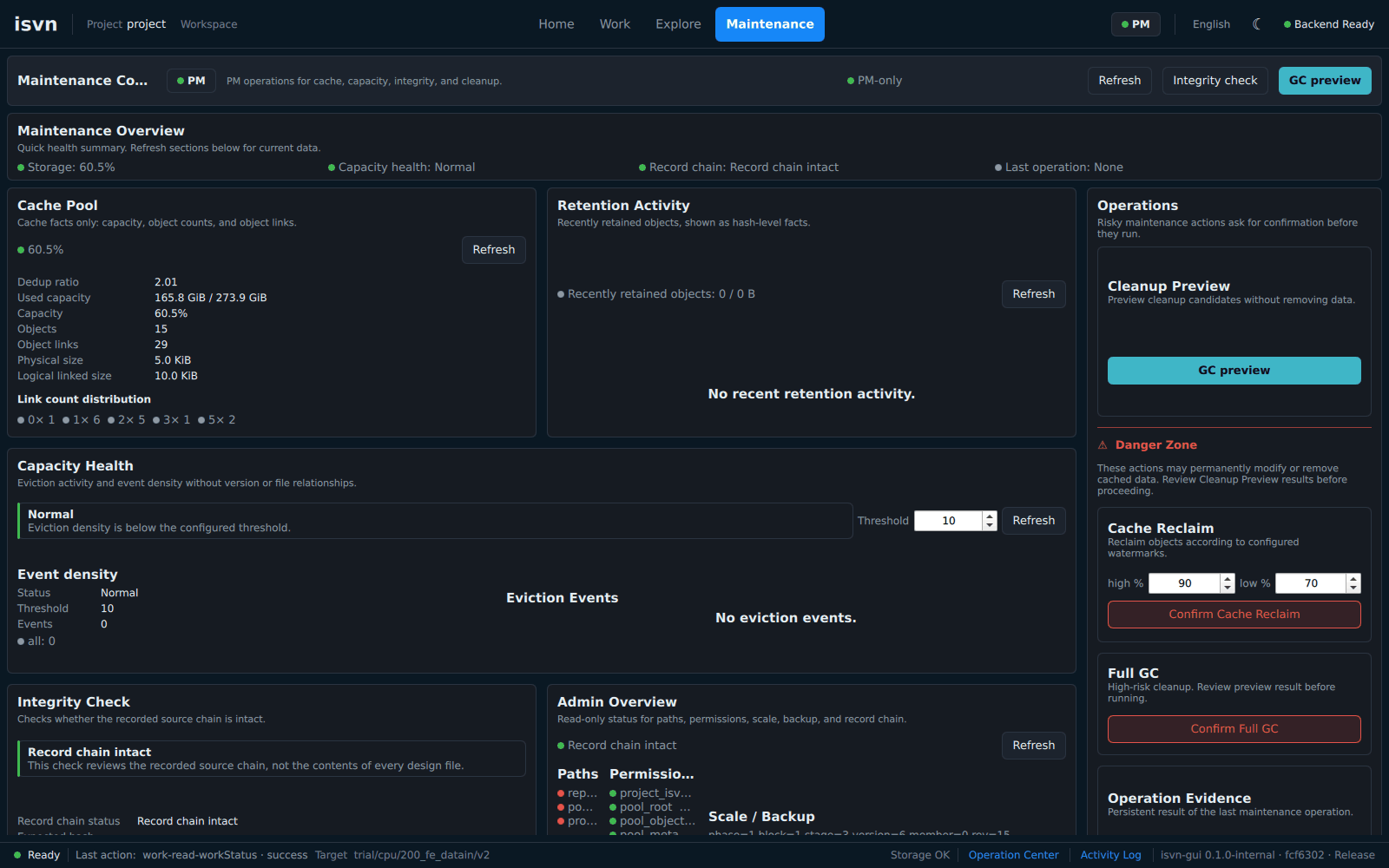
Figure U-26. The Maintenance page as the PM sees it: the Maintenance Control Center.
6. Architecture and deployment
A deployment has three locations that can be placed separately: the SVN repository, the pool, and the project directory (configuration and lineage database), plus each member's own workspace.
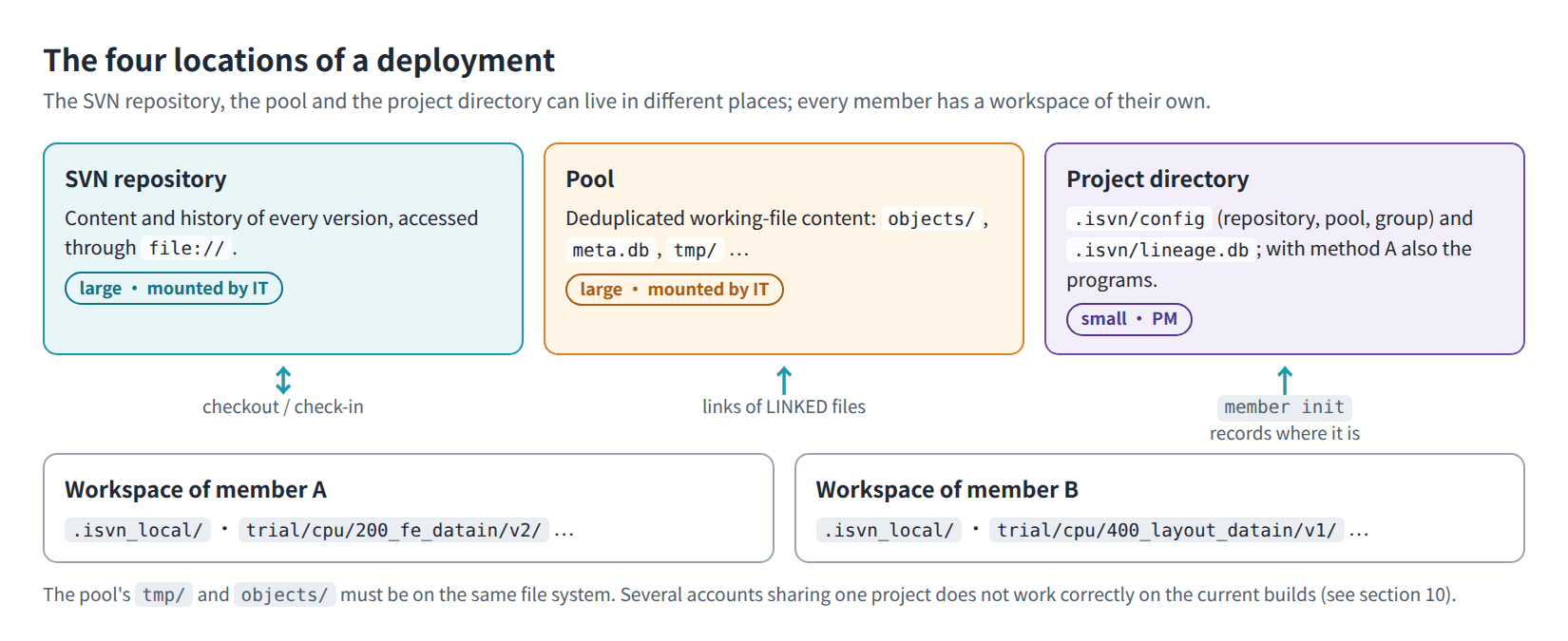
Figure I-03. The four locations of a deployment and how they relate.
- There are two ways to install: a project installer that the PM installs once and members share, and a Portable evaluation build that each person installs in their own home directory. Neither needs root.
- Production programs are managed in release slots: deploying and rolling back both switch a single link, and the CLI and GUI always come as a pair.
- The GUI needs Qt 6.7.3; Qt is not bundled, and you specify an existing Qt during installation.
For details, see the isvn Installation and Deployment Guide.
7. Roles
| Role | Who | What they can do |
|---|---|---|
| PM | The owner of .isvn in the project directory (the account that created the project) |
All functions, including maintenance operations such as GC |
| MEMBER | A member of the project's Linux group | Daily operations; in Maintenance, read-only checks only |
| DENIED | Not in the project group | The GUI shows only Access Denied and reads no project data |
8. Integration with other tools
External tools can query lineage with two sets of read-only commands; both output JSON:
isvn provenance query: the upstream, ancestor chain, root version and complete lineage of a version;isvn file query: which versions a path appears in (only versions already checked out in the caller's workspace are considered).
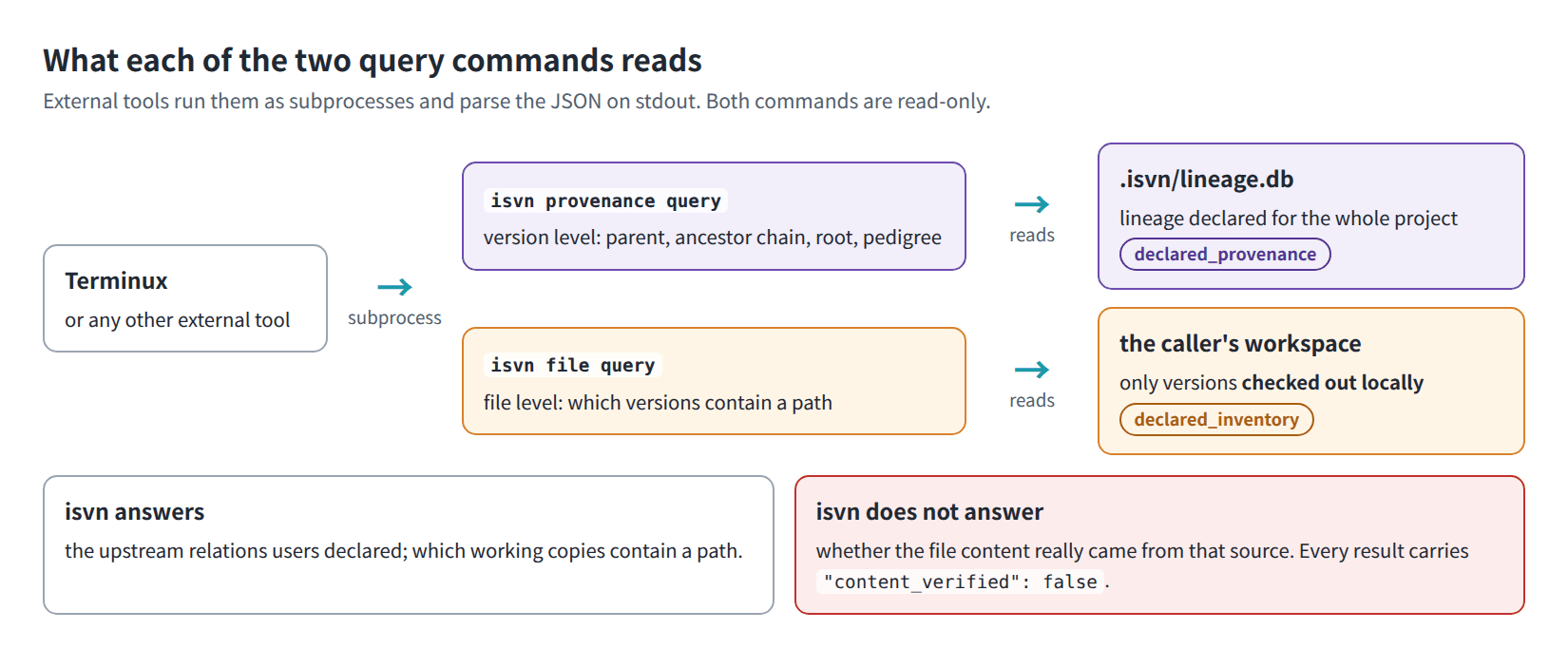
Figure Q-01. What each query command reads, and what isvn does and does not answer.
Terminux already wraps these two sets of commands, and it checks DQE results in with isvn checkin. For details, see the isvn × Terminux Lineage Query Reference.
9. What isvn provides
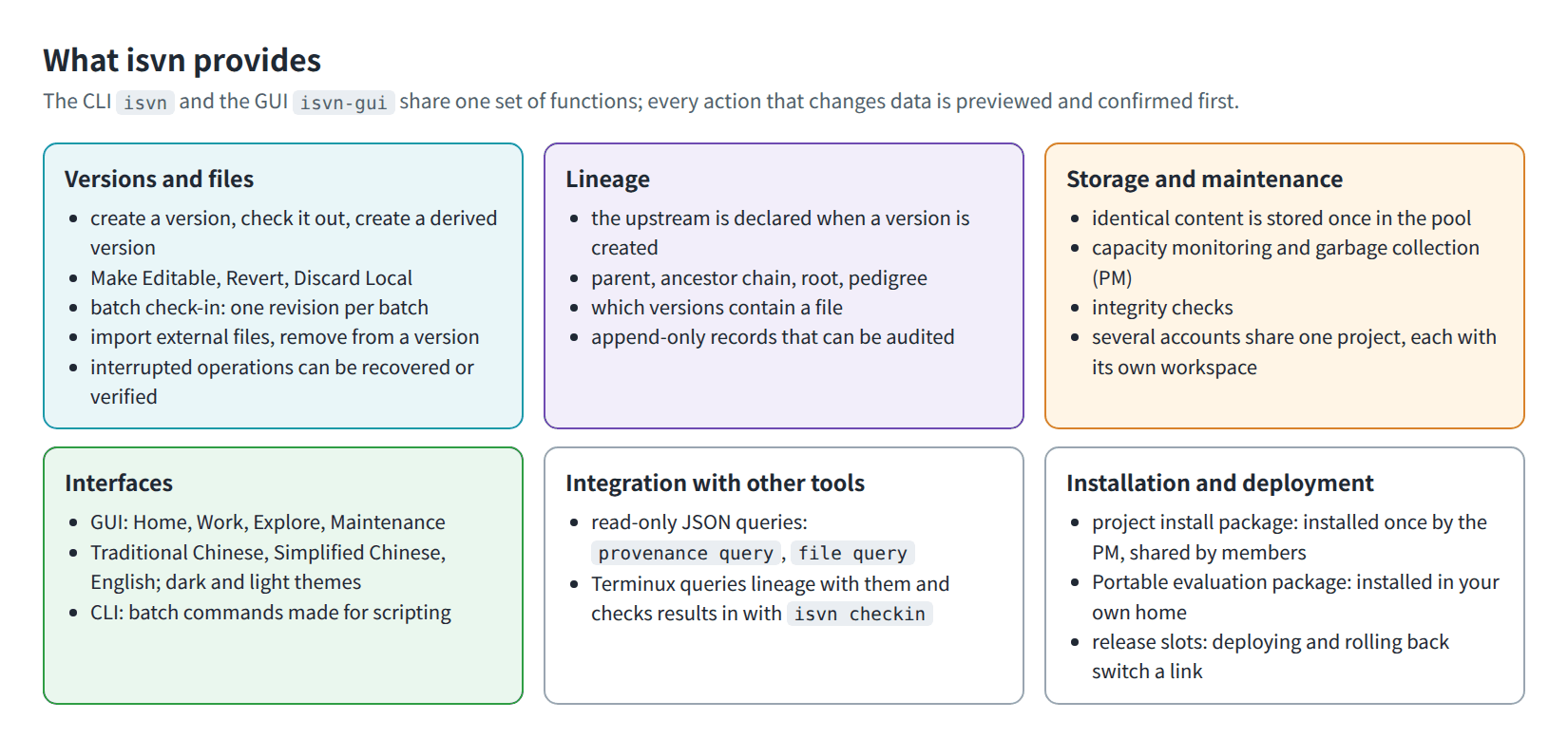
Figure P-04. What isvn provides, by area.
| Area | What you can do |
|---|---|
| Versions and files | Every version has a fixed four-part ID; check out a version, or create a derived version with the current version as its upstream; make files editable, add new files, check in and remove files, with preview and confirmation for the GUI and batch operations that support it |
| Lineage | Declare the upstream when a version is created; look up the upstream, ancestor chain, root version and complete lineage of any version, and which checked-out versions a file appears in |
| Storage and maintenance | Files with identical content are stored only once in the pool and used as links in working copies; the PM has the full Maintenance Control Center (Cache Pool, Capacity, Integrity Check, GC), and members can run read-only checks |
| Interfaces and integration | The GUI (in three languages: Traditional Chinese, Simplified Chinese and English) and the CLI use the same set of functions; read-only JSON query commands are also provided for tools such as Terminux to call |
| Installation and deployment | The project installer (installed once by the PM and shared by members), the Portable evaluation build (installed by each person in their own home directory), and deployment and rollback managed with release slots |
10. What to read next
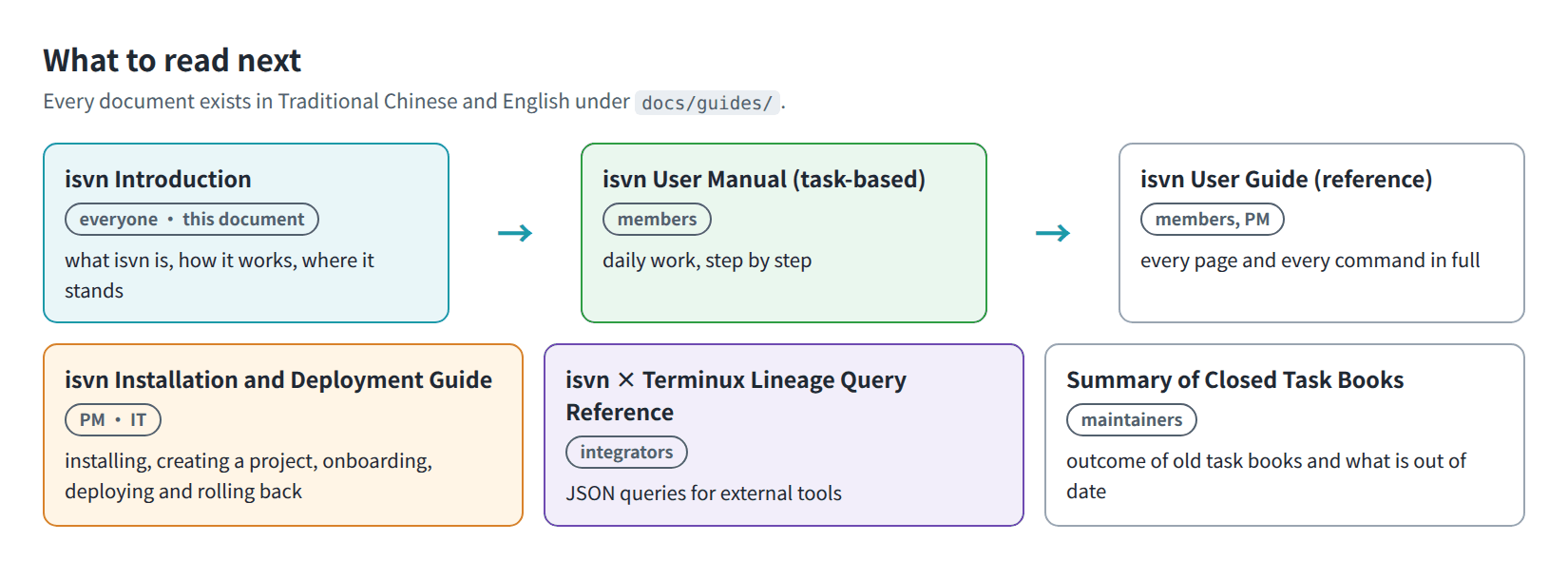
Figure P-03. Document map: what to read next.
| You are | Read first |
|---|---|
| A new member | Tasks 1 to 6 of the isvn User Manual (task-based) |
| A PM setting up a project | Sections 0, 3, 5 and 6 of the isvn Installation and Deployment Guide |
| A developer integrating an external tool | Sections 1, 2, 5 and 7 of the isvn × Terminux Lineage Query Reference |
| Looking for details of a specific screen or command | The reference isvn User Guide |