User Guide
Audience: IC design team members (MEMBER) and project managers (PM) who use isvn. For installation and project initialization, see the isvn Installation and Deployment Guide; for the query commands provided to Terminux, see the isvn × Terminux Lineage Query Reference. For step-by-step daily work, see isvn User Manual (task-based); for an overview of isvn, see isvn Introduction.
0. Scope
This guide describes the graphical interface of isvn, isvn-gui (sections 3 to 17), and its command-line tool, isvn (sections 18 to 21); sections 1 and 2 explain the concepts that both share.
Use isvn version to see which version you are using:
isvn <version>
commit: <commit>
build_time: <build time>
build_type: <build type>
The screens in this guide are taken from the demo project of TUT01 Demo Kit v3 (account learner). Figure numbers start with U-; every figure has a corresponding English-interface version, and those versions are the ones placed in this English guide.
1. What isvn is
isvn is built on top of SVN and provides three things for the IC design flow:
- Version management: Each version corresponds to one SVN branch; you check out, modify and check in files on a version.
- Lineage: When you create a version, you register which version it is derived from. Lineage is the user's decision, not something the system infers, and every record states who registered it and when.
- Deduplicating cache (pool): Working files with identical content are stored only once in the project's pool, and the working copy points to that one copy with a link.
isvn has a command-line tool, isvn, and a graphical interface, isvn-gui. The GUI is recommended for day-to-day modification and check-in; the CLI is suited to queries, to creating and getting versions, and to scripting.
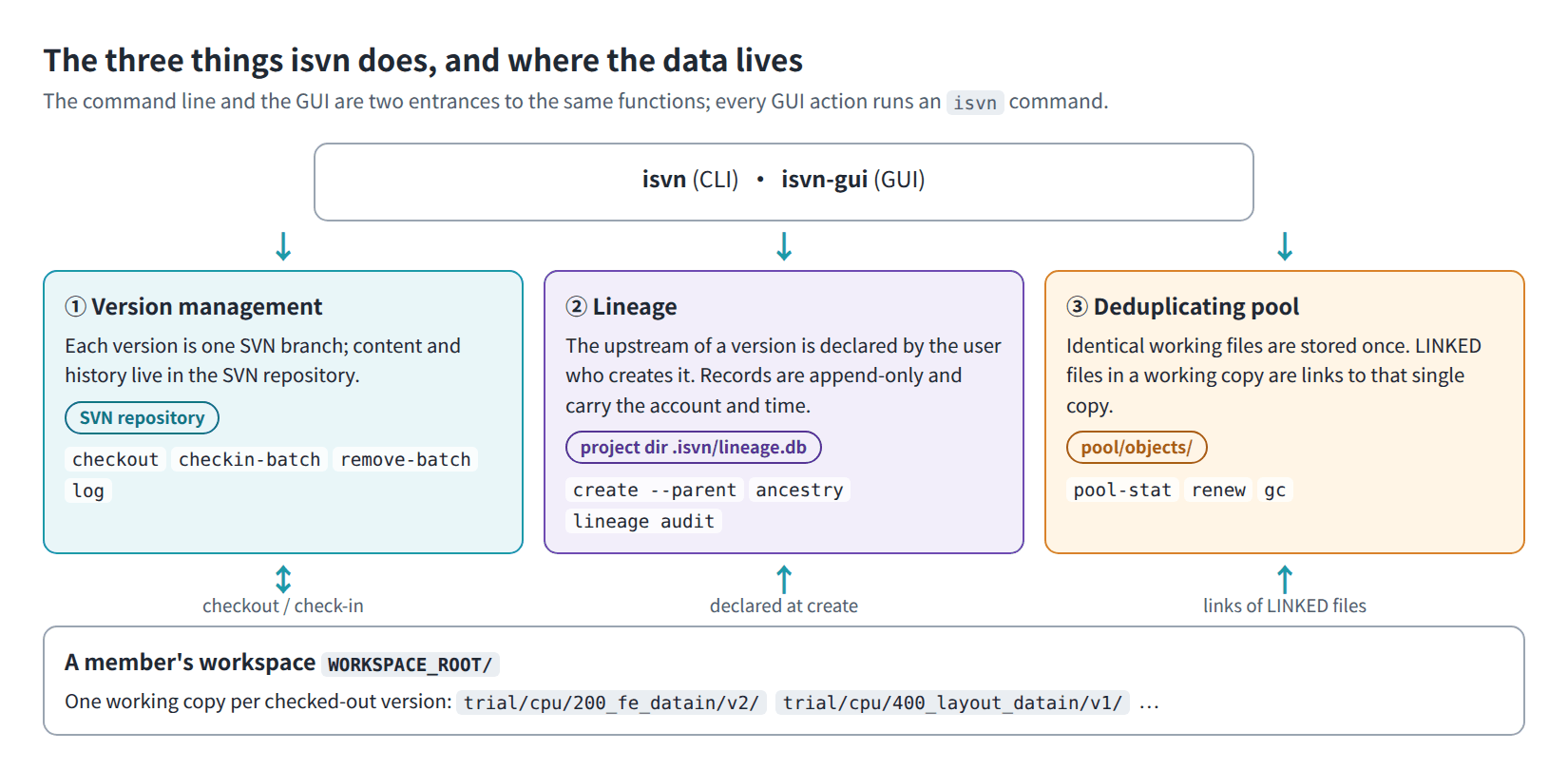
Figure U-01. The three things isvn does, and where each keeps its data.
2. Core concepts
2.1 Version ID
A version ID always has four segments:
<phase>/<block>/<stage>/<version> e.g. trial/cpu/200_fe_datain/v2
- It must have exactly four segments; no segment may be empty, be
.or.., or contain whitespace. - The version ID is also the name of the SVN branch and the name of the node in the lineage.
- Commands always use the full four-segment ID; there are no short names such as
v2.
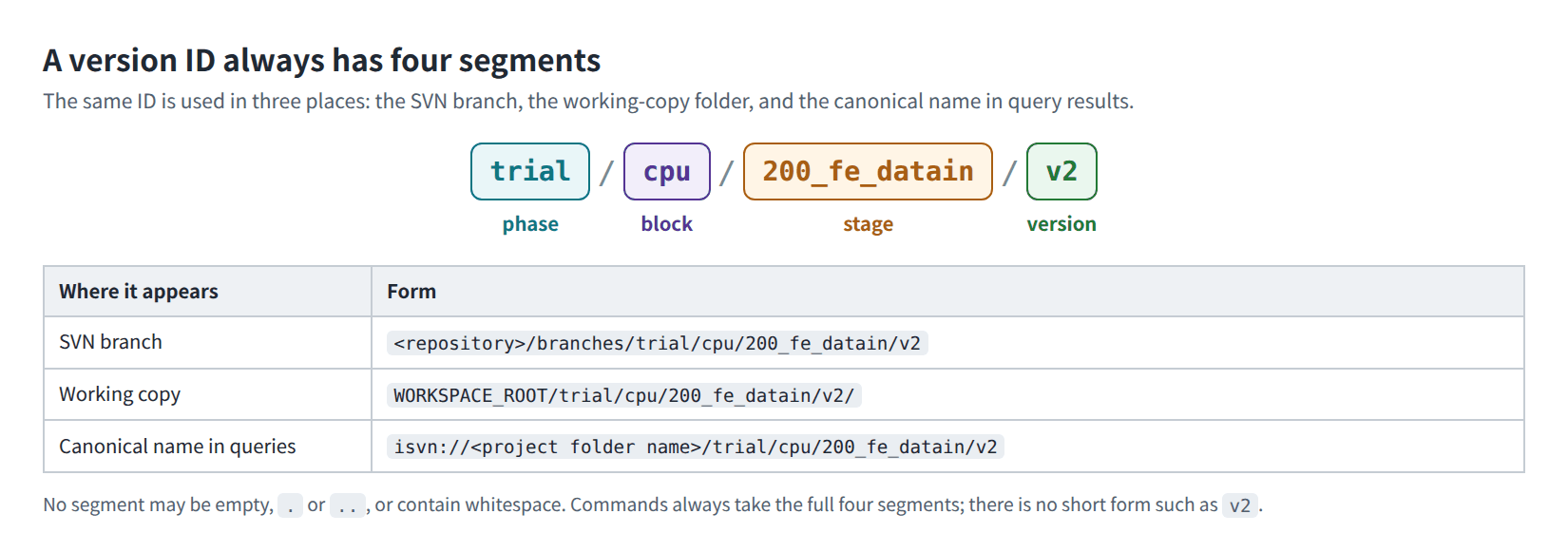
Figure U-02. The four-segment version ID and the three places where it appears.
2.2 Workspace and working copies
- The workspace (WORKSPACE_ROOT) is the directory you create with
isvn member init. It is not itself an SVN working copy. - Each version you get is placed in its own
WORKSPACE_ROOT/<phase>/<block>/<stage>/<version>/, which is an independent working copy. One workspace can hold several versions at the same time. - The private state of the workspace is kept in
WORKSPACE_ROOT/.isvn_local/; do not edit it by hand.
WORKSPACE_ROOT/
  .isvn_local/                      workspace state (do not edit by hand)
  trial/cpu/200_fe_datain/v2/       working copy of one version
  trial/cpu/400_layout_datain/v1/   working copy of another version
CLI commands that need a "current version" must be run inside the working copy directory of a version. If you run one in the workspace root, you see:
isvn: current directory is not a registered isvn version workspace; cd into WORKSPACE_ROOT/<phase>/<block>/<stage>/<version> or pass --parent <version|ROOT>
2.3 LINKED, LOCAL and file states
A file in a working copy has one of two sources:
| Source | Meaning |
|---|---|
| LINKED | The file is a link to read-only content in the pool. Files with identical content take up the space of only one copy. It cannot be modified directly |
| LOCAL | The file is a regular file in the working copy. It may be the copy you get after Make Editable, or a new file that has not been committed yet |
The Work page of the GUI also shows a state for each file:
| State (English interface) | Meaning |
|---|---|
| Clean | Identical to the content in the repository |
| Editable | Made editable, but the content has not been modified yet |
| Modified | The content differs from the repository |
| New | The file is not in the repository yet |
| Missing | In the repository, but not found in the working copy |
| Removed | Scheduled for removal from the repository |
| Conflict | SVN reports a conflict, which must be resolved before you can continue |
- After you get a version, all of its files are LINKED.
- Before you modify a managed file, you must first use Make Editable; only then does it become LOCAL (section 7).
- After a successful check-in, the file returns to LINKED.
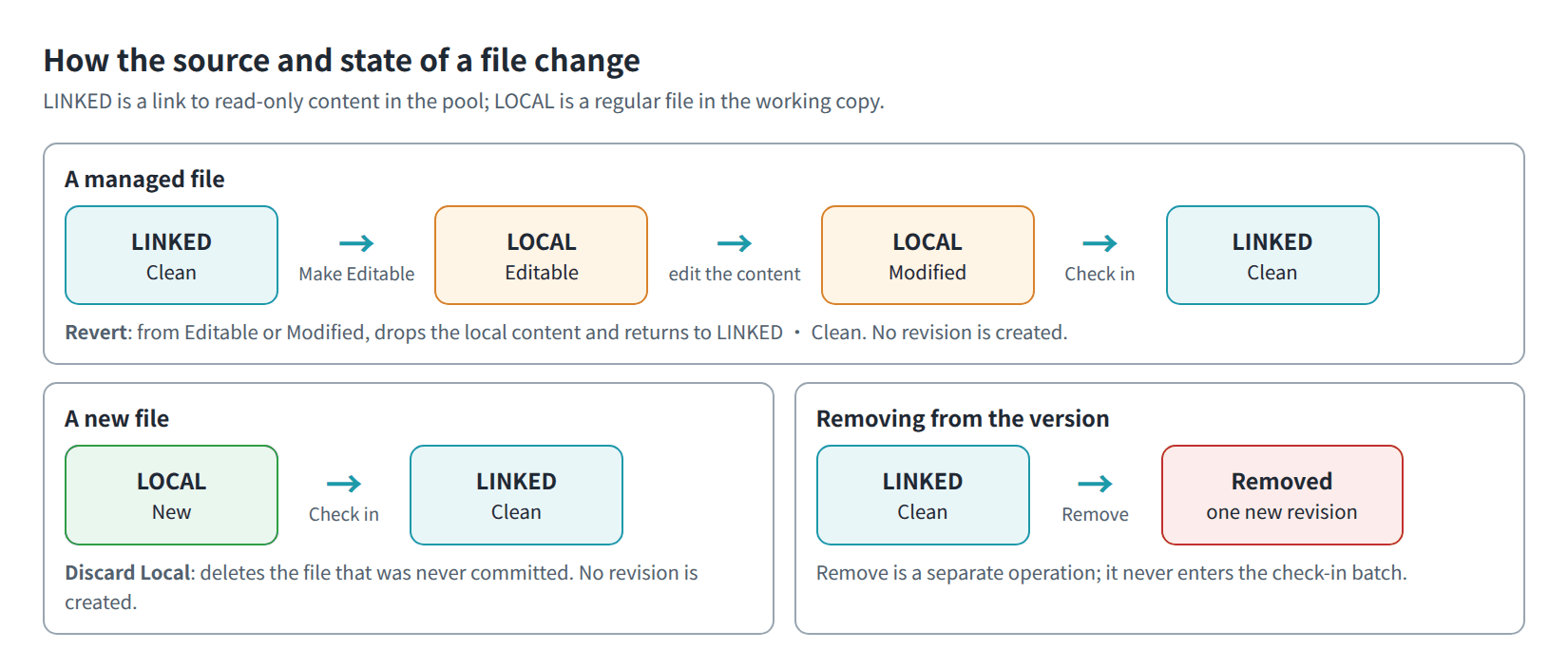
Figure U-03. How the source (LINKED / LOCAL) and state of a file change with each action.
When a pool object is reclaimed: When space runs short, the PM's reclaim operation may delete pool objects that are still in use, and LINKED files are temporarily broken. The next time an isvn command (checkout, status, update, edit, revert) touches such a file, isvn fetches the content back from SVN and links it again; no content is lost. An EDA tool that opens a broken file directly fails to read it; when that happens, first run isvn status once in that version's directory.
2.4 Four kinds of "version"
| Name | Description |
|---|---|
| Repository Version | A version that exists in the SVN repository |
| Local Working Version | A version that is already checked out into the current workspace |
| Active Working Version | The one local version that the Work page is currently operating on |
| Inspected Version | The version that the Explore page is currently viewing |
Remember three things:
- Selecting a version on the Explore page does not change the active version of the Work page.
- A successful Checkout does not automatically change the active version either.
- The active version switches only when you explicitly run Set Active and Open Work, or select a version in the Local Working Versions list on the Work page.
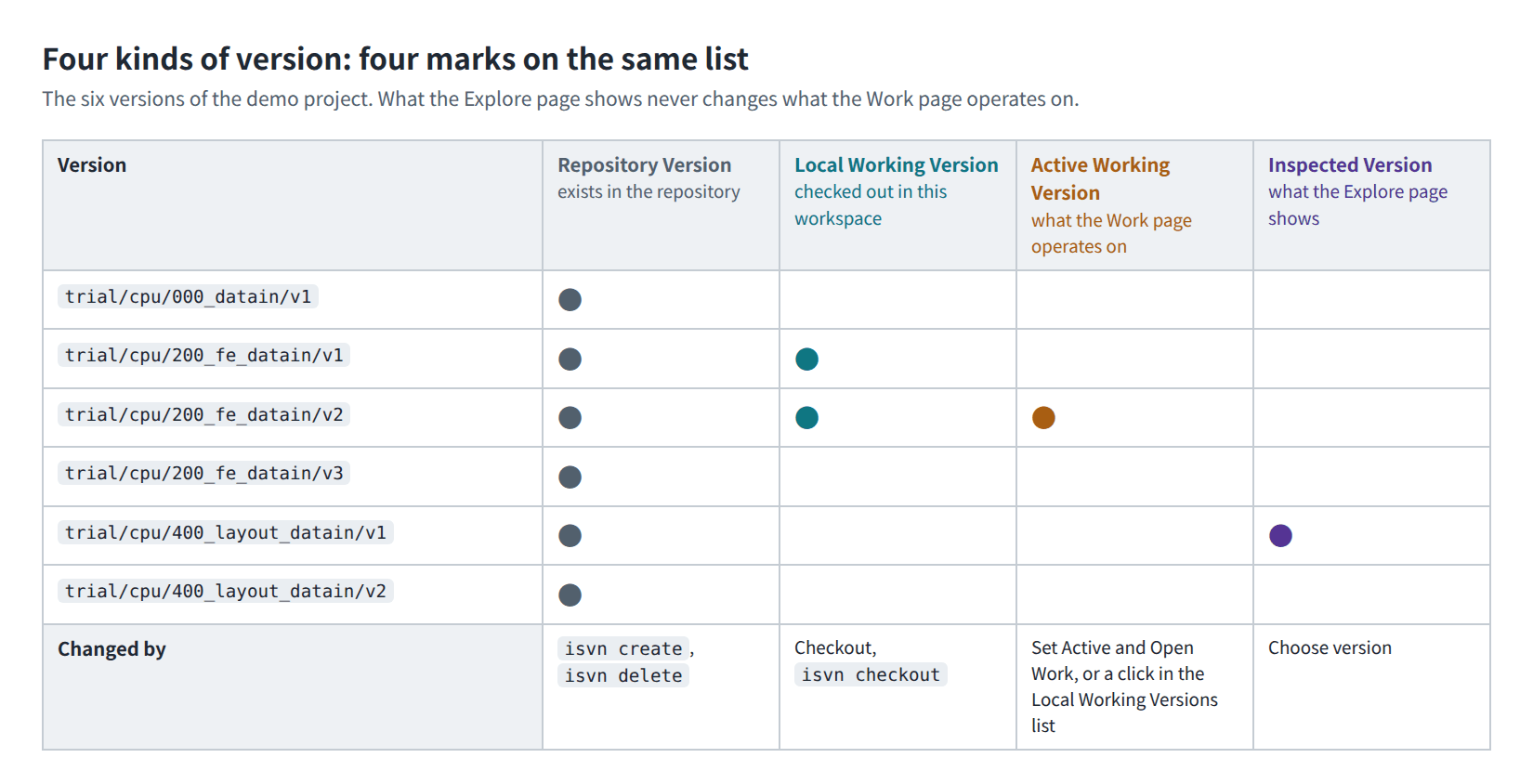
Figure U-04. The four kinds of version are four marks on the same list (demo project).
2.5 Lineage
- Lineage records "which version is the upstream (parent) of this version"; each version has at most one direct upstream.
- The upstream is decided at
createtime: it comes from--parent, or from the version directory you are in at that moment. isvn does not infer lineage from the SVN copy source or from file content. - Lineage is append-only: deleting a version "adds a removal record", and the old records can still be queried.
- Getting a version does not bring its upstream along: checking out a version gives you only the files of that version. When you need the content of the upstream, check out the upstream version separately, or use
checkout-ancestor(section 18.3). - A new version is copied from the SVN branch of its upstream, so it contains all of the upstream's files from the start, and
isvn logalso lists the upstream's commits.
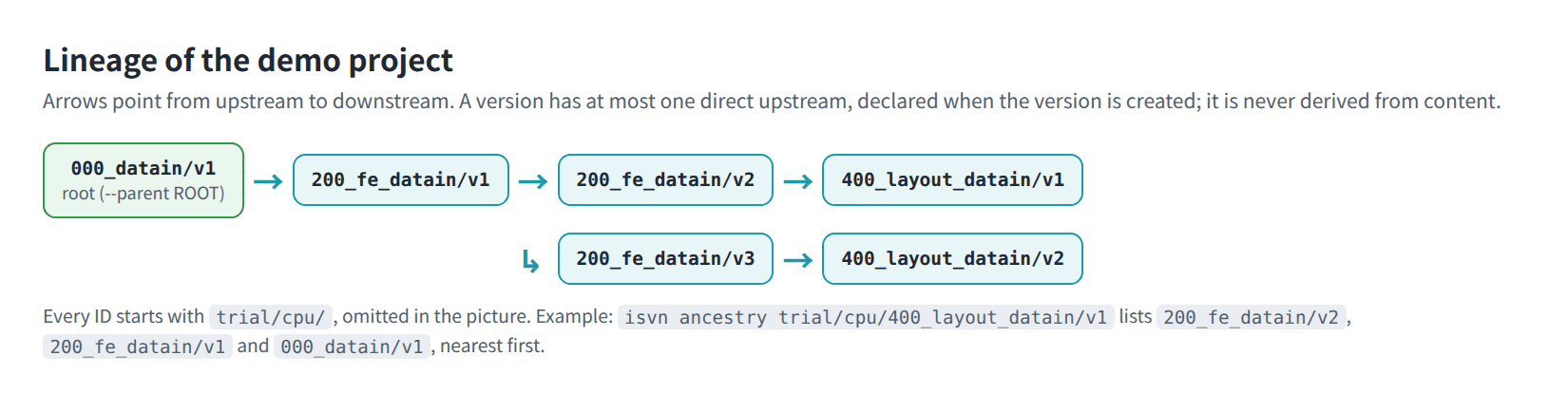
Figure U-05. Lineage of the six versions of the demo project.
2.6 Roles
| Role | How it is determined | What it can do |
|---|---|---|
| PM | The owner of .isvn in the project directory (the account that ran admin init) |
All functions, including maintenance operations such as GC |
| MEMBER | Belongs to the project's Linux group | Day-to-day operations; for maintenance functions, read-only checks only |
| DENIED | Does not belong to the project group | The GUI shows only Access Denied and reads no project data |
The GC permission is also checked in the CLI: an account that is not the PM gets AUTHORIZATION_DENIED when it runs isvn gc.
3. Starting the GUI
3.1 Starting
Start it in a workspace where isvn member init has already been completed:
cd <WORKSPACE_ROOT>
isvn-gui
- With the project installer, first
sourcethe environment file provided by the PM;isvn-guiis then onPATH. - With the Portable evaluation build, run
~/.local/opt/isvn/current/isvn-gui. - The GUI determines the project and the workspace from the directory it is started in. One GUI window handles only one project, and there is no function for switching projects; to work on another project, start another GUI in the workspace of that project.
- After starting, it goes straight to the Work page.
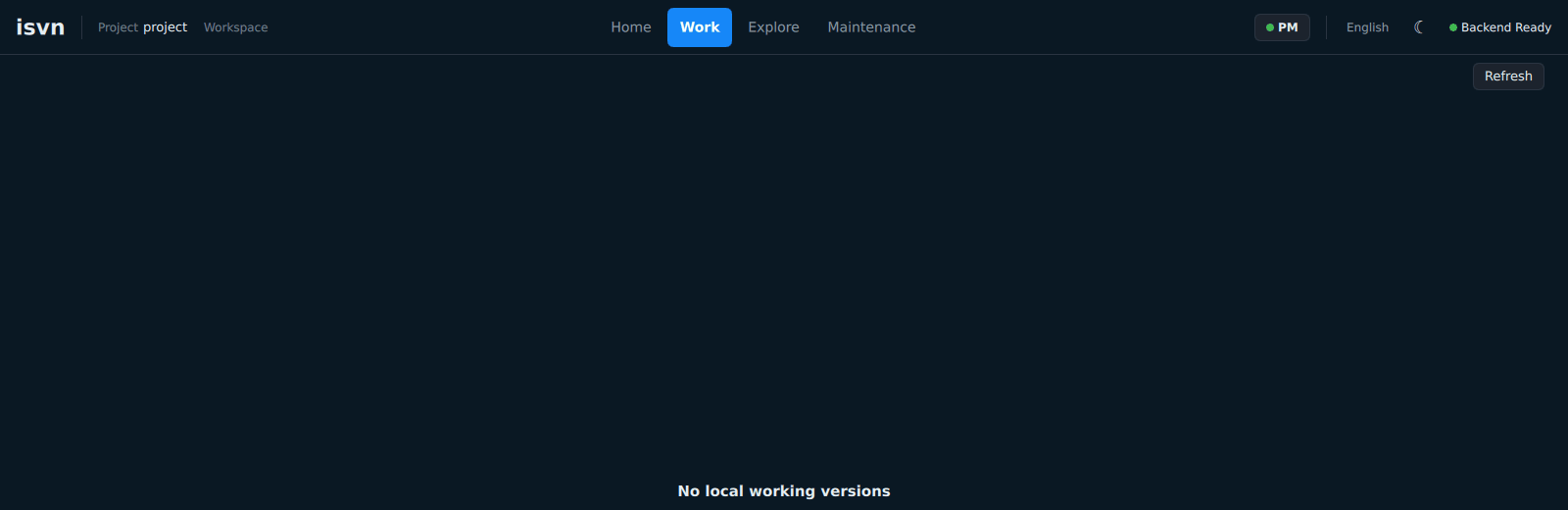
Figure U-06. The GUI on first start: the Work page with no version in the workspace yet.
3.2 Language and theme
- The interface has three languages: Traditional Chinese, Simplified Chinese and English. The GUI starts in Traditional Chinese with the dark theme.
- The button at the top right that shows the current language switches the language, in the order Traditional Chinese → Simplified Chinese → English.
- The button to the right of the language button switches between the dark and light themes. All screens in this guide use the dark theme.
This guide gives the interface text in English. See Appendix A for the full mapping to the Traditional Chinese text.
3.3 One window per project
For the same user and the same project there is only one GUI:
- Starting it again does not open a second window; the terminal prints
isvn-gui activation acknowledged, and the original window is shown again if it was hidden. - The active version, running operations and content that has not been submitted yet are not affected.
- Different projects can each be started separately.
3.4 Legacy interface
The environment variable ISVN_GUI_SHELL selects the interface:
ISVN_GUI_SHELL=legacy isvn-gui      # use the legacy interface temporarily
ISVN_GUI_SHELL=new    isvn-gui      # new interface; also used when the variable is not set
- Only
newandlegacyare accepted; with any other value the GUI refuses to start. - While the new interface of a project is running, the legacy interface cannot be started for the same project at the same time; exit normally first.
- This guide describes only the new interface. The check-in button of the legacy interface runs the single-path
isvn checkin(section 19.2).
3.5 When it does not start
| Terminal message | Cause | What to do |
|---|---|---|
ISVN_GUI_SHELL must be exactly 'new' or 'legacy' |
The value of the environment variable is invalid | Change it to new or legacy, or unset it |
isvn-gui: refusing to start without its own isvn CLI |
The paired isvn is not found in the install directory (Portable evaluation build) |
Reinstall; do not copy isvn-gui alone |
| Mentions that the other interface mode is running | The same project already has a window of the other interface | Close that window first |
An existing GUI endpoint could not be authenticated |
The path of XDG_RUNTIME_DIR is unusually long (common in containers or test environments) |
Start it from a terminal in an ordinary desktop environment |
| The window shows only Access Denied | Your account does not belong to the project group | Ask the administrator to add you to the group, then log in again |
4. Screen tour
4.1 Top bar
From left to right (numbers as in Figure U-07): ① the project name; ② the tabs of the four pages; ③ the role (PM / MEMBER); ④ the language button; ⑤ the theme button; ⑥ the backend status (Backend Ready).

Figure U-07. Top bar: ① project ② page tabs ③ role ④ language ⑤ theme ⑥ backend status.
4.2 The four pages
Home | Work | Explore | Maintenance
4.3 Bottom status bar
It is visible on every page (numbers as in Figure U-08):
- ① the current state, for example Ready;
- ② the last action and its result, for example Last action: work-read-workStatus · success;
- ③ the target version;
- ④ the storage status (Storage OK);
- ⑤ Operation Center: lists the operations that are running and those that need attention;
- ⑥ Activity Log: lists the operations you have run in this project (section 17);
- ⑦ the build information of the GUI, in the form
isvn-gui <version> · <commit> · <build type>.
When an operation completes, neither the page nor the active version is switched automatically. To see the result of an operation, click it in the Operation Center.

Figure U-08. Status bar: ① state ② last action ③ target version ④ storage state ⑤ Operation Center ⑥ Activity Log ⑦ build information.
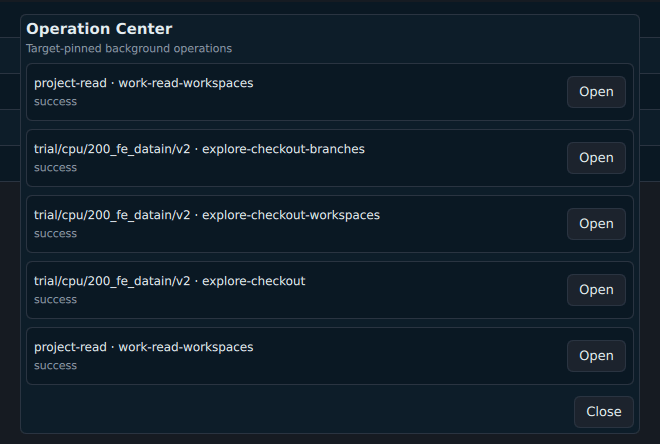
Figure U-32. The Operation Center.
5. Home page
The Home page is a read-only summary: Active Working Version, the number of Local checkouts, Operation health, Recent activity, and the Continue Work button.
- Continue Work only switches to the Work page; it does not change the active version.
- The Operation health cell shows Review Operation Center: for the detailed status of operations, look in the Operation Center at the bottom.
- Recent activity is the number of operations listed in the activity log (section 17).
- The Home page makes no changes.
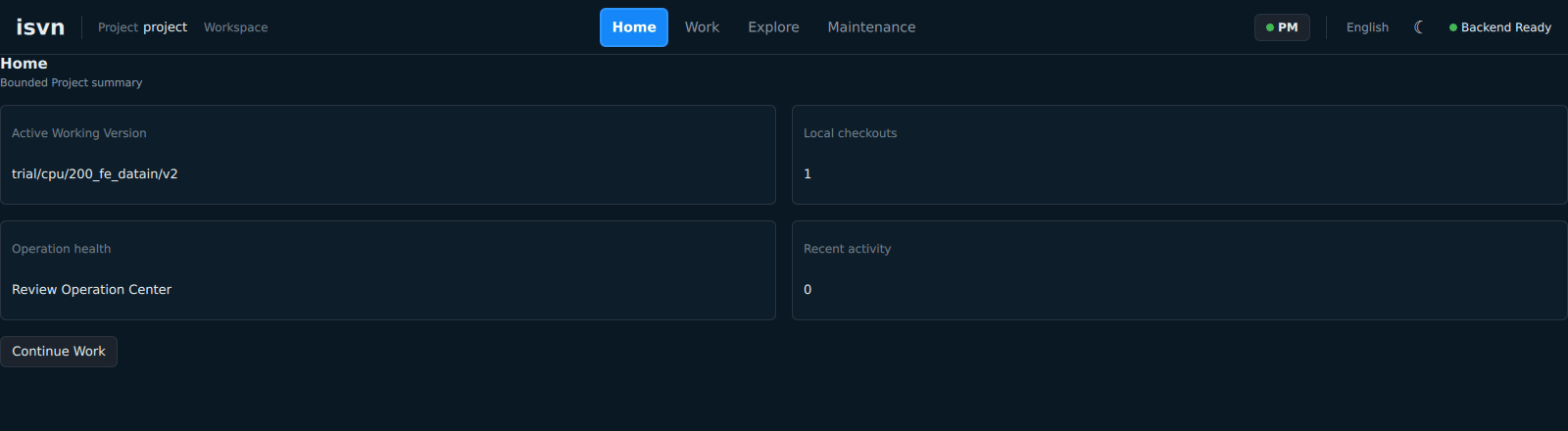
Figure U-09. Home page: the active version, the number of local checkouts and Continue Work.
6. Work page
The Work page is the center of day-to-day operations and is divided into three areas (numbers as in Figure U-10): ① Local Working Versions, ② File Status, ③ Workflow.
The page header shows ACTIVE WORKING VERSION. When no version has been selected yet, it shows No active version and the file list is empty.
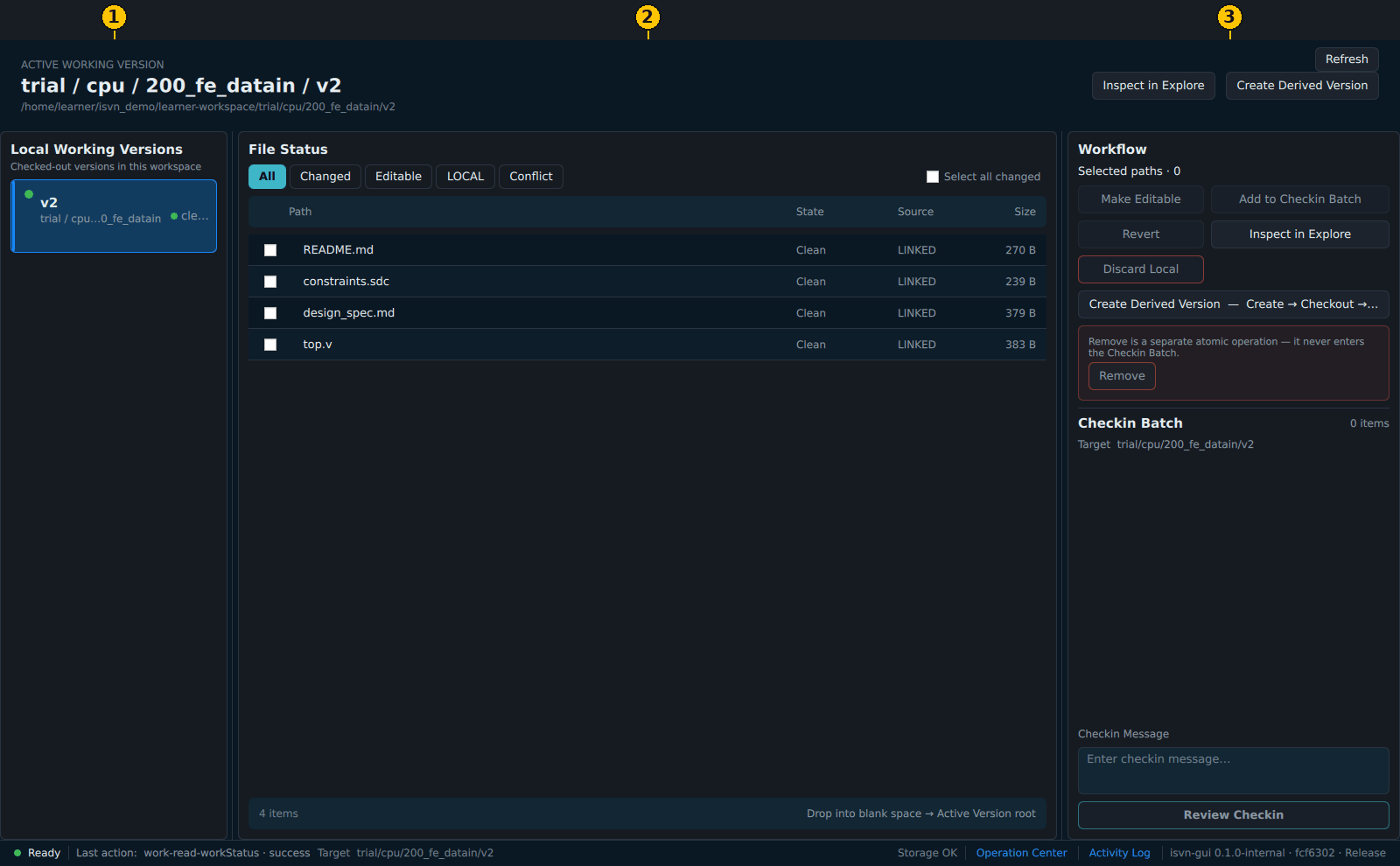
Figure U-10. The three areas of the Work page: ① Local Working Versions ② File Status ③ Workflow.
6.1 Local Working Versions
- It lists only the versions that are already checked out into this workspace.
- Click one of them; once the backend confirms that it still exists, it becomes the active version. This action does not check out or create any version.
- Each version shows a state: clean, changed, conflict, operation running, or recovery needed. operation running is only a progress indicator (section 12); recovery needed means that an interrupted operation has to be dealt with first (section 16).
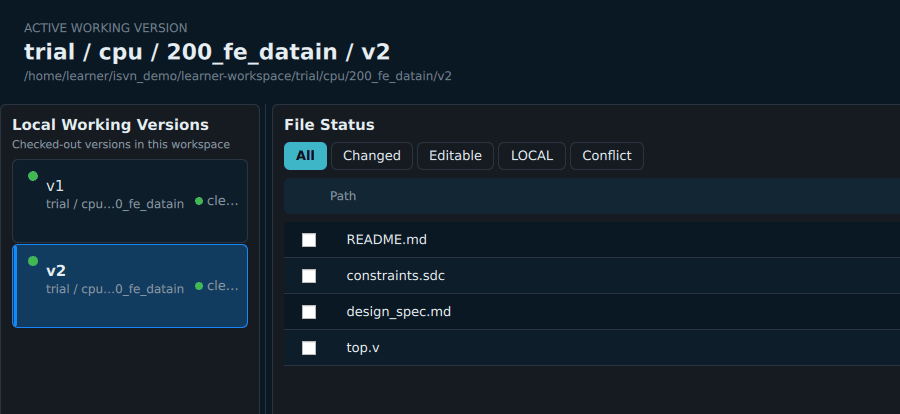
Figure U-31. The Local Working Versions list with two versions in the workspace; the highlighted one is active.
6.2 File Status
- Columns: Path, State, Source (LINKED / LOCAL), Size.
- Filters at the top: All, Changed, Editable, LOCAL, Conflict.
- The box at the start of each row is for ticking it; every action handles only the items you have explicitly ticked. Select all changed ticks all changed items at once.
- The page header counts the changes, for example 1 changed and 1 LOCAL.
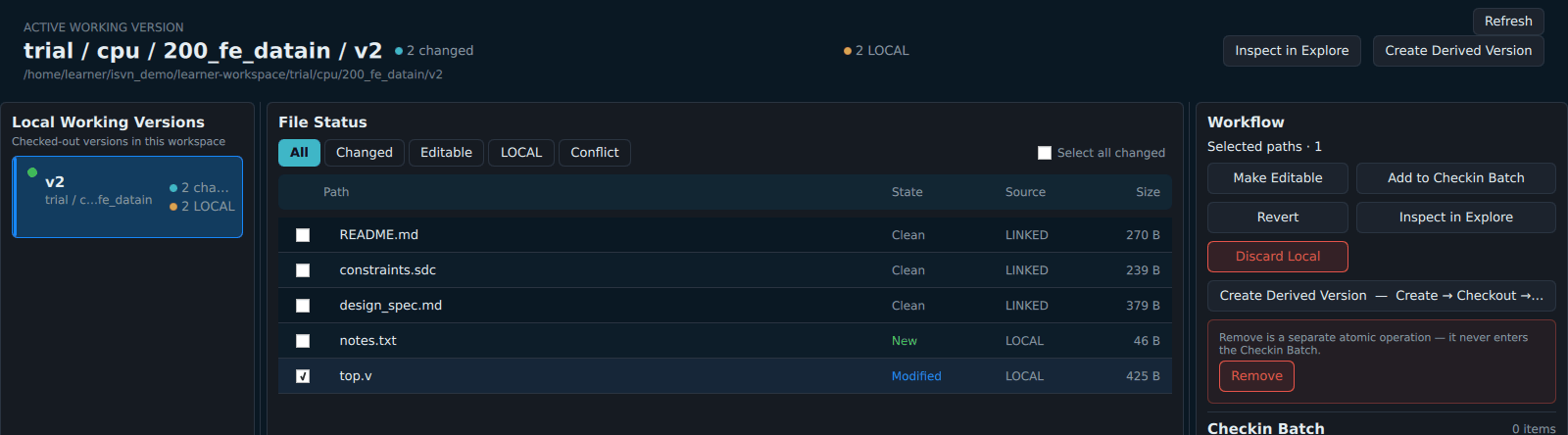
Figure U-11. The Work page with changes: notes.txt is new and top.v is modified; the header counts 2 changed and 2 LOCAL.
6.3 Workflow
| Button | Purpose | Described in |
|---|---|---|
| Make Editable | Turns a LINKED file into your own LOCAL copy | Section 7.1 |
| Revert | Discards local modifications and returns the file to LINKED | Section 7.2 |
| Discard Local | Deletes a new file that has never been committed | Section 7.3 |
| Add to Checkin Batch, Review Checkin | Commit the ticked items. Review Checkin is at the very bottom of the area, with the Checkin Message field above it | Section 9 |
| Remove | Removes managed items from the repository | Section 10 |
| Create Derived Version | Creates a new version with the active version as its upstream | Section 11.3 |
| Inspect in Explore | Goes to the Explore page to view the active version | Section 14 |
Create Derived Version and Inspect in Explore each also have a button at the top right of the page header, with the same effect. Refresh reads the state of the working copy again; after files have been changed in a terminal or with another tool, click it to update the screen.
A gray button means that the current selection or state does not allow that action. Whether an action can run is decided by the backend; act on the reason shown on the screen, and do not use some other way to get around it.
GUI operations and batch operations that support preview proceed in the same order: preview → confirm → execute → result. If the files or the repository change after the preview, the execution is blocked and you are asked to preview again.
The single-path commands (isvn edit, isvn checkin, isvn revert, and isvn remove) execute directly without a separate preview; see User Guide §19.2.
7. Modifying managed files
7.1 Make Editable
A LINKED file points to shared read-only content and cannot be overwritten directly. To modify it:
- Tick the file in File Status. Workflow shows Selected paths · 1.
- Click Make Editable.
- The confirmation screen shows: "Converts managed files to editable local copies. No repository revision is created." This screen does not list file names, so check the ticked items before you click.
- Click Apply. The result screen shows Completed and "No repository revision was created." Then click Done.
- The state of the file becomes Editable and its source becomes LOCAL. You can now modify it with an editor or an EDA tool.

Figure U-12. Confirmation page of Make Editable (the empty middle of the page is left out).
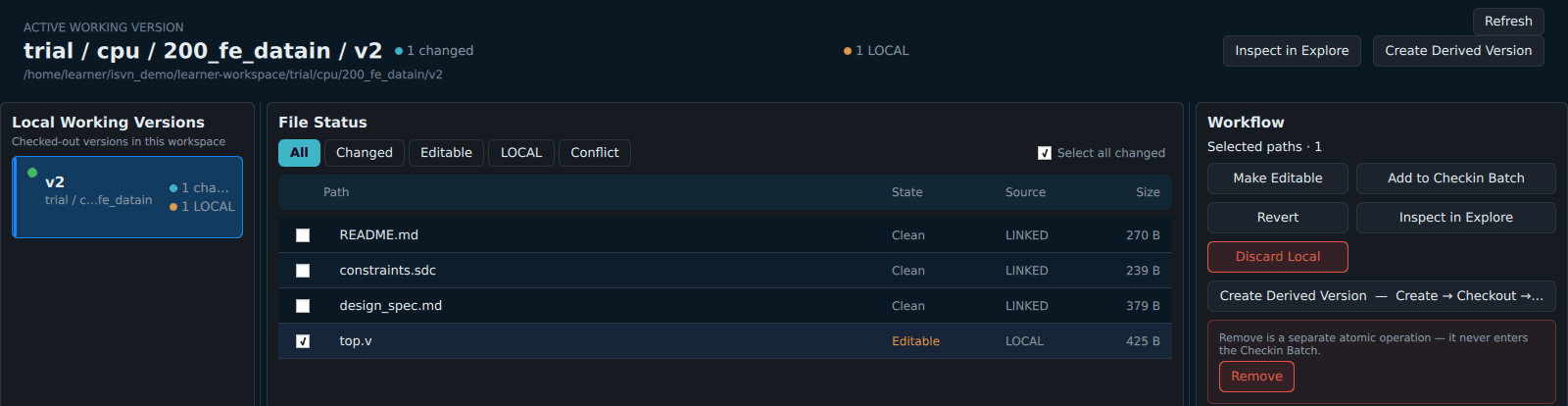
Figure U-13. After Make Editable: top.v is Editable and its source is LOCAL.
- The shared content in the pool is not modified, and other working copies linked to the same content are not affected.
- The system keeps an "editable receipt" for this file, which is used later, at check-in, to confirm that the file is a legitimate managed copy. A LOCAL file produced in any other way (including
isvn edit) has no receipt and is blocked at batch check-in; commit a file opened withisvn editwithisvn checkin(section 19.2), or revert it first, then make it editable again.
7.2 Revert
To discard the local modifications of a managed file:
- Tick the file and click Revert.
- The confirmation screen warns "This discards local changes": "Restores the managed state and discards local edits. No repository revision is created."
- Click Cancel if you want to keep the modifications; click Apply only when you are sure you want to discard them, then click Done.
The file returns to Clean and LINKED.

Figure U-14. Confirmation page of Revert: local changes are discarded (the empty middle of the page is left out).
7.3 Discard Local
Discard Local is only for new files that have never been committed (state New):
- It deletes only the local file and does not create a repository revision.
- Managed files cannot be deleted with it; to remove something from the repository, use Remove (section 10).
- This is a local deletion that cannot be undone; look at the items carefully before you confirm.
8. Importing external files
Import copies files or folders from outside the workspace into the active version. An import is only a local copy and does not write to the repository; you still have to check in afterwards.
8.1 Drop destinations
- Drop on the row of a folder: the destination is that folder.
- Drop on the blank area of File Status: the destination is the root directory of the active version.
- The row of a file cannot be used as a destination.
- When you drag in a folder, the top-level folder name is kept. For example, dragging an external
rtl/onto thesrcfolder results insrc/rtl/....
8.2 Procedure
- Drag in files or folders. Releasing them only starts a preview; nothing has been copied yet.
- Import Preview lists, for each source, the destination path, the size, and whether a file already exists at the destination.
- When the destination already has a file of the same name and that file is a new file that has never been committed, you can tick Replace Local for each such item; it is not ticked by default.
- Click Import to Work & Add to Batch; copying starts after you confirm.
- When it finishes, the imported paths are added to the check-in batch of this version. The files enter the repository only after you enter a check-in message and complete the check-in (section 9).
8.3 Safety rules
- The source contains a symlink (including one nested inside a folder) or a special file: the whole import is rejected.
- Empty folders: not imported.
- The destination is a managed file (LINKED, a LOCAL file that was made editable, or an item that is in the repository but missing locally): overwriting is never allowed. To modify a managed file, use Make Editable.
- The source or the destination changes after the preview: the execution is blocked and you need to preview again.
- An import either completes entirely or does nothing at all; it never leaves a half-finished import behind.
- It is blocked when the target does not have enough space.
- Size limits: at most 50,000 files in one import, 1 TiB in total, and 256 GiB for a single file.
- Absolute paths of external sources are not written to the activity log, notifications or error messages.
9. Batch check-in
A check-in batch belongs to a single version and exists only during the current run of the GUI.
9.1 Procedure
- In File Status, tick the files or folders you want to commit. The ticked items appear in Checkin Batch on the right.
- Enter a message in the Checkin Message field (required), then click Review Checkin.
- Checkin Batch Review lists the selected scope and the exact content of this batch: the backend has already expanded folders, removed duplicates and skipped items without changes. Next to each item is its state, for example Ready. After checking it, click Continue.
- Confirm Checkin shows the same list and message again. Click Checkin to execute.
- The result screen shows Checkin complete, Committed exactly once and the revision number, for example Repository revision r14. Click Close to return to the Work page.
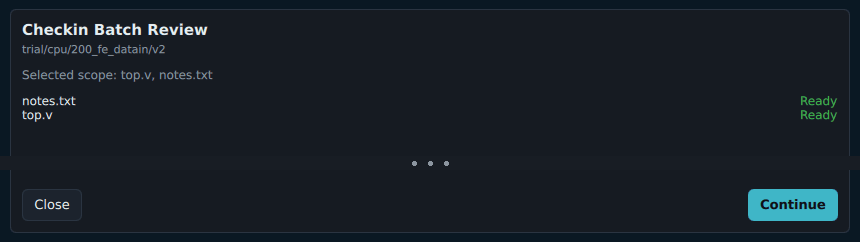
Figure U-15. Batch check-in, step one: Checkin Batch Review lists the exact content (empty areas are left out).
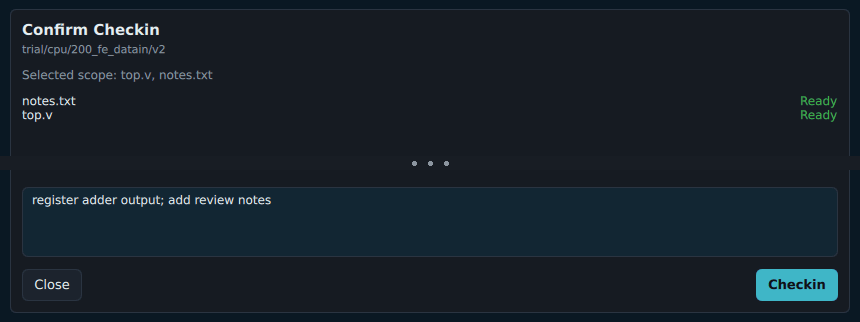
Figure U-16. Batch check-in, step two: Confirm Checkin shows the list and the message (empty areas are left out).
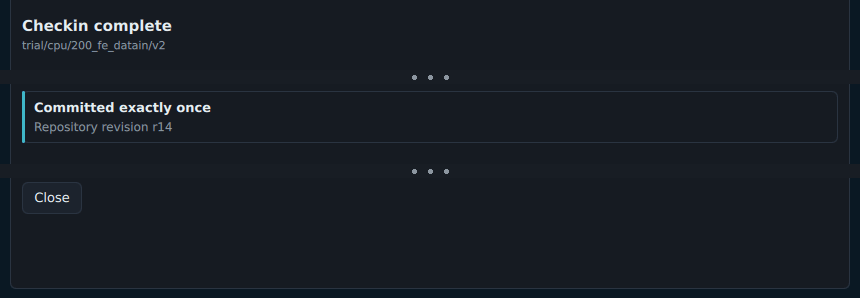
Figure U-17. Result of a batch check-in: Checkin complete and the revision number (empty areas are left out).
When items cannot be committed, Checkin Batch Review shows Checkin is blocked and the reason for each item, and Continue cannot be clicked.
9.2 Rules
- One batch makes only one SVN commit, which corresponds to one revision.
- Only the paths listed in the batch are committed; files you did not select are not carried along.
- If the content changes after the review, the execution stops and you are asked to review again.
- After success, the files return to LINKED.
- There is no "partial success": a batch is either committed as a whole or not committed at all.
- Only files that were modified after being made editable can be checked in (see the note on receipts in section 7.1).
- Size limit: at most 50,000 items in a single batch.
9.3 Concurrent operations
- Operations are never refused or queued because another operation is running, whether that operation belongs to your account or to another account.
- Several accounts can use the same project, each in its own workspace.
- In the GUI, while an operation on one version is still running, you can start another operation on the same version or on another version. operation running in the Local Working Versions list is only a progress indicator (section 12).
- An interrupted operation (a crash, a Force Exit) must be recovered or verified in the Operation Center before this version can be changed again (section 16).
- There is no design-flow reason for two people to modify the same stage version at the same time, and isvn does not arbitrate that; Subversion rejects a commit made from an out-of-date working copy as usual.
10. Remove
Remove removes managed files or folders from the SVN branch of this version:
- Tick the managed items, then click Remove inside the red frame in Workflow.
- The Remove from Version confirmation screen appears: "One removal creates exactly one repository revision. Remove never enters the Checkin Batch." This screen does not list file names, so check the ticked items before you click.
- Enter the Removal Message (required). When an item has local modifications, you must also confirm that these modifications are to be discarded.
- Click Remove at the bottom right to execute. The result screen shows Completed and the revision number, for example Repository revision r15; then click Done.

Figure U-18. Confirmation page of Remove from Version: the message is required (the empty middle of the page is left out).
The difference between Remove and Discard Local:
| Remove | Discard Local | |
|---|---|---|
| Applies to | Managed items | New files that have never been committed |
| Repository | Creates one revision | Unchanged |
When the screen shows a reason such as USE_DISCARD_LOCAL, the item you selected should be handled with the other action.
Remove removes files in a version; deleting a whole version is done with isvn delete in the CLI (section 18.3).
11. Getting a version: Checkout, Set Active, Create Derived Version
11.1 Checking out a version in the repository
Do this on the Explore page:
- Click Choose version and click the version you want in the list.
- The Inspected Version field shows this version, and the note below it reads: "This version is not in this workspace. Checkout creates its local working copy only; it does not change the Active version."
- Click Checkout… at the top right. The dialog lists the version and the local folder that will be created.
- Click Checkout in the dialog. Clicking Cancel changes nothing.
- When it finishes, a message says that the version has been checked out and states again that the active version has not changed.
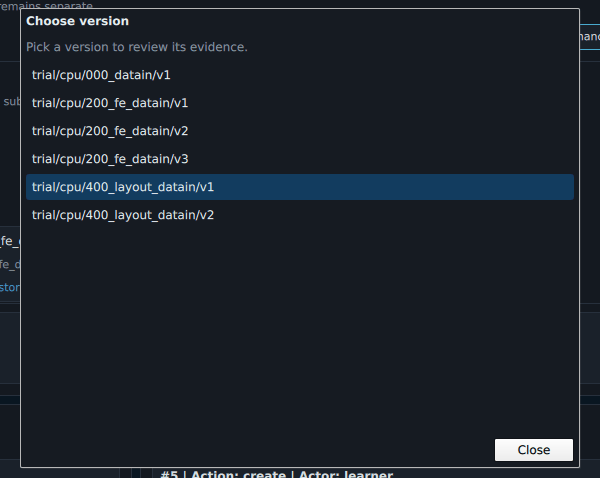
Figure U-19. The Choose version list of the Explore page.
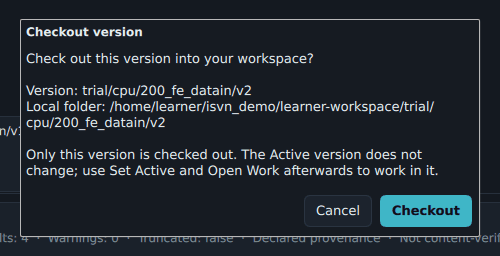
Figure U-20. The Checkout confirmation dialog: the version and the local folder that will be created.
You can also do this in a terminal:
cd <WORKSPACE_ROOT>
isvn checkout trial/cpu/200_fe_datain/v2
Then go back to the GUI and click Refresh.
Both ways give the same result: only one version is checked out at a time, and the active version does not change.
11.2 Set Active and Open Work
To start working on a version that is already checked out:
- On the Explore page, while it is the Inspected Version, click Set Active and Open Work; or
- Click it in the Local Working Versions list on the Work page.
The active version is updated and the GUI switches to the Work page only after the backend confirms that the version is still a local working copy. If the confirmation fails, the previous active version is unchanged. If the version has not been checked out yet, you are prompted to Checkout first.

Figure U-21. The notice after a checkout, and Set Active and Open Work at the top right.
11.3 Create Derived Version
Create Derived Version takes the active version as the upstream and runs three steps in order:
Create → Checkout → Set Active
- After you click Create Derived Version, a confirmation dialog appears first (Figure U-22); its two buttons are Cancel and Create → Checkout → Set Active.
- The ID of the new version is decided by the GUI: the ID of the active version with
.dappended. For example, if the active version istrial/cpu/200_fe_datain/v2, the new version istrial/cpu/200_fe_datain/v2.d. To use a different name, useisvn createin the CLI (section 18.2), then go back to the GUI and set the version active. - Creation fails (for example, a version of the same name already exists): the later steps are not run.
- Checkout fails: the new version already exists in the repository, and the previous active version is unchanged; you can retry the checkout alone, and the version is not created a second time.
- The version is set active only after the checkout succeeds.
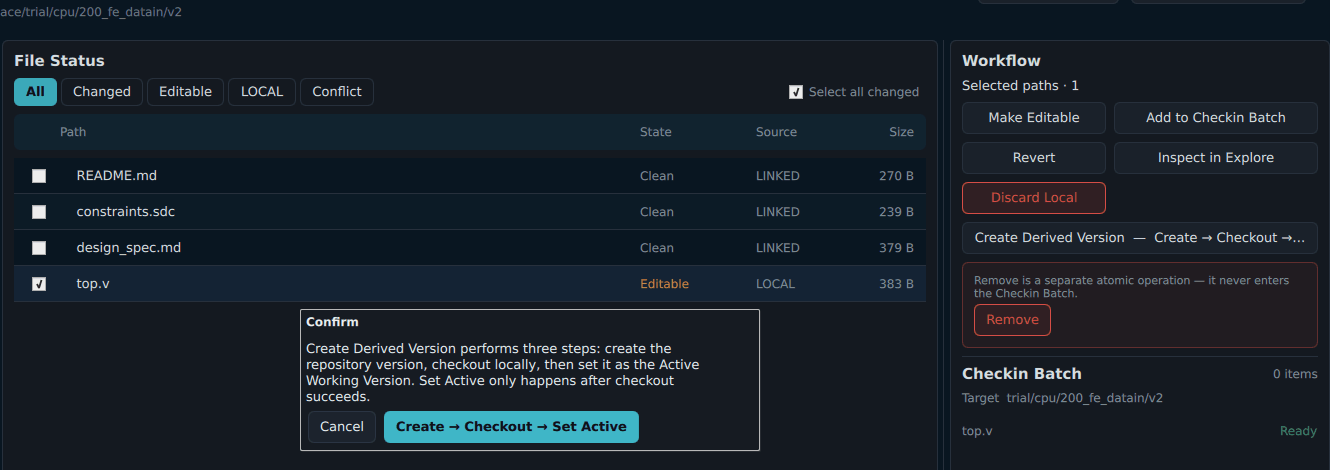
Figure U-22. The confirmation dialog of Create Derived Version.
11.4 After reopening the GUI
The GUI remembers the active version. When you reopen it, the Work page opens directly with the version that was active last time; the GUI only checks whether that version still exists and is still a local working copy. It does not check out automatically, and it does not pick another version on its own.
The activity log (section 17) is also kept until the next time you open the GUI.
12. Working on several versions at the same time
While an operation on version A is still running:
- You can switch to version B and read and operate on it normally; A shows operation running, which is only a progress indicator.
- You do not have to wait for A to finish before you start another operation on B or on A (section 9.3).
- When A finishes, the screen does not switch back to A automatically; the result is shown on the row of A and in the Operation Center, and you go there only when you click it.
Each version keeps its own content that has not been submitted yet (ticks, message, paths pending import), and switching versions does not mix them up. This content is not kept after the whole GUI is closed.
13. Closing the window and background operations
When no operation is running, closing the window is a normal exit.
If you close the window while a change operation is running, three options appear:
| Option | Behavior |
|---|---|
| Run in Background | Hides the window; the operation continues |
| Return to Operations | Cancels the close and returns to the GUI |
| Force Exit | After one more confirmation, stops the running child processes |
After Run in Background:
- Starting the GUI of the same project again brings you back to the original window.
- When all operations succeed, the system saves the results and then closes the background GUI automatically.
- If even one operation fails, has an unknown outcome or needs manual handling, the GUI stays in the background and waits for you to start it again to deal with it.
Force Exit does not guarantee recovery. If an operation stopped at a point where it cannot be determined whether it was committed, the next launch requires you to verify or recover first. The system does not retry, revert or commit automatically; you must decide after looking at the evidence.
14. Explore page
The Explore page is for viewing the repository and the relationships between versions; it does not change the target of the Work page. From top to bottom (numbers as in Figure U-23):
- ① the Inspected Version field, and the Checkout… and Set Active and Open Work buttons;
- ② Choose version and Refresh evidence;
- ③ Lineage & Evidence Explorer: Query Panel on the left, Lineage Graph Canvas in the middle and Node Inspector on the right;
- ④ at the bottom, SVN Commit History, Provenance Log and Version Relationships, and on the right, Inspector and Source Check.
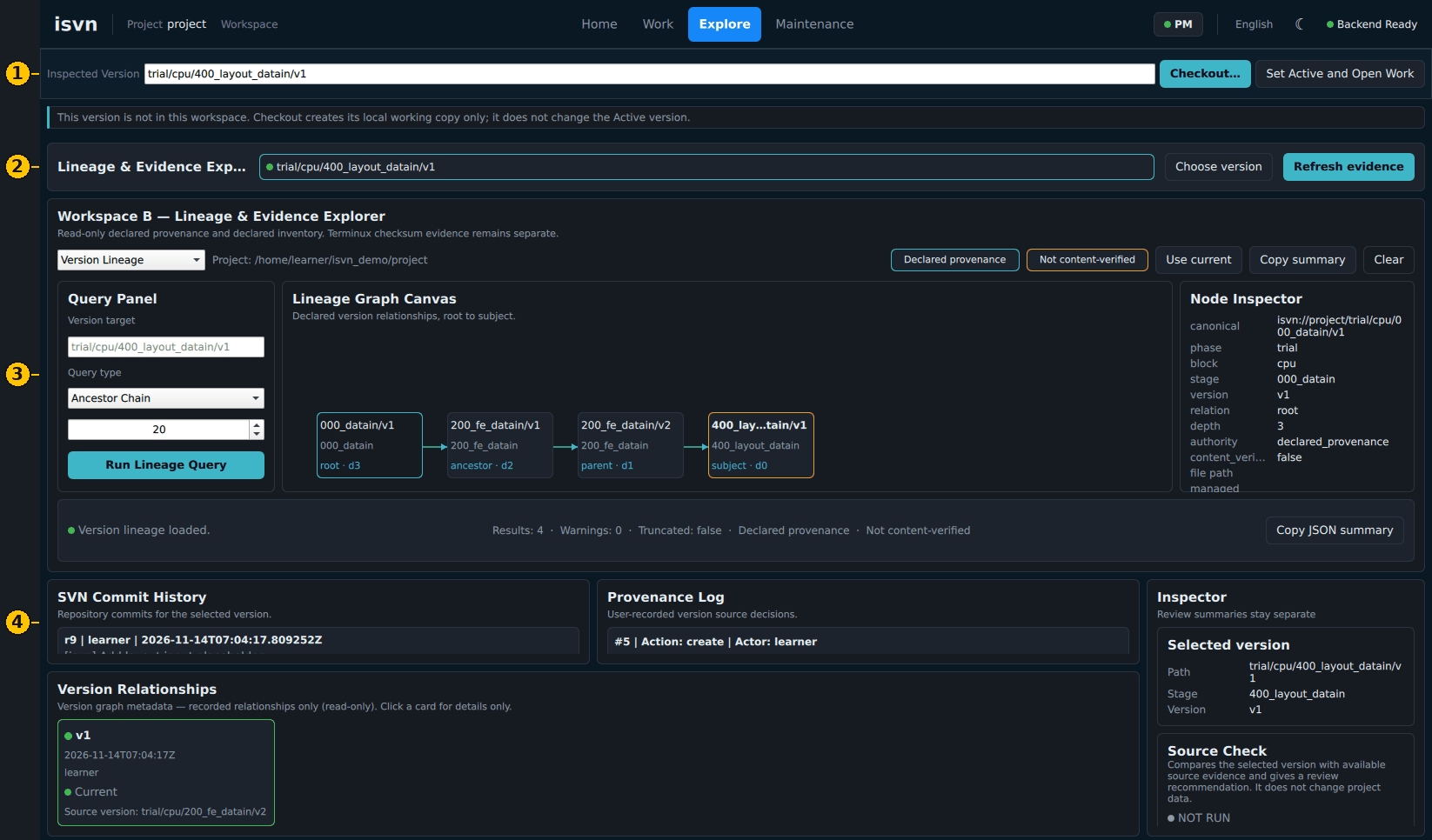
Figure U-23. The Explore page: ① Inspected Version ② Choose version ③ Lineage & Evidence Explorer ④ commit history, provenance log and version relationships.
Main content:
| Panel | Content |
|---|---|
| Lineage & Evidence Explorer | Version Lineage queries the upstream, the ancestor chain, the root version and the full lineage; File Lineage queries which versions a given path appears in. The result is drawn on Lineage Graph Canvas; click a node to see its details in Node Inspector |
| Version Relationships | The registered data of the Inspected Version: creation time and account |
| SVN Commit History | The commit history of this version |
| Provenance Log | The version provenance decisions registered by users |
| Source Check | Compares the Inspected Version with the source information that is available and offers review suggestions; for review only |
When you read the page, keep the following apart:
- Commit history is the revision record of SVN; lineage is the registered provenance relationship between versions. The two are different.
- Declared provenance and Not content-verified next to a lineage query result mean that this is registered data; it does not mean that the file content has been verified.
- Source Check is for review only; it does not apply, repair, check out or modify any version.
- File-related queries see only the versions that are already checked out into your workspace (for the reason, see section 4.1 of the isvn × Terminux Lineage Query Reference).
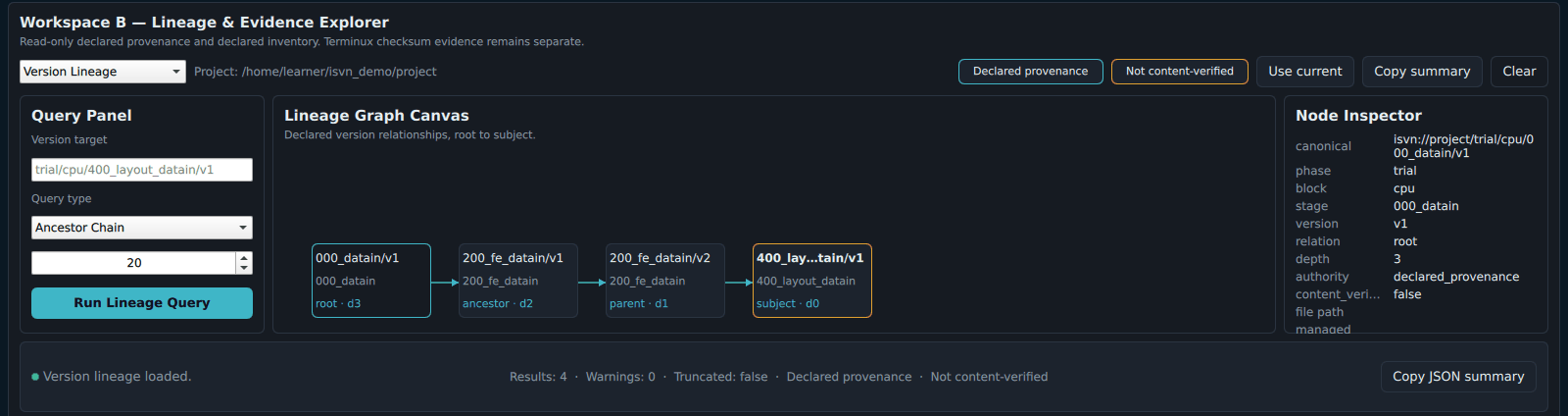
Figure U-24. Result of a version lineage query (Ancestor Chain): the lineage graph and the Node Inspector.
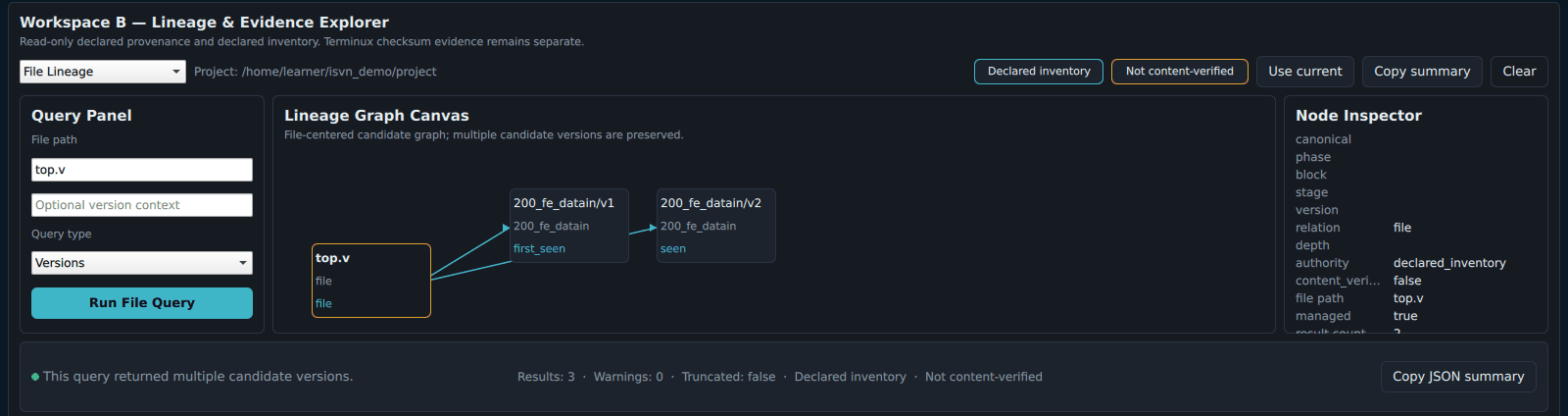
Figure U-25. Result of a file lineage query (Versions): top.v is found in the two versions checked out locally.
15. Maintenance page and roles
15.1 PM
The PM sees the full Maintenance Control Center. At the top are three buttons: Refresh, Integrity check and GC preview; below them, in order, are Maintenance Overview, Cache Pool, Retention Activity, Capacity Health, Integrity Check and Admin Overview; on the right is Operations: Cleanup Preview, plus Cache Reclaim and Full GC, which are marked as the Danger Zone.
-
When you enter the page, each panel shows not loaded; click Refresh to read the data, and click Integrity check to check the lineage records.
-
Data-changing maintenance actions in the PM GUI must be previewed first and then explicitly confirmed.
-
Actions may be disabled while there is an operation that needs recovery; deal with that operation in the Operation Center first (section 16).
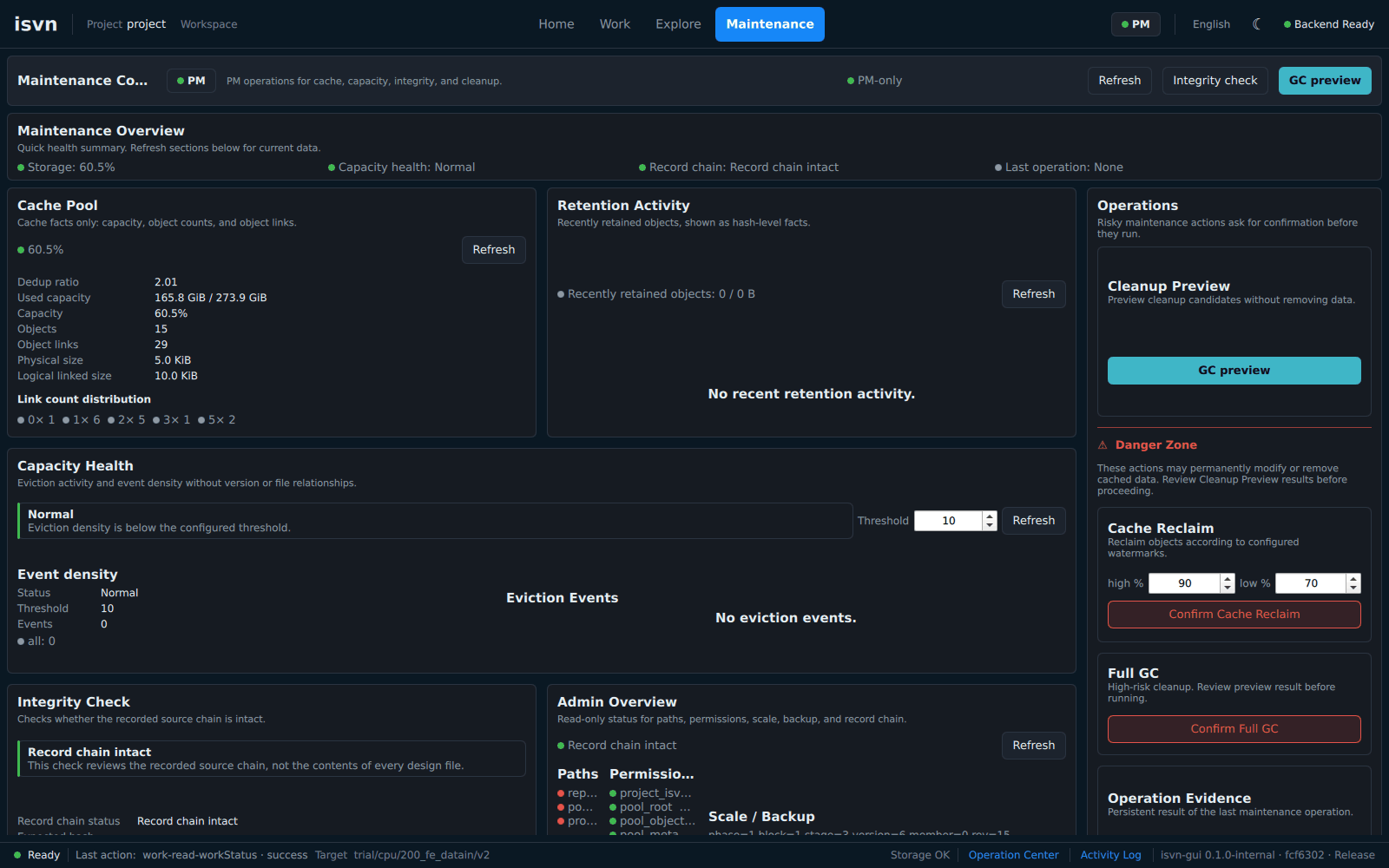
Figure U-26. The Maintenance page as the PM sees it: the Maintenance Control Center.
15.2 MEMBER
A MEMBER can enter the Maintenance page but sees only Maintenance diagnostics: read-only checks such as Verify integrity can be run. Cleanup, reclaim, repair and every change are rejected by the backend, not merely disabled as buttons; the same applies when you use the CLI directly.
15.3 DENIED
Only Access Denied is shown. The system does not create any page and does not read project data.
16. Operation results and recovery
| Result | Meaning | What you should do |
|---|---|---|
| Success | The operation completed. Operations that change the repository show the revision number | Nothing |
| Failed | The backend confirmed that the operation did not complete, or that it was safely rolled back | Fix the cause, then preview again; do not reuse the old preview |
| Outcome Unknown | The commit was interrupted, and it cannot be determined directly whether the repository has changed | Click Verify repository history to let the system check. Do not retry directly, to avoid committing twice |
| Manual Review / Recovery Required | The evidence from the working copy, the records and the repository does not match, or a previous Force Exit or crash left an unfinished operation | Open that operation in the Operation Center and run only the verification or recovery actions that the screen offers |
An interrupted operation (a crash, a Force Exit) must be recovered or verified in the Operation Center before this version can be changed again. Until then, changes to this version are refused (VERSION_RECOVERY_REQUIRED), and the version shows recovery needed in the Local Working Versions list. An operation that is still running cannot be recovered (OPERATION_IN_PROGRESS); wait until it ends, then deal with it.
When Outcome Unknown or Recovery Required appears:
- Do not manually delete or modify anything in
.isvn_local/work_operations/. - Do not simply redo the same check-in or removal.
- First look at the information for that operation in the Operation Center, then decide.
17. Activity log
Open it with Activity Log in the bottom status bar. It lists the operations you have run in this project, newest first, one entry per operation:
- The first line is
<operation> · <n items> · <result> · r<revision>, for exampleMake Editable · 1 item · doneorCheckin · 2 items · committed · r14; an operation that created no revision has no last part. - The second line is the version and the time.
- Reads and previews are not listed.
- Recent activity on the Home page is the number of operations listed here.
The activity log is a local summary scoped to "this user, this project", and it is kept when you reopen the GUI:
- It keeps at most 200 entries; beyond that, the oldest are dropped.
- It stores only safe fields; it does not store absolute paths of external import sources, backup paths, raw commands or confidential data.
- It is a summary of operations and cannot replace the SVN log or the evidence needed for recovery.
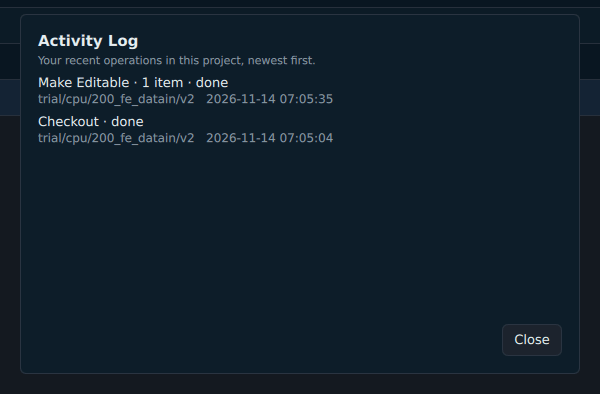
Figure U-33. Activity Log: the operations you ran in this project, newest first.
18. CLI: queries and version operations
Unless stated otherwise, commands are run inside the workspace. For a command that needs a "current version", first cd into the working copy directory of that version, or give the version ID as an argument.
Commands that read only project-level data (branches, reconcile, lineage verify, lineage audit, pool-stat, admin status, gc, provenance query) can also be run outside a workspace, provided that the environment variable ISVN_PROJECT_DIR is set, or that you are inside the project directory.
18.1 Queries
| Command | Purpose |
|---|---|
isvn version [--json] |
Shows the version, commit, build time and build type |
isvn workspaces [--json] |
Lists the versions that are already checked out in this workspace |
isvn branches [--json] |
Lists all versions in the repository |
isvn status [<version>] [--json] |
Lists the SVN status of each file and whether it is LINKED or LOCAL |
isvn work-status <version> --json |
The full status used by the Work page (which actions are possible for each file, and the reasons for those that are not) |
isvn log [<version>] [--json] |
Commit history, at most 50 entries |
isvn ancestry [<version>] [--json] |
Lineage chain |
isvn lineage audit [<version>] [--json] |
Change records of the lineage |
isvn lineage verify [--json] |
Checks the integrity of the lineage records |
isvn reconcile [<version>] [--json] |
Reports the registered upstream of the version and the lineage integrity |
isvn renew-status [<version>] [--json] |
For each LINKED file, the corresponding pool object, the last access time and the reference count |
Each line of isvn status is "SVN status, path, source":
obstructed trial/cpu/200_fe_datain/v2/README.md [LINKED]
M trial/cpu/200_fe_datain/v2/top.v [LOCAL]
? trial/cpu/200_fe_datain/v2/notes.txt [LOCAL]
- The SVN status of a LINKED file is shown as
obstructed. This is normal: the working copy holds a link, not SVN's original regular file. Mis modified,?is a new file that is not in the repository yet, andDis scheduled for removal.statusis not purely read-only: along the way it also repairs broken LINKED files.
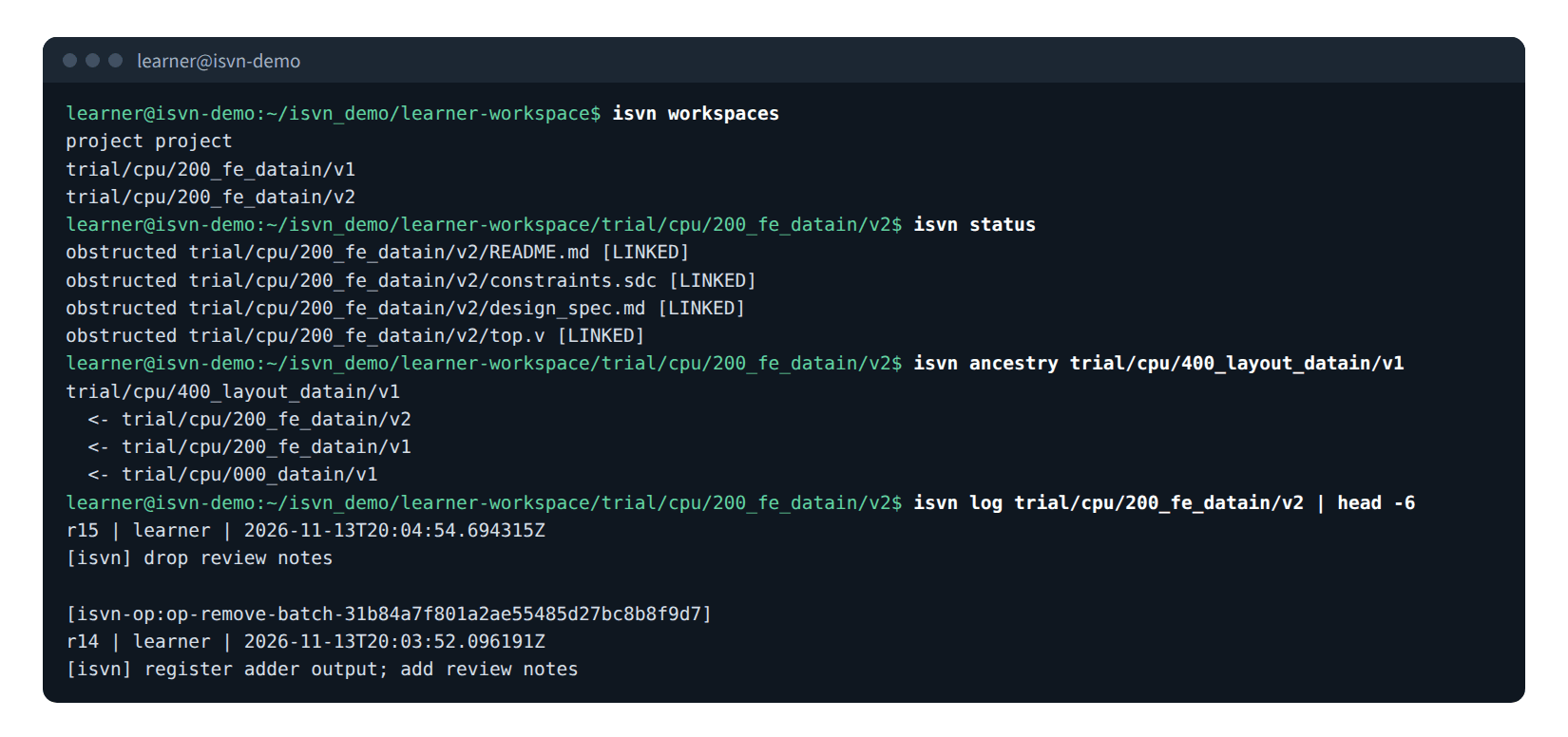
Figure U-27. Real output of isvn workspaces, isvn status, isvn ancestry and isvn log.
isvn ancestry lists the upstream versions from nearest to farthest:
trial/cpu/400_layout_datain/v1
  <- trial/cpu/200_fe_datain/v2
  <- trial/cpu/200_fe_datain/v1
  <- trial/cpu/000_datain/v1
It only displays information; it does not fetch any content.
isvn log can be used in two ways, and the results may differ:
isvn log <version>reads the repository directly and always includes the latest commits.- When it is run inside a version directory without a version argument, it shows the history up to the revision the working copy is currently at. A revision you have just committed appears only after you run
isvn update.
Each line of isvn lineage audit is "sequence number | time | account | action | version | old upstream -> new upstream | reason":
8 | 2026-11-13T18:31:48Z | pm01 | create | trial/cpu/200_fe_datain/v4 | null -> trial/cpu/200_fe_datain/v2 | create
9 | 2026-11-13T18:31:48Z | pm01 | remove | trial/cpu/200_fe_datain/v4 | trial/cpu/200_fe_datain/v2 -> null | delete by user
isvn reconcile only reports, and does two things: it lists the registered upstream of the version, and it checks the integrity of the lineage records. It does not compare against the SVN copy source, and it does not modify the lineage:
svn copy-source comparison is not available in this MVP
Lineage integrity: ok
For isvn provenance query, isvn file query and isvn file locate, which are provided for external tools, see the isvn × Terminux Lineage Query Reference.
18.2 Creating and getting versions
isvn create <new version> --parent <upstream version>     # name the upstream explicitly
isvn create <new version> --parent ROOT                   # a root version with no upstream
isvn create <new version>                                 # run inside a version directory: that version is the upstream
isvn checkout <version>                                   # get one version
isvn update                                               # run inside a version directory: update to the latest
createcreates the branch in SVN (copied from the upstream), registers the lineage, and checks the new version out into the workspace. When it finishes, it printscreated <new version> from <upstream>.- Running
createin the workspace root without--parentis rejected. - A newly created repository has no versions; the first version must be created with
--parent ROOT. checkoutgets only one version at a time, and all of its files are LINKED. When the version is already in the workspace, it has the same effect as an update.updateupdates the current version and rebuilds the links.
18.3 Upstream content and deleting a version
isvn checkout-ancestor [<version>] [--depth N] [--yes]
isvn delete <version>
checkout-ancestor fetches the content of the upstream at level N (default 1) into the workspace:
ancestor depth 1: trial/cpu/200_fe_datain/v2
checkout this ancestor content? (y/n)
- Without
--yes, it first shows which version the upstream is and asks; if you answer anything other thany, nothing is fetched. - The content is placed in
WORKSPACE_ROOT/ancestor-<N>/. It is an ordinary SVN working copy (regular files, not LINKED) and does not appear inisvn workspacesor in the Local Working Versions list of the GUI. It is for reference only. - When the level exceeds the length of the lineage chain, it prints
already at root; ancestry depth N is unavailable. - When you need to work on the upstream version in the GUI, simply run
isvn checkout <upstream version>.
delete deletes a whole version:
- It refuses when the version still has downstream versions, and lists them; you must deal with the downstream versions first.
- When there is no downstream version: it deletes the local working copy, adds a removal record to the lineage, and deletes the SVN branch.
- The CLI does not restrict this to the PM; confirm with the team before you delete.
refusing to delete trial/cpu/200_fe_datain/v2 because it has descendants:
  trial/cpu/200_fe_datain/v4
  trial/cpu/400_layout_datain/v1
19. CLI: file operations
19.1 Recommended approach: batch commands
The commands below are what lies behind Make Editable, Revert, Discard Local, batch check-in and Remove in the GUI. Each of them has two steps, preview (previews and returns a plan_hash) and apply (executes, and must pass back the same plan_hash), and the output is always JSON. These commands are run inside the workspace, and the version is given as an argument.
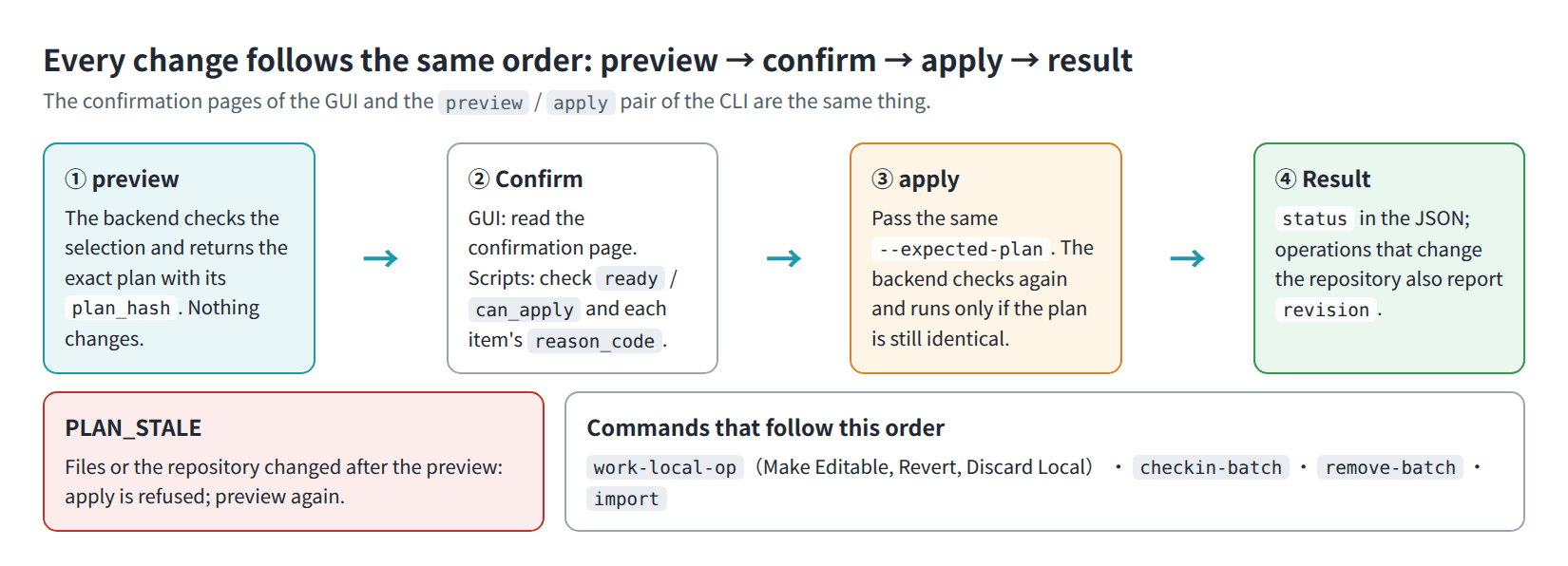
Figure U-28. Preview → confirm → apply → result: the order shared by the batch commands and the GUI.
Modify and check in one managed file:
cd <WORKSPACE_ROOT>
V=trial/cpu/200_fe_datain/v2
plan_of() { python3 -c 'import json,sys; print(json.load(sys.stdin)["plan_hash"])'; }

# 1. Make editable
plan=$(isvn work-local-op preview --action make-editable --in $V --path constraints.sdc --json | plan_of)
isvn work-local-op apply --action make-editable --in $V --path constraints.sdc --expected-plan "$plan" --json

# 2. Modify the file
echo "# tighter clock" >> $V/constraints.sdc

# 3. Check in
plan=$(isvn checkin-batch preview $V --path constraints.sdc --json | plan_of)
isvn checkin-batch apply $V --path constraints.sdc --expected-plan "$plan" --message "tighten clock constraint" --json
plan_of is just a small helper that takes plan_hash out of the JSON of preview; jq -r .plan_hash works as well. Replace step 2 with your actual modification.
Output of a successful check-in (excerpt):
{"schema":"checkin-batch-result/v1","target_version":"trial/cpu/200_fe_datain/v2","status":"committed","revision":14,"changed_paths_verified":true,"recovery_required":false}
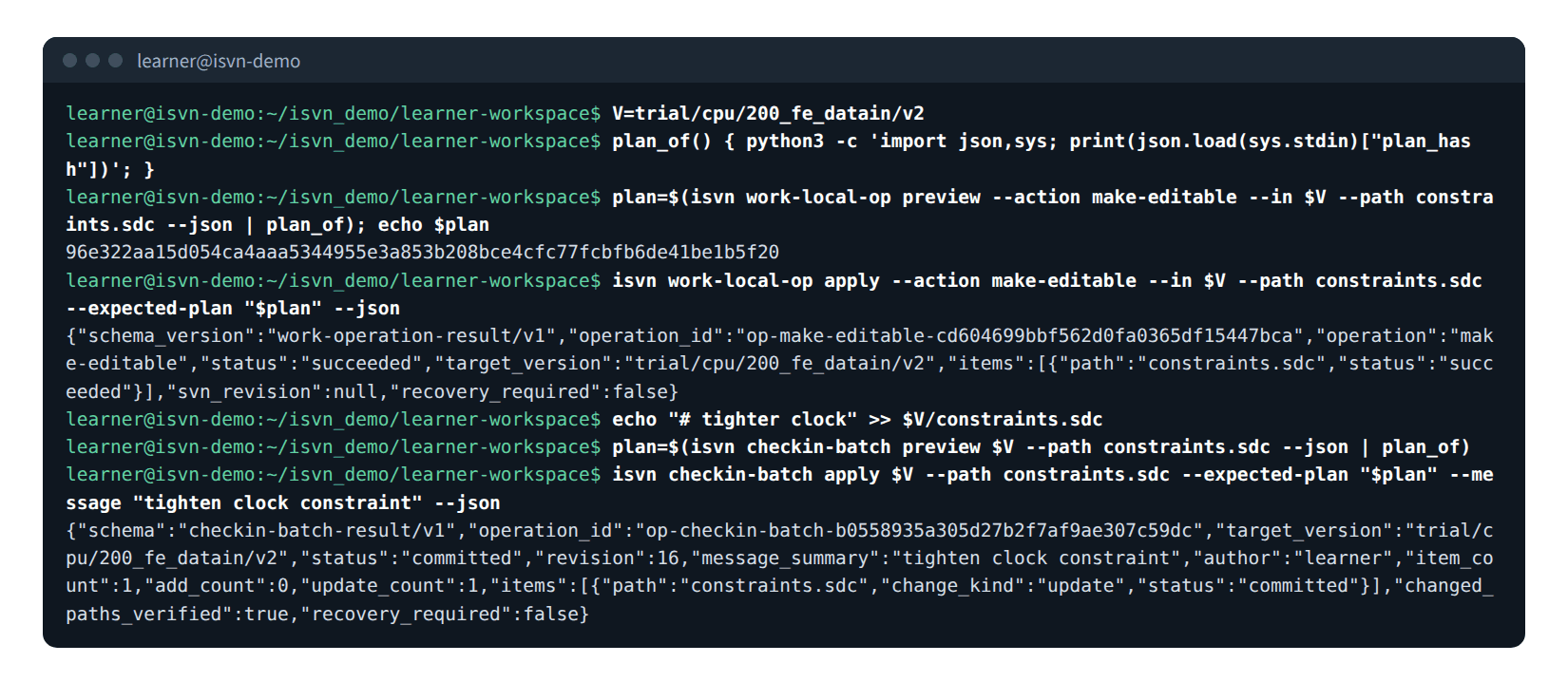
Figure U-34. Real output of editing and checking in a managed file with the batch commands.
| Command | Description |
|---|---|
isvn work-local-op preview|apply --action make-editable|revert|discard-local --in <version> --path <path>... |
Make Editable, Revert, Discard Local |
isvn checkin-batch preview|apply <version> --path <path>... |
Batch check-in; apply requires --expected-plan and --message |
isvn remove-batch preview|apply --from <version> --path <path>... |
Remove; apply requires --expected-plan and --message; add --allow-discard-local when an item has local modifications |
isvn work-recovery status|restore|verify [<operation id>] |
Inspect or handle unfinished operations |
isvn import preview|apply --request-stdin |
Import; the request content is generated by the GUI, and manual use is not recommended |
Note the following when you write scripts:
--pathcan be repeated to handle several paths at once. A new file does not need to be made editable first; just runcheckin-batchdirectly.- In the result of
preview, whenreadyorcan_applyisfalse, you cannot apply; thereason_codeof each item explains why. - Check the
statusin the JSON; do not look at the exit code alone. Whencheckin-batch applydoes not commit successfully, it may still end with exit code 0 whilestatusisfailed. - When the backend rejects the request, the output is
{"schema_version":"work-error/v1","ok":false,"error":{"code":"..."}}and the exit code is 1. - Common reason codes are listed below; they appear in
error.codeor in thereason_codeof each item in the preview result:
| Code | Meaning |
|---|---|
SELECTION_REQUIRED |
No --path was given |
NOT_CHECKIN_ELIGIBLE |
The selected items have no changes that can be committed |
EDIT_PROVENANCE_REQUIRED |
The file did not become LOCAL through Make Editable; revert it first, then make it editable again |
USE_DISCARD_LOCAL |
This is a new file that has never been committed; use discard-local |
PLAN_STALE |
The content changed after the preview; preview again |
INVALID_VERSION |
The version is not checked out in this workspace |
AUTHORIZATION_DENIED |
PM required |
19.2 Single-path commands: isvn checkin, isvn remove, isvn edit, isvn revert
These commands handle one file or folder at a time. They have no preview and no plan_hash; one command does the whole job directly. This is the set that external tools (for example, the DQE checkin of Terminux) call.
isvn edit <file> [--in <version>]                  # LINKED → LOCAL
isvn checkin <file or folder> [--to <version>]     # commit; back to LINKED when done
isvn revert <file>                                 # discard the modifications, back to LINKED
isvn remove <file or folder> [--from <version>]    # remove from the version and commit
isvn checkin <file or folder> commits only the given path and what is below it; managed (LINKED) files elsewhere in the working copy are not affected. When you give a folder, the new files and new folders in it are added and committed in the same revision (names on Subversion's ignore list are skipped). After the commit, the files return to LINKED.
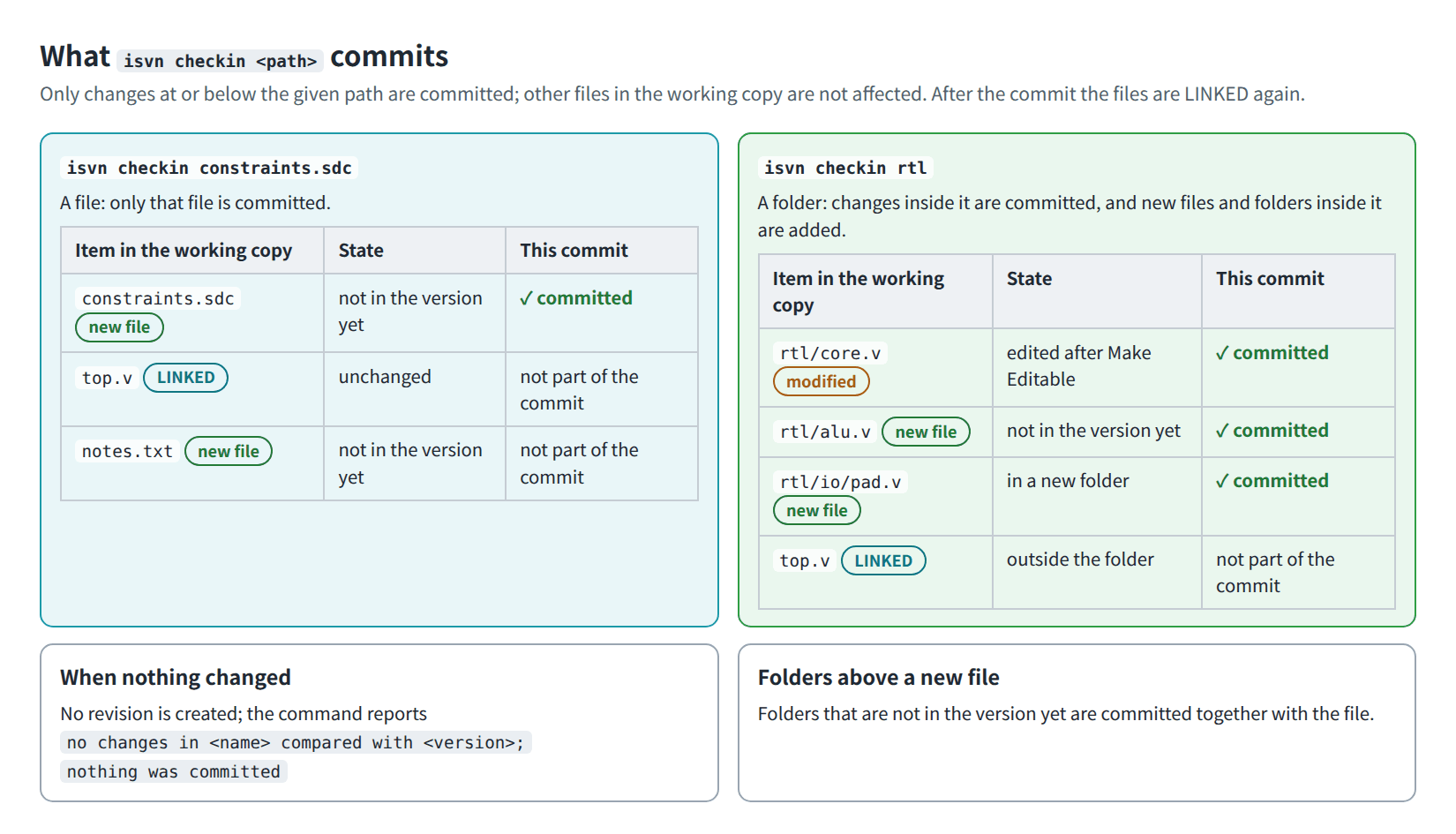
Figure U-29. What isvn checkin <path> commits: a file alone, or a folder with the changes and new files inside it.
Example: modify a managed file and check it in
cd <WORKSPACE_ROOT>/trial/cpu/200_fe_datain/v2
isvn edit top.v            # [LOCAL] trial/cpu/200_fe_datain/v2/top.v
# ... modify top.v ...
isvn checkin top.v         # committed r15
| Case | Result |
|---|---|
| A modified file, a new file | Only the paths you specify are committed, and committed r<N> is printed. Modifications to other files in the working copy are not carried along |
| A folder | The modifications of versioned files in the folder, together with the new files and new folders in it, are committed in one revision, and committed r<N> is printed |
| The folder that contains the new file is not versioned yet | The folder is committed together with it. Other files in the same folder that are not versioned yet are not carried along |
| The content is identical to the repository | No revision is created, no changes in <name> compared with <version>; nothing was committed is printed, and the exit code is 0. A file that was opened with isvn edit returns to LINKED |
| The specified path is not versioned and has nothing that can be committed | isvn: nothing to check in under <path>, and the exit code is 1 |
A file outside the workspace, with --to <version> added |
It is first copied to the root directory of that version and then committed, and copied <file name> into <version> and committed r<N> is printed. The command itself must still be run inside the workspace |
With --json added |
{"result":"committed","revision":15,"file":"top.v","version":"…","copied":false}; when there is no change, it is "result":"unchanged" and "revision":null |
Figure U-30 is a real terminal transcript: checking in a single file, checking in a folder that contains new files, and running isvn checkin on a path without changes.
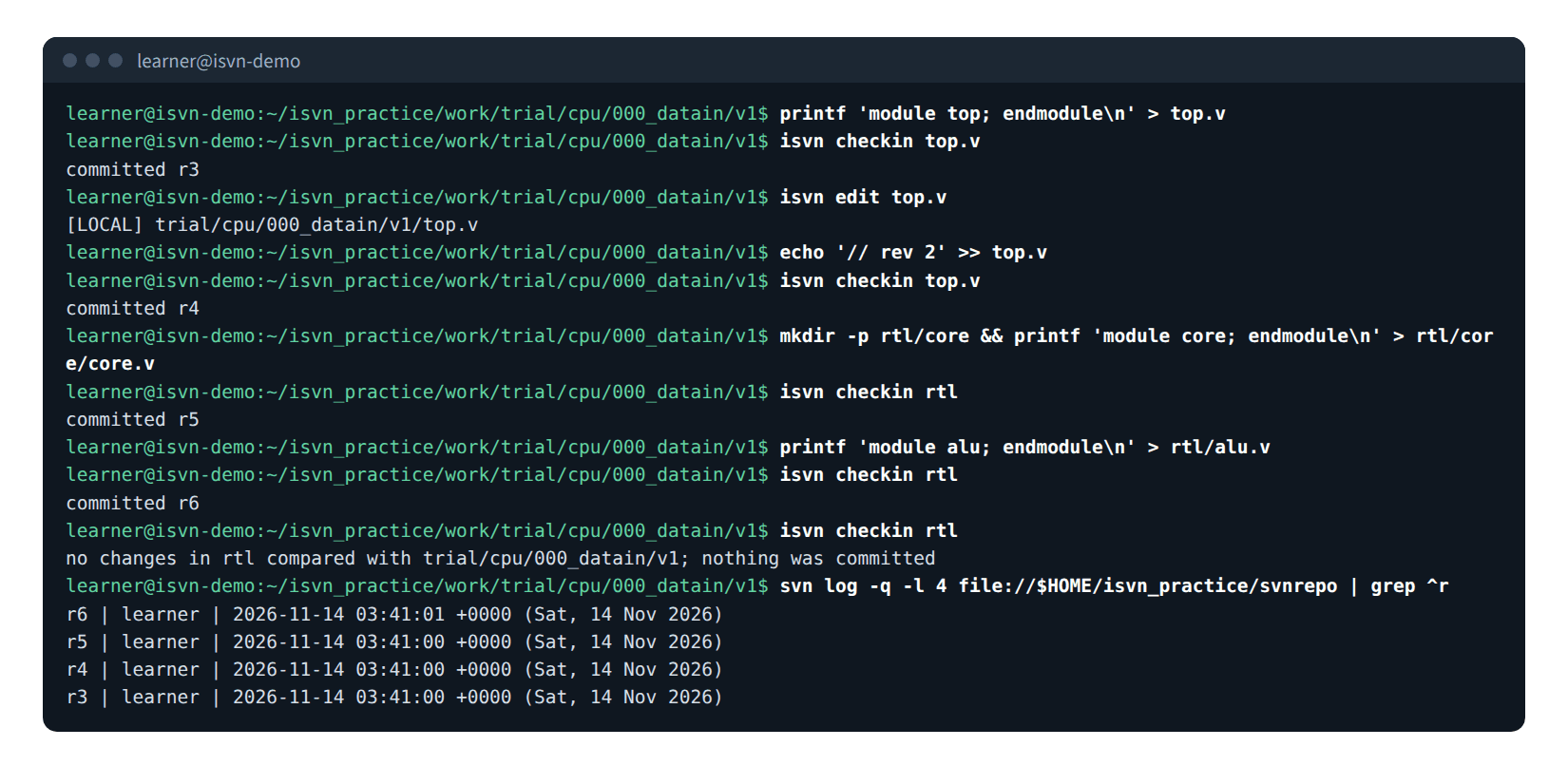
Figure U-30. Real output of isvn checkin for a single file, a new folder, a new file inside a folder, and a path without changes.
isvn remove <file or folder> removes the given path from the version and commits only that removal:
| Case | Result |
|---|---|
| A managed file | It is removed from the version and committed, and removed in r<N> is printed. Other LINKED files are not affected |
| A folder | It is removed together with the managed files in it |
| The folder contains files that are not versioned yet, or has local modifications | Refused (svn: E200005); neither the working copy nor the repository changes. First check those files in, revert them or move them away |
| The folder is behind the repository (files in it were committed again after the folder was fetched) | The commit is refused (svn: E155011 … is out of date); neither the working copy nor the repository changes. Run isvn update in the version directory, then run the command again |
| A file that is not versioned yet | Refused; the file is kept. It is not in the repository, so simply delete the file |
What you need to know when you use these commands:
- Do not mix single-path commands and batch commands for the same modification. A file that became LOCAL through
isvn edithas no editable receipt, and a batch check-in refuses it withEDIT_PROVENANCE_REQUIRED; commit it withisvn checkin, or runisvn revertfirst and then start over with Make Editable. - These commands have no preview and do not appear in the Operation Center of the GUI.
- The DQE checkin of Terminux lists the LINKED files of the version with
isvn status --json, runsisvn editon the files it is going to overwrite, and after writing them runsisvn checkinfor each file. Checking the same job in again also succeeds, and files whose content did not change report that there are no changes.
20. CLI: PM maintenance
20.1 Pool health
isvn pool-stat [--evict-events] [--evict-threshold N] [--json]
objects=13
refs=29
physical_bytes=4615
logical_ref_bytes=10203
dedupe_ratio=2.21083
pool_used_ratio=0.602842
atime_usable=true
renewed_objects=0
renewed_bytes=0
refcount_distribution=1:5,2:4,3:2,5:2
evict_events=0
latest_evict_event=
dedupe_ratiois the deduplication ratio;pool_used_ratiois the usage ratio of the file system that holds the pool.- Adding
--evict-eventsgives two more lines, which show the number of "forced eviction" events and the time of the most recent one. A forced eviction means that, when space runs short, an object that is still in use has to be deleted.- Almost none: healthy.
- Occasional: just keep an eye on it.
- Continual within a short period: the amount of data in active use already exceeds the pool capacity, and you should arrange with IT to expand the storage.
- The capacity of the pool is determined by the mounted storage; isvn has no "set capacity" function.
20.2 Garbage collection
isvn gc --reconcile --dry-run             # preview: list the stale link records that would be cleared; deletes nothing
isvn gc --reconcile                       # clear stale link records and correct the reference counts; does not reclaim space
isvn gc --reclaim --high 0.9 --low 0.7    # reclaim when usage exceeds high, until it is below low
isvn gc                                   # reconcile first, then reclaim depending on usage
- Only the PM (the owner of
.isvn) can run it. --dry-runcan be combined only with--reconcile. Using--dry-runwith--reclaimor with a full GC is rejected (exit code 2), and no reclaim is performed.- Reclaim first deletes the objects that have no references at all; only when that is still not enough does it forcibly evict the objects that have gone unused the longest. Content that was forcibly evicted can be fetched back from SVN later (see section 2.3).
- The output is two lines of counters, for example
refs_removed=0 objects_reclaimed=0 objects_force_evicted=0 bytes_freed=0andlow_watermark_reached=true; adding--jsongives the same fields.
20.3 Keeping important content
isvn renew <file>...
It marks the pool objects of the files as "recently used", which lowers their chance of being forcibly evicted. Any member can use it. Heavy use means that the amount of data in active use is large, which is in itself a signal that the capacity needs to be expanded.
20.4 Lineage and project status
isvn lineage verify          # integrity check; prints Lineage integrity ok when everything is normal
isvn lineage audit           # all lineage change records
isvn admin status --json     # summary of space, permissions, scale and lineage integrity for the three paths
When lineage verify reports that the lineage is not intact, someone has bypassed isvn and changed the lineage data directly; use lineage audit to see who did it and when.
21. Command summary
| Command | Purpose |
|---|---|
isvn version [--json] |
Build information |
isvn admin init --project-dir <dir> --repo <URL> --pool <dir> --group <name> |
The PM initializes a project (see the installation guide) |
isvn admin status --json |
Project status summary |
isvn member init --project-dir <dir> --workspace <dir> |
A member creates a workspace (see the installation guide) |
isvn create <version> [--parent <version|ROOT>] [--json] |
Creates a version and registers its upstream |
isvn checkout <version> [--json] |
Gets a version |
isvn update |
Updates the current version |
isvn checkout-ancestor [<version>] [--depth N] [--yes] [--json] |
Fetches upstream content into ancestor-N/ |
isvn delete <version> [--json] |
Deletes a version (refused when it has downstream versions) |
isvn workspaces [--json], isvn branches [--json] |
Local versions, versions in the repository |
isvn status [<version>] [--json], isvn work-status <version> --json |
File status |
isvn log [<version>] [--json] |
Commit history |
isvn ancestry [<version>] [--json] |
Lineage chain |
isvn lineage verify [--json], isvn lineage audit [<version>] [--json] |
Lineage integrity, change records |
isvn reconcile [<version>] [--json] |
Report on the upstream and integrity |
isvn provenance query …, isvn file query …, isvn file locate … |
JSON queries provided for external tools |
isvn work-local-op …, isvn checkin-batch …, isvn remove-batch … |
File operations (section 19.1) |
isvn work-recovery status|restore|verify |
Inspecting and handling unfinished operations |
isvn import preview|apply --request-stdin |
Import (used by the GUI) |
isvn edit, isvn checkin, isvn revert, isvn remove |
Single-path file operations (section 19.2) |
isvn renew <file>..., isvn renew-status [<version>] |
Keeping pool content, viewing its status |
isvn pool-stat [--evict-events] [--evict-threshold N] [--json] |
Pool health |
isvn gc [--reconcile [--dry-run] | --reclaim [--high H] [--low L]] [--json] |
Garbage collection (PM) |
The old isvn init has been retired; it tells you to use admin init or member init instead.
22. Quick reference for common workflows
| What you want to do | GUI | CLI |
|---|---|---|
| See which versions exist | Explore → Choose version | isvn branches |
| Find out where a version comes from | Explore → Lineage & Evidence Explorer → Version Lineage | isvn ancestry <version> |
| Get a version | Explore → Checkout… | isvn checkout <version> |
| Set a version you already have as the work target | Explore → Set Active and Open Work | No corresponding command (this is GUI state) |
| Modify a managed file | Tick → Make Editable → modify | work-local-op … make-editable |
| Commit modifications | Tick → Review Checkin → confirm | checkin-batch preview → apply |
| Discard modifications | Tick → Revert | work-local-op … revert |
| Add external files | Drag and drop → Import Preview → check in | Copy into the version directory, then checkin-batch |
| Remove a managed file | Tick → Remove | remove-batch preview → apply |
| Delete a new file that has not been committed yet | Tick → Discard Local | work-local-op … discard-local |
| Start a new version with the current version as its upstream | Create Derived Version (the name is always "the ID of the active version" plus .d) |
isvn create <new version> --parent <version> |
| See the progress and result of operations | The Operation Center at the bottom | isvn work-recovery status --json |
| (PM) View pool health | Maintenance | isvn pool-stat --evict-events |
| (PM) Reclaim space | Maintenance → GC preview → confirm | isvn gc |
23. Principles to keep in mind
Each of the following rules is described in full in its own section:
- File lineage looks only at your workspace:
isvn file queryand the file lineage on the Explore page see only the versions that are already checked out into your workspace (section 14). - Lineage is registered, not inferred: Lineage is registered by users; isvn does not infer lineage and does not check file content (sections 2.5 and 14).
isvn reconcileonly reports: It does not compare against the SVN copy source, and it does not modify the lineage (section 18.1).- Name of a derived version: A version created with Create Derived Version in the GUI is named with the ID of the active version plus
.d; to use a different name, useisvn create(section 11.3). - Import rules: The whole import is rejected when the source contains a symlink or a special file; managed files cannot be overwritten; empty folders are not imported (section 8.3).
24. What not to do
- Do not overwrite a LINKED file directly; use Make Editable first.
- Do not treat Import as already checked in.
- Do not retry directly when the result is Outcome Unknown.
- Do not manually delete or modify the content of
.isvn_local/. - Do not operate on the same project with the new interface and the legacy interface at the same time.
- Do not use the CLI to get around something that the GUI shows as "cannot run"; the CLI performs the same checks.
- Do not take Declared provenance to mean that the content has been verified.
- Do not use native
svncommands to directly change a branch or working copy managed by isvn. - Do not practice recovery or failure scenarios on real design versions; use separate test versions.
25. What to provide when you report a problem
- The project name and your role.
- The output of
isvn version, and whether you are using the new interface or the legacy interface. - The four-segment ID of the target version.
- The type of the operation and the operation ID (the
operation_idin the Operation Center or in the JSON output). - The reason code on the screen or in the output.
- The revision number (if there is one).
- Whether you ever used Force Exit, or ran into a host or connection interruption.
Do not post absolute paths of external sources, the raw content of .isvn_local/work_operations/, or any confidential data.
Appendix A · Interface text
| English | 繁體中文 |
|---|---|
| Home, Work, Explore, Maintenance | 首頁、工作、探索、維運 |
| Active Working Version, Local checkouts, Operation health, Recent activity, Continue Work | 目前工作版本、本機 checkout、操作健康狀態、近期活動、繼續工作 |
| Backend Ready, Storage OK, Ready | 後端就緒、儲存正常、就緒 |
| Refresh | 重新整理 |
| ACTIVE WORKING VERSION / No active version | 使用中的工作版本/尚無使用中版本 |
| Local Working Versions | 本機工作版本 |
| File Status (Path, State, Source, Size) | 檔案狀態(路徑、狀態、來源、大小) |
| Select all changed | 選取所有變更 |
| Clean, Modified, Editable, New, Conflict, Missing, Removed | 乾淨、已修改、可編輯、新增、衝突、遺失、已移除 |
| Workflow / Selected paths | 工作流程/已選路徑 |
| Make Editable, Revert, Discard Local, Remove | 設為可編輯、還原、捨棄本機、移除 |
| Add to Checkin Batch, Checkin Batch, Checkin Message, Review Checkin | 加入簽入批次、簽入批次、簽入訊息、檢視簽入 |
| Checkin Batch Review, Continue, Confirm Checkin, Checkin | 簽入批次檢視、繼續、確認簽入、簽入 |
| Checkin complete, Committed exactly once, Repository revision, Checkin is blocked | 簽入完成、已精確簽入一次、版本庫修訂、簽入已封鎖 |
| Remove from Version, Removal Message (required) | 從版本移除、移除訊息(必填) |
| Apply, Cancel, Done | 套用、取消、完成 |
| Create Derived Version, Inspect in Explore | 建立衍生版本、在探索檢視 |
| Import Preview, Replace Local, Import to Work & Add to Batch | 匯入預覽、取代 LOCAL、匯入工作並加入批次 |
| Inspected Version, Choose version, Refresh evidence, Set Active and Open Work | 檢視中的版本、選擇版本、重新整理證據、設為啟用並開啟工作 |
| Lineage & Evidence Explorer, Version Lineage, File Lineage | 血緣與證據探索、版本血緣、檔案血緣 |
| Query Panel, Lineage Graph Canvas, Node Inspector | 查詢面板、血緣圖、節點檢視器 |
| Run Lineage Query, Run File Query, Use current | 執行版本血緣查詢、執行檔案血緣查詢、使用目前版本 |
| Declared provenance, Declared inventory, Not content-verified | 宣告來源、宣告清單、未驗證內容 |
| Version Relationships, SVN Commit History, Provenance Log, Inspector, Source Check | 版本關係、SVN Commit 歷史、版本來源紀錄、檢視器、來源核對 |
| Operation Center, Activity Log | 操作中心、活動紀錄 |
| Run in Background, Return to Operations, Force Exit | 在背景執行、返回操作、強制離開 |
| Commit outcome unknown — verification required, Verify repository history | 提交結果未知 — 需要驗證、驗證版本庫歷史 |
| Recovery Required, Manual Review Required | 需要復原、需人工檢視 |
| Maintenance Control Center, Maintenance diagnostics, Verify integrity | 維護控制中心、維運診斷、驗證完整性 |
| Integrity check, GC preview, Cache Pool, Retention Activity, Capacity Health, Admin Overview | 完整性檢查、GC 預覽、快取池、保留活動、容量健康、管理總覽 |
| Operations, Cleanup Preview, Cache Reclaim, Full GC, Operation Evidence | 維護操作、清理預覽、快取回收、完整 GC、操作憑據 |
| Access Denied | 拒絕存取 |